
Cart, Checkout & Orders
5 free, editable cart, checkout & orders section templates. The pages after Add to cart: cart page with promo code and shipping, checkout with order-by-message or payment link, order confirmation, order history and a wishlist. Change the text, images, colours and fonts in your browser, add a GSAP animation, then export HTML, React or Vue.
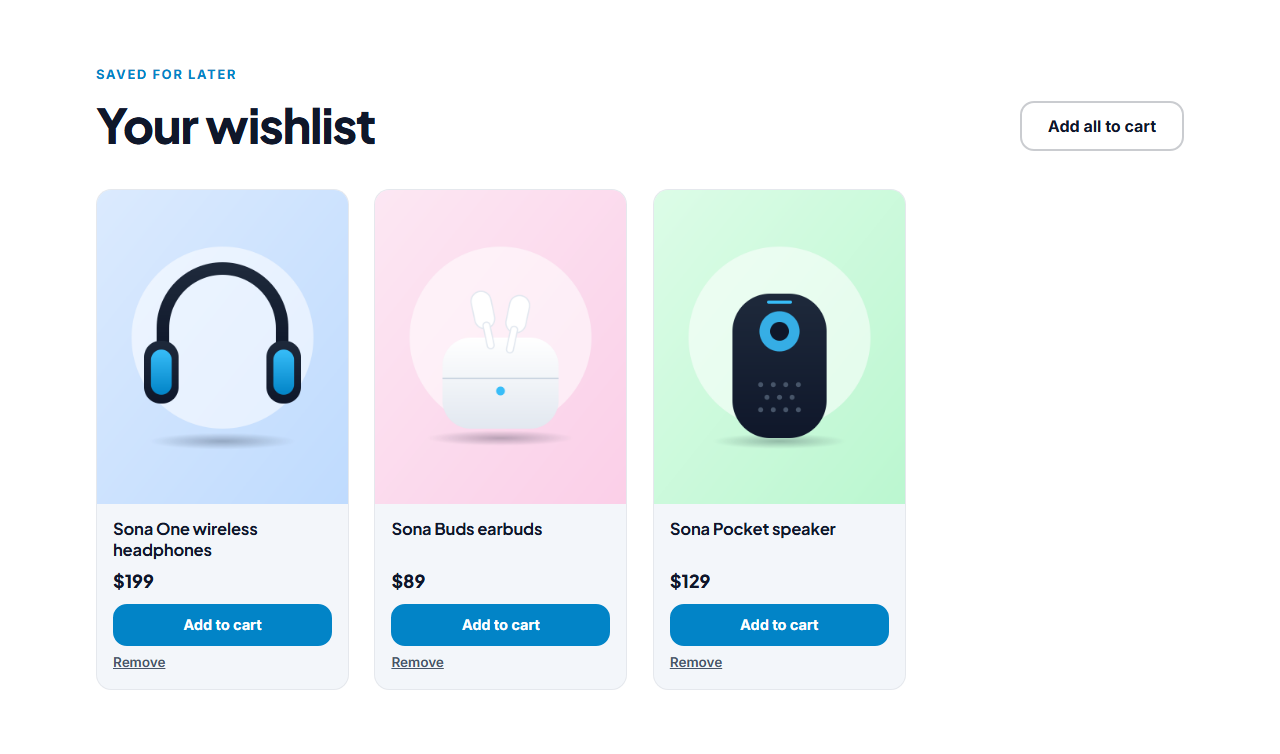
Wishlist Page
Responsive · HTML, React & Vue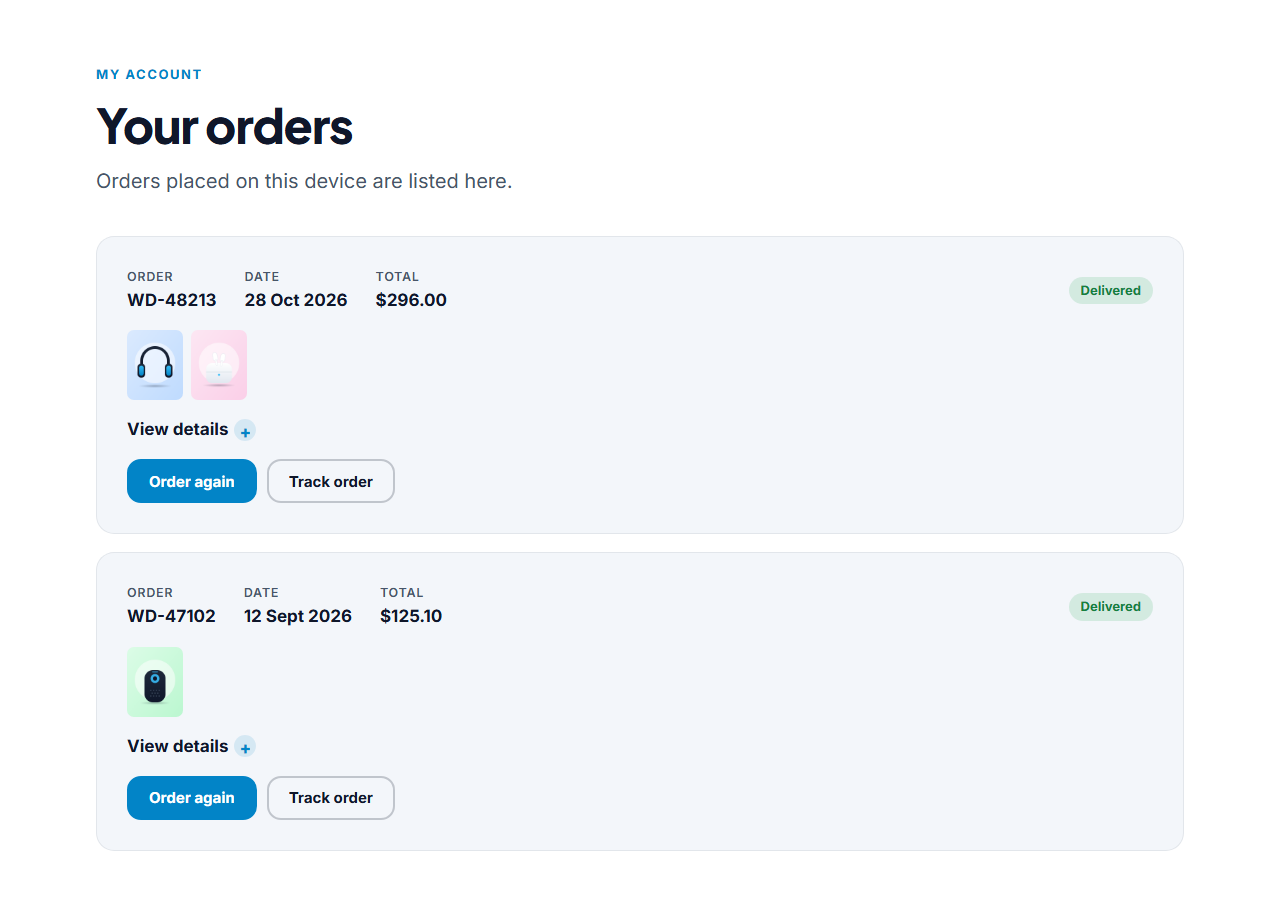
Order History (My Orders)
Responsive · HTML, React & Vue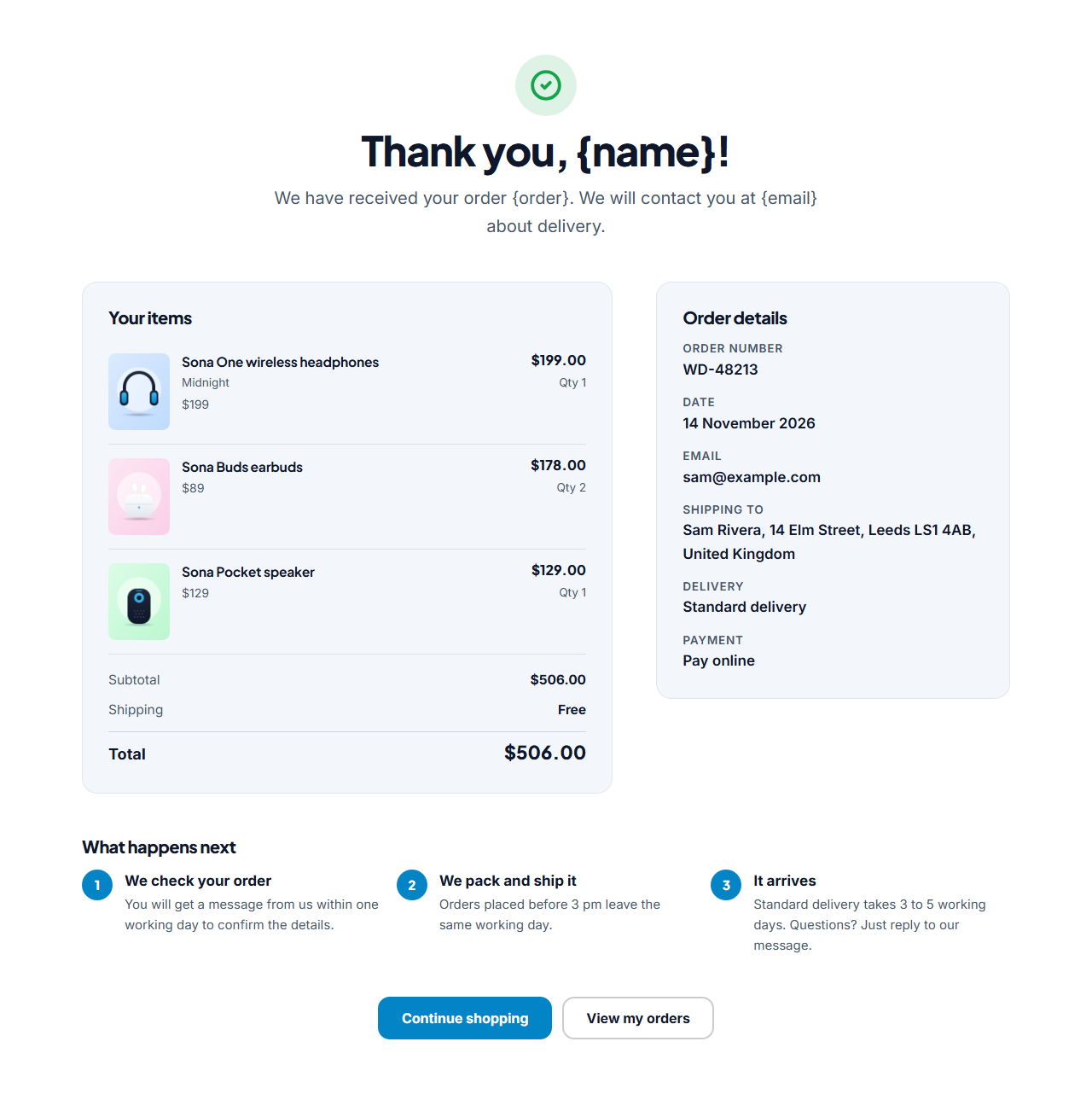
Order Confirmation (Thank You)
Responsive · HTML, React & Vue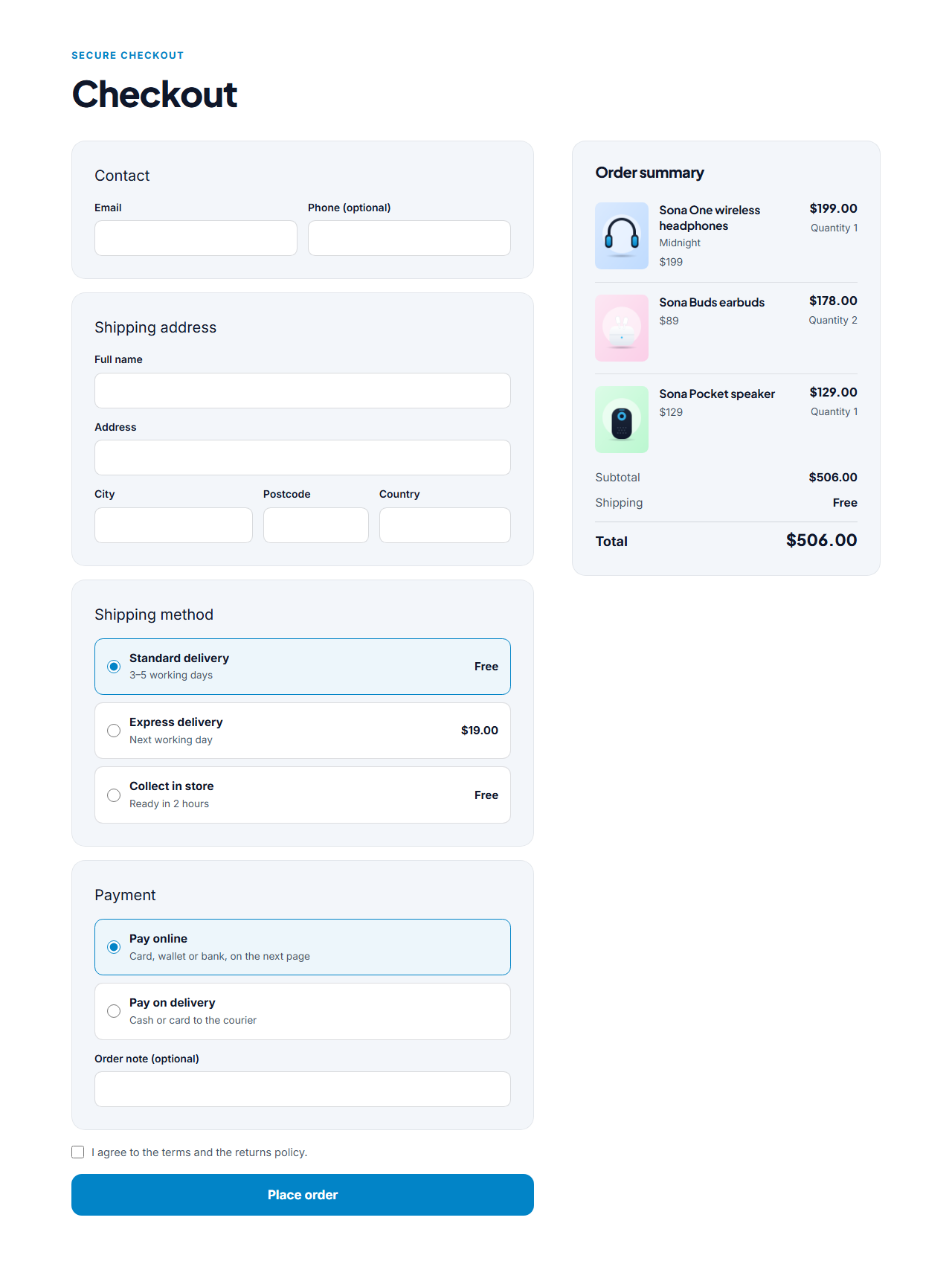
Checkout Page
Responsive · HTML, React & Vue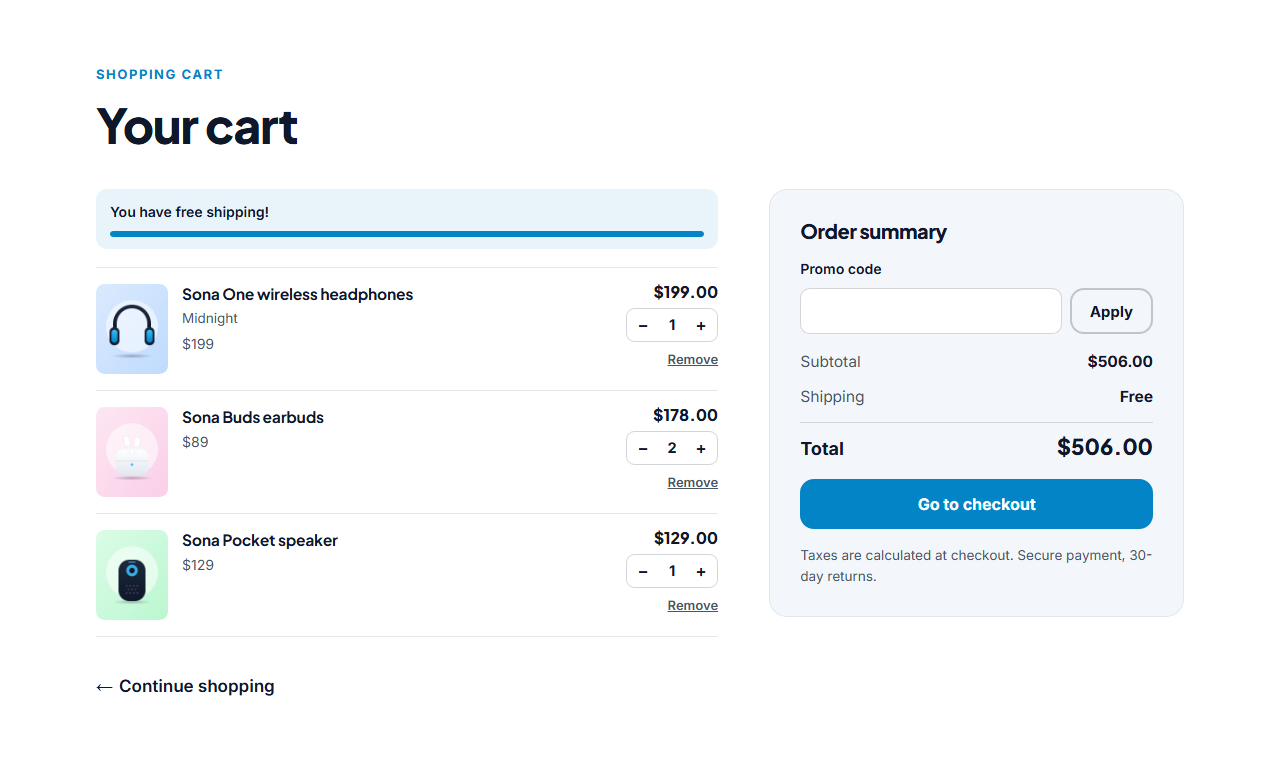
Cart Page
Responsive · HTML, React & VueCart, Checkout & Orders
5 sections · Responsive · GSAP animation · HTML, React & Vue
About these sections
Cart, Checkout & Orders
A shop is more than a product page. These sections are the pages after Add to cart, all sharing one small cart that lives in the visitor's browser, so they work on a static site with no server and no account.
The Cart Page shows the items with quantity steppers, a free-shipping bar, a promo code box and a sticky order summary. The Checkout Page collects contact details, an address, a shipping method and a payment option, then sends the order to your form service or WhatsApp, or on to a payment link, with no card fields on your page. The Order Confirmation thanks the shopper and shows the saved order and what happens next.
The Order History lists past purchases with an Order again button, and the Wishlist Page keeps the products shoppers saved with the heart. The slide-in Cart Drawer and the Product Listing, Product Detail and Product Strip complete the shop, and the Online Store website template joins them all.
Be clear about the limits: there is no stock control, tax engine or order management in the plain version, so for a large catalogue use a hosted shop platform and keep these pages as the design.
Cart Page: The full shopping cart page. The shopper's items sit on the left with photos, options, quantity steppers and Remove links, above a free-shipping progress bar. On the right a sticky order summary shows the subtotal, a promo code that you define, the shipping cost and the total, with a Checkout button. It reads the shared cart saved in the visitor's browser, so it works with the Product Detail, Product Grid and Cart Drawer sections.
Checkout Page: A clean one-page checkout. The shopper gives contact details and a shipping address, picks a shipping method and a payment option, and sees the order summary beside the form. When they press Place order the page sends the order to your form service (Formspree and similar), opens WhatsApp with the order text or goes to your payment link (Stripe, PayPal, Razorpay), then shows the confirmation page. There are no card fields: payment is handled by the service you choose.
Order Confirmation (Thank You): The page shoppers land on after checkout. A big check mark and a thank-you message, the order number, the items they bought with photos, the totals, the shipping address, method and payment choice, and a "what happens next" list. It reads the order saved by the Checkout Page, so every shopper sees their own order, and it offers links to keep shopping and to view their orders.
Order History (My Orders): A "My orders" page for past purchases. Each order is a card with the order number, date, status and total, a row of product photos, and a details view with every item, the totals, the delivery address and the payment choice. An Order again button puts the same items back in the cart, and an optional Track order link points to your tracking page. Orders come from the Checkout Page and are saved in the shopper's browser, so no account is needed.
Wishlist Page: A wishlist page for the products a shopper saved with the heart button. Each saved product is a card with its photo, name and price, an Add to cart button and a Remove link, with an Add all to cart action at the top. The wishlist is kept in the visitor's browser, so no account is needed, and the heart on the Product Detail, Product Grid and mega menu stays in sync with it.
Browse other categories
More Section Categories
| Category | What it is for | Sections | Includes |
|---|---|---|---|
| Hero | Above-the-fold hero sections with a headline, supporting text, call-to-action buttons and an image, screenshot or background photo. | 5 | SaaS Split Hero, Centred Gradient Hero, Image Background Hero, App Product Hero, Personal Portfolio Hero |
| Navbar | Responsive navigation bars with a logo, links and a call-to-action button. | 6 | Simple Sticky Navbar, Floating Pill Navbar, Navbar With Announcement Bar, Ecommerce Mega Menu — Link Columns, Ecommerce Mega Menu — Image Tiles, Ecommerce Mega Menu — Department Sidebar |
| Features | Feature grids, alternating image-and-text rows and benefit lists. | 5 | Icon Grid Features, Split Features With Image, Bento Grid Features, Alternating Feature Rows, How It Works Steps |
| Pricing | Pricing tables and plan cards with highlighted plans and feature lists. | 5 | Three-Tier Pricing, Dark Glow Pricing, Single Plan Pricing, Pricing List Rows, Pricing Comparison Table |
| Testimonials | Customer quotes, review walls and case-study highlights. | 6 | Testimonial Wall, Testimonial Carousel, Testimonial Marquee, Testimonial Spotlight, Case Study Showcase, Reviews Summary & Rating |
| FAQ | Frequently asked question sections with expandable answers. | 3 | FAQ Accordion, Split FAQ With Contact Card, FAQ Grid |
| Call to action | Closing call-to-action banners and sign-up blocks. | 5 | Gradient CTA Banner, Split CTA With Image, Newsletter Signup CTA, CTA Strip, Loyalty Stamp Card |
| Stats & logos | Social-proof numbers and customer logo strips. | 3 | Animated Stats Counters, Scrolling Logo Cloud, Stats With Logos (Dark) |
| Team | Team grids with photos, names and roles. | 4 | Team Grid, Team Carousel, Interactive Team Accordion, Team With Hiring CTA |
| About us | About us and our story sections: a picture, the story, the founder, key facts and company values. | 1 | About Us & Our Story |
| Contact | Contact sections with details, maps and forms. | 5 | Contact Form With Details, Contact Options Cards, Contact With Map, Booking Request Form, Opening Hours & Location |
| Forms | Forms for every job: contact, multi-step, quote request, survey, application, RSVP, support, donation, waitlist and code verification, with floating labels, selects, switches, ratings, steppers and file drop areas. | 13 | Centered Contact Form, Floating Label Form, Multi-Step Form, Quote Request Form, Feedback Survey Form, Job Application Form, Event RSVP Form, Support Ticket Form, Donation Form, Waitlist Form, Verification Code Form, Profile & Preferences Form, Form With Image |
| Blog | Blog and article grids with cover images. | 6 | Blog Post Cards, Featured Post With List, Editorial Post List, Legal & Long-Form Text Page, Blog Post Page (Single Article), Blog Grid with Pagination |
| Gallery & media | Photo galleries with filters and a lightbox, video sections and before-and-after sliders. | 3 | Filterable Image Gallery, Video Section with Poster, Before & After Slider |
| Scroll effects | Scroll-driven sections built with GSAP: horizontal scroll galleries, pinned scroll stories and stacking cards. | 6 | Horizontal Scroll Gallery, Pinned Scroll Story, Stacking Cards, Scroll Path Timeline, 3D Scroll Carousel, Scroll Zoom Image Stack (Ken Burns) |
| Menus & listings | Industry sections: restaurant menus with prices, property listings and class timetables. | 9 | Shop the Look, Collection Tiles, Restaurant Menu, Property Listings, Product Grid, Product Detail Page, Product Listing with Filters, You Might Also Like (Product Strip), Class Timetable |
| Music | Sections for bands, artists and labels: a music hero, an audio player with a track list, tour dates with tickets, a discography grid, a release countdown and streaming links. | 6 | Music Artist Hero, Audio Player & Track List, Tour Dates & Tickets, Discography Grid, New Release Spotlight, Streaming Links Bar |
| Login & Sign up | Login and register screens with email and password, social sign-in buttons, show password and a password strength hint. | 2 | Login Form (Sign In Page), Register Form (Sign Up Page) |
| Popups | Popups that open after a delay, on exit intent or on scroll, for sign-ups, offers and announcements. | 1 | Popup & Promo Modal |
| Accessibility | Floating accessibility toolbars that let visitors enlarge text, change contrast, hide images, pause animations and more. | 1 | Accessibility Toolbar Widget |
| Cursor & page effects | Page-wide effects that take no space in the layout: cursor followers that invert what is under them, floating back-to-top buttons and a slide-in cart drawer. | 3 | Cursor Follower (Blend Mode Circle), Back to Top Button, Cart Drawer (Mini Cart) |
| Timelines | Timelines for company history, roadmaps and milestones, laid out along a scrollable line. | 1 | Horizontal Timeline |
| Social share | Floating social share bars that take no space in the layout, with share buttons for the popular networks. | 1 | Floating Social Share Bar |
| Footer | Website footers with link columns, newsletter sign-up and social links. | 4 | Multi-Column Footer, Big Wordmark Footer, Footer With Newsletter, Minimal Footer |
Real-world uses
Best Uses for Cart, checkout & orders Sections
How it’s different
How These Section Templates Are Different
Step by step
How to Use
- 1Pick a sectionOpen one of the cart, checkout & orders sections above. Your edits autosave in your browser as you go.
- 2Edit the contentChange the text, buttons, links and images in the panel, and switch optional parts on or off.
- 3Add your brandPick colours, fonts, radius and width, or apply your saved brand kit; every section shares the same theme.
- 4Animate and previewChoose a GSAP entrance effect, press Play animation, and check desktop, tablet and mobile.
- 5ExportDownload HTML or a ZIP, copy a React or Vue component, or fork it into My Code.
Got questions?
Frequently Asked Questions
No. The checkout never shows card fields. It sends the order to a form service or WhatsApp, or sends the shopper to a payment link from Stripe, PayPal or Razorpay, which take the payment securely.
In the browser of the visitor (localStorage), shared by every shop section on your site. It works without an account or a server, but it is not shared between devices.
Yes, but they are designed to work together: Add to cart fills the cart, the drawer and cart page show it, the checkout saves the order and the confirmation and history pages read it.
Cart Page: The full shopping cart page. The shopper's items sit on the left with photos, options, quantity steppers and Remove links, above a free-shipping progress bar. On the right a sticky order summary shows the subtotal, a promo code that you define, the shipping cost and the total, with a Checkout button. It reads the shared cart saved in the visitor's browser, so it works with the Product Detail, Product Grid and Cart Drawer sections. Checkout Page: A clean one-page checkout. The shopper gives contact details and a shipping address, picks a shipping method and a payment option, and sees the order summary beside the form. When they press Place order the page sends the order to your form service (Formspree and similar), opens WhatsApp with the order text or goes to your payment link (Stripe, PayPal, Razorpay), then shows the confirmation page. There are no card fields: payment is handled by the service you choose. Order Confirmation (Thank You): The page shoppers land on after checkout. A big check mark and a thank-you message, the order number, the items they bought with photos, the totals, the shipping address, method and payment choice, and a "what happens next" list. It reads the order saved by the Checkout Page, so every shopper sees their own order, and it offers links to keep shopping and to view their orders. Order History (My Orders): A "My orders" page for past purchases. Each order is a card with the order number, date, status and total, a row of product photos, and a details view with every item, the totals, the delivery address and the payment choice. An Order again button puts the same items back in the cart, and an optional Track order link points to your tracking page. Orders come from the Checkout Page and are saved in the shopper's browser, so no account is needed. Wishlist Page: A wishlist page for the products a shopper saved with the heart button. Each saved product is a card with its photo, name and price, an Add to cart button and a Remove link, with an Add all to cart action at the top. The wishlist is kept in the visitor's browser, so no account is needed, and the heart on the Product Detail, Product Grid and mega menu stays in sync with it.
Yes. Every section is free for personal and commercial work, with no account, no watermark and no attribution: export it on its own as HTML, React, Vue or Next.js from its page, or use it in a website you build and export in the Website Builder.