
Desktop · 1280px · shown at 0% · edit the text, images and colours in the panel


Services & Booking List — Free Website Section Template
Menus & listings · v1.0.0 · Updated 2026-11-15 · Responsive · GSAP animation · HTML, React & Vue
Extend with AI
Take This Section Further With AI
If your prices live in practice software, an AI assistant can load the list from its API, pre-fill the booking form with the service someone chose, or highlight the most booked service with a badge.
Prompt to recreate it
Copy this into your AI assistant of choice to build the effect from scratch, or as a jumping-off point for your own variant:
Create a services and prices section in HTML, CSS and JavaScript.

- A centered heading and intro, then a row of filter chips ("All services" plus one chip per category) and a vertical list of service cards.
- Each card is a grid: a round icon on the left; the service name, a one-sentence description and two small chips (a clock with the duration, and the category) in the middle; and on the right the price ("from $65") with a "Book" button below it.
- The chips are buttons with aria-pressed. Choosing one hides the cards of other categories; the first chip shows all. With a single category show no chips.
- Add JSON-LD with an ItemList of Service items and an Offer for each price. On phones, move the price and button to a full-width row under the text.
Want to tighten it up first? Run this prompt through the AI Prompt Studio to score it across 8 quality dimensions, catch anti-patterns, and tune the wording for Claude, ChatGPT, or Gemini before you paste it in.
What's included
Features
About this section
Services & Booking List — Free Price List Section
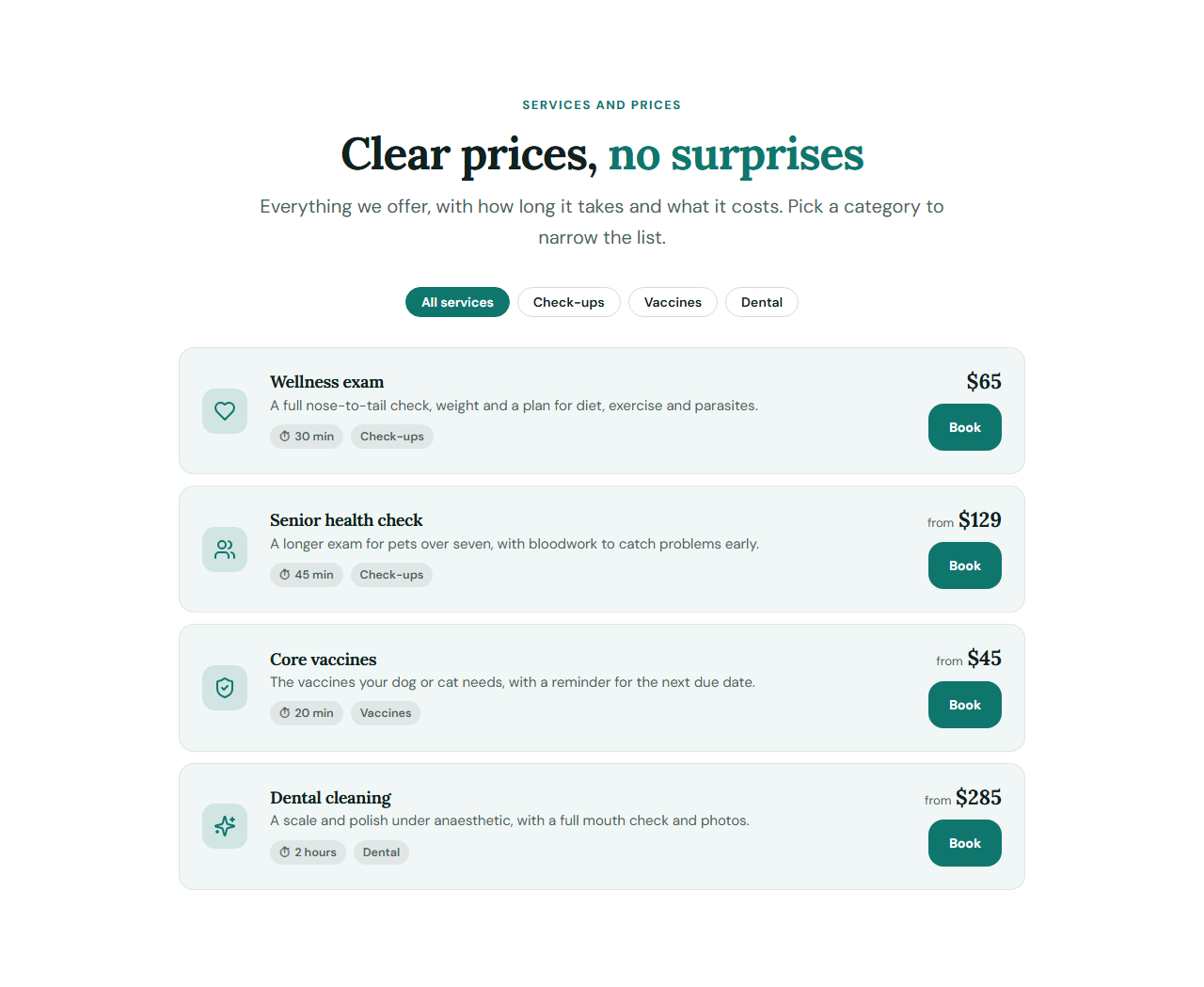
Services & Booking List is the price list appointment businesses need and rarely have. Each service is a clear row: an icon, the name and a short description, a duration chip such as "30 min", a price such as "from $65" and a Book button that links to your booking form or calendar. Visitors see what you offer, how long it takes and what it costs before they pick up the phone.
Filter chips from your own categories
Type a category for each service, for example Check-ups, Vaccines, Dental or Surgery, and the section builds a row of filter chips automatically. A tap shows only that category and a second chip, "All services", brings the full list back. With a single category there are no chips, and without JavaScript every service simply shows.
Honest prices
The price field takes a symbol and a number, with an optional word before it such as "from", so you can show a fixed price or a starting price. The same numbers are written into schema.org Service data with an Offer, which helps search engines understand your list. Only publish prices you really charge.
Made for booking
Every row has its own link, so Book can open a booking form on the same page, a calendar tool or a phone call. In the Veterinary Clinic template the Book buttons jump to an appointment request form.
From price list to appointment
The Book button on each row can open a booking form on the same page, a calendar tool or a phone call, and the structured data travels with the export, so search engines still read your prices. Put live Opening Hours next to it and a booking form below it, as the Veterinary Clinic website template does.
Writing a price list people trust
Group services into three to five categories, put the most-booked one first, and keep descriptions to a sentence. Say what is included, and note when the price depends on the pet, the size or the time needed.
Why use it
Why Use the Services & Booking List
How it’s different
How It’s Different From Other Free Section Templates
Step by step
How to Use
- 1Edit the contentFill in the heading, services and labels in the panel. Wrap words in *asterisks* to colour them.
- 2Add your imagesUpload your own images (resized in your browser and kept on your device) or paste a hosted image URL.
- 3Match your brandPick a colour preset or exact colours, choose heading and body fonts from Google Fonts or your own uploaded font, set the corner radius and width, or apply your brand kit.
- 4Animate and previewChoose a GSAP entrance effect and speed, press Play animation, and check the section on desktop, tablet and mobile.
- 5Save and exportSave it to My designs, then export a single HTML file, a ZIP with your images, a React or Vue component, or fork it into My Code.
Real-world uses
Common Use Cases
In real websites
Website Templates That Use the Services & Booking List Section
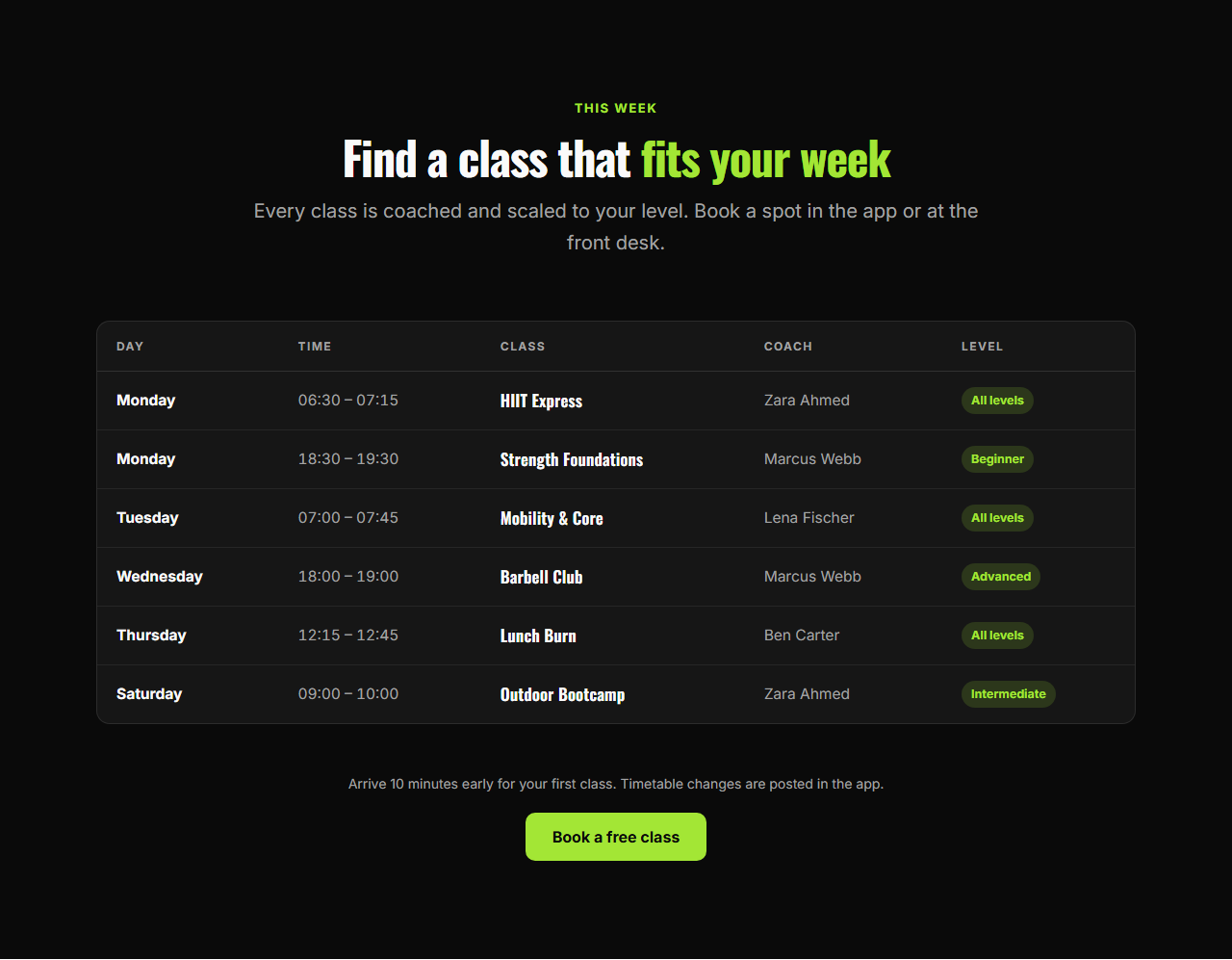
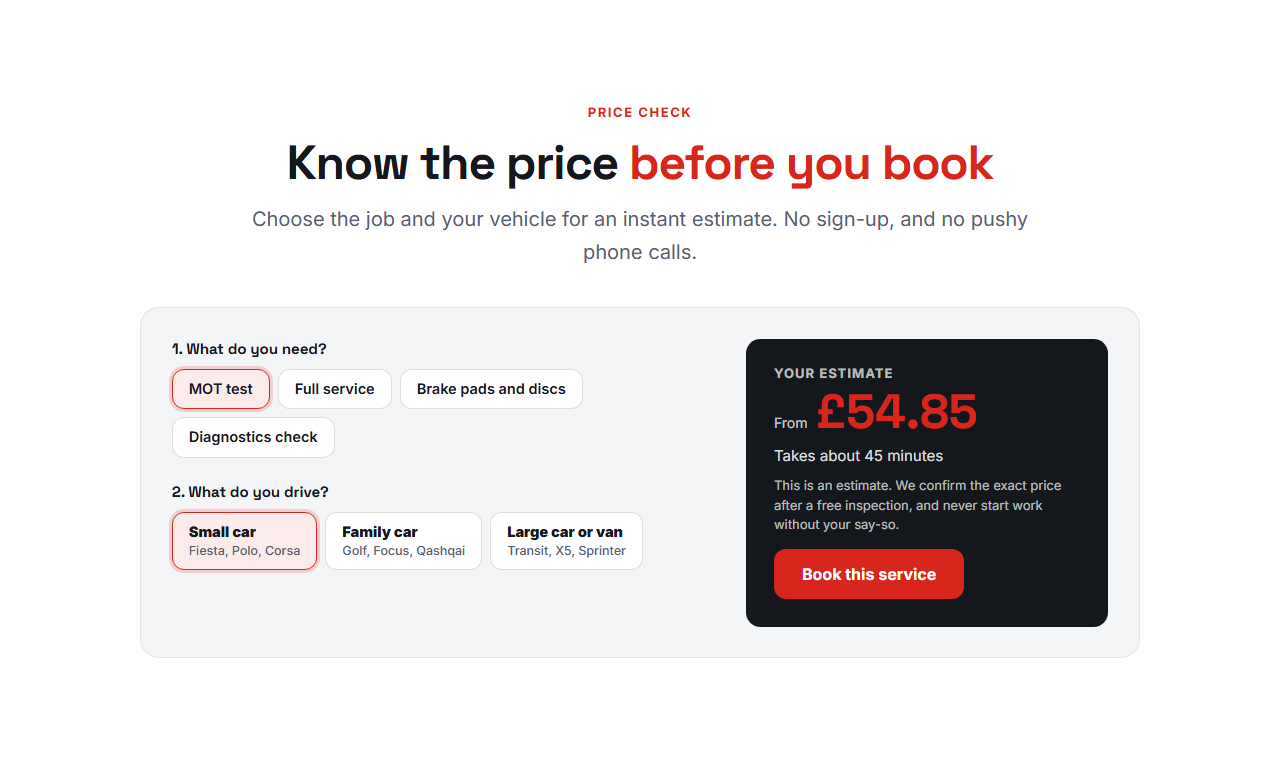
The Services & Booking List section is part of 3 complete website templates in the free Website Builder, so you can see it in a full page before you use it on its own: Veterinary & Pet Clinic Website, Auto Repair Garage Website, Plumber & Heating Engineer Website. Open any of them in the builder to edit the whole page, or keep customising this section by itself.
Got questions?
Frequently Asked Questions
They are created from the category typed on each service. Choosing a chip shows only that category, and the first chip shows everything again. With only one category no chips are shown.
Yes. Type a word such as "from" in the field before the price. The price itself should be a symbol and a number, such as $65 or £40, so search engines can read it.
Wherever you link it: a booking form on the same page, a calendar tool, a phone number or an email. Each service has its own link.
Yes. Each service is written as schema.org Service data with an Offer price and its category, which helps search engines understand your price list.
It saves an editable copy of your Services & Booking List in My Code, the UI Snippets code editor: the section markup goes in the HTML panel, its CSS (theme variables, base styles and layout) in the CSS panel, and the GSAP library is added as a CDN link, so you can keep refining the code and save your own versions.
Yes. Every section is free for personal and commercial work, with no account, no watermark and no attribution: export it on its own as HTML, React, Vue or Next.js from its page, or use it in a website you build and export in the Website Builder.