
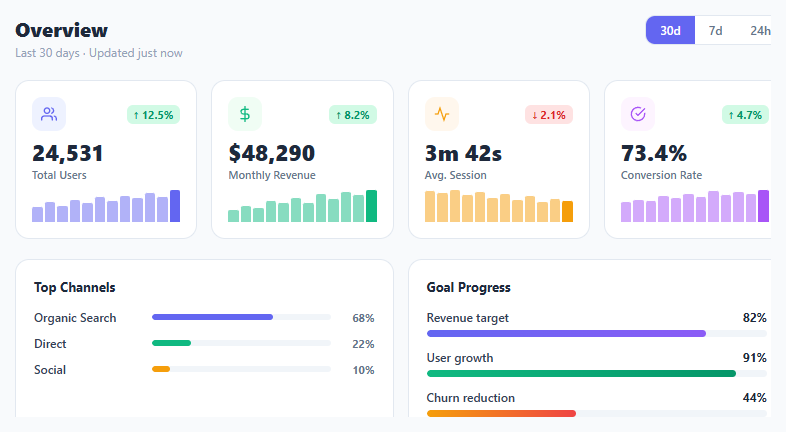
Metric KPI Card Grid

Interact.js Draggable and Resizable Dashboard Panels with Snapping
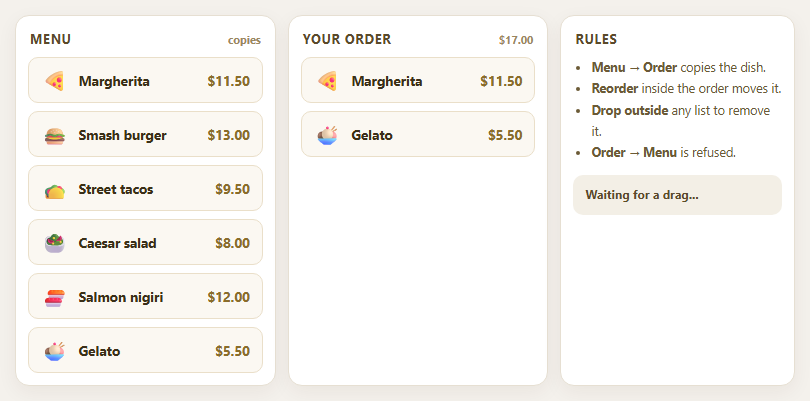
Dragula Copy vs Move Lists with Spill Control

SortableJS Shared Groups: Clone from a Palette into a Page Builder

SortableJS Drag Handle with Pinned and Locked Rows
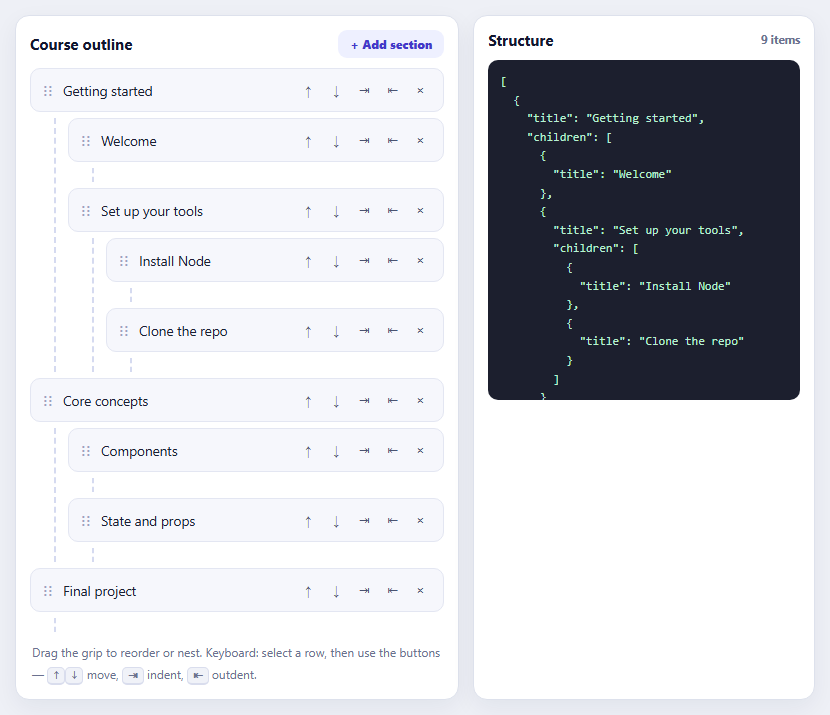
SortableJS Nested Sortable Tree with Keyboard Controls
AI Token Usage Meter — Free Prompt/Completion Usage Bar Snippet
AI Token Usage Meter · Dashboards · Plain HTML, CSS & JS · Live preview
Copy & paste
Source Code
<div class="tum-card">
  <div class="tum-head">
    <div>
      <h3>Token usage</h3>
      <p>This billing period · <span id="tumLimitLabel">50,000</span> token plan</p>
    </div>
    <span class="tum-badge" id="tumBadge">Healthy</span>
  </div>

  <div class="tum-count">
    <span id="tumUsed">0</span>
    <span class="tum-of">/ <span id="tumLimit">50,000</span> tokens</span>
  </div>

  <div class="tum-track">
    <div class="tum-seg tum-prompt" id="tumPromptSeg" style="width:0%"></div>
    <div class="tum-seg tum-completion" id="tumCompletionSeg" style="width:0%"></div>
  </div>

  <div class="tum-legend">
    <span><i class="tum-dot tum-dot-prompt"></i>Prompt <b id="tumPromptVal">0</b></span>
    <span><i class="tum-dot tum-dot-completion"></i>Completion <b id="tumCompletionVal">0</b></span>
  </div>

  <div class="tum-warning" id="tumWarning" hidden>
    You're approaching your token limit for this period. Requests may be throttled once you reach 100%.
  </div>

  <div class="tum-actions">
    <button type="button" id="tumSimulate">Simulate request</button>
    <button type="button" id="tumReset" class="tum-ghost">Reset</button>
  </div>
</div>*{box-sizing:border-box;margin:0;padding:0}
body{font-family:system-ui,-apple-system,sans-serif;background:#0b0f19;min-height:100vh;display:flex;align-items:center;justify-content:center;padding:24px}
.tum-card{background:#111827;border:1px solid #1f2937;border-radius:16px;padding:22px;width:100%;max-width:420px;box-shadow:0 18px 44px rgba(0,0,0,.4)}
.tum-head{display:flex;align-items:flex-start;justify-content:space-between;margin-bottom:16px}
.tum-head h3{font-size:16px;font-weight:800;color:#f8fafc}
.tum-head p{font-size:11.5px;color:#6b7280;margin-top:3px}
.tum-badge{font-size:10.5px;font-weight:800;padding:4px 10px;border-radius:999px;text-transform:uppercase;letter-spacing:.03em;background:rgba(52,211,153,.14);color:#34d399;white-space:nowrap}
.tum-badge.warn{background:rgba(251,191,36,.14);color:#fbbf24}
.tum-badge.over{background:rgba(248,113,113,.16);color:#f87171}
.tum-count{display:flex;align-items:baseline;gap:6px;margin-bottom:10px}
.tum-count span#tumUsed{font-size:30px;font-weight:800;color:#f1f5f9;font-variant-numeric:tabular-nums}
.tum-of{font-size:13px;color:#6b7280}
.tum-track{position:relative;height:12px;border-radius:999px;background:#1f2937;overflow:hidden;display:flex}
.tum-seg{height:100%;transition:width .4s cubic-bezier(.4,0,.2,1)}
.tum-prompt{background:#818cf8}
.tum-completion{background:#34d399}
.tum-track.warn .tum-prompt{background:#fbbf24}
.tum-track.warn .tum-completion{background:#f59e0b}
.tum-track.over .tum-prompt,.tum-track.over .tum-completion{background:#f87171}
.tum-legend{display:flex;gap:18px;margin-top:10px;font-size:11.5px;color:#9ca3af}
.tum-legend b{color:#e5e7eb;font-weight:700;margin-left:4px}
.tum-dot{display:inline-block;width:8px;height:8px;border-radius:50%;margin-right:6px}
.tum-dot-prompt{background:#818cf8}
.tum-dot-completion{background:#34d399}
.tum-warning{margin-top:14px;background:rgba(251,191,36,.1);border:1px solid rgba(251,191,36,.3);border-radius:10px;padding:10px 12px;font-size:12px;color:#fde68a;line-height:1.5}
.tum-warning[hidden]{display:none}
.tum-actions{display:flex;gap:8px;margin-top:18px;border-top:1px solid #1f2937;padding-top:14px}
.tum-actions button{flex:1;border:none;border-radius:8px;padding:10px;font-size:12.5px;font-weight:700;cursor:pointer;transition:background .15s}
#tumSimulate{background:#6366f1;color:#fff}
#tumSimulate:hover{background:#4f46e5}
.tum-ghost{background:#1f2937;color:#cbd5e1}
.tum-ghost:hover{background:#374151}var LIMIT = 50000;
var promptUsed = 0;
var completionUsed = 0;
var els = {
used: document.getElementById('tumUsed'),
limit: document.getElementById('tumLimit'),
limitLabel: document.getElementById('tumLimitLabel'),
badge: document.getElementById('tumBadge'),
promptSeg: document.getElementById('tumPromptSeg'),
completionSeg: document.getElementById('tumCompletionSeg'),
promptVal: document.getElementById('tumPromptVal'),
completionVal: document.getElementById('tumCompletionVal'),
warning: document.getElementById('tumWarning'),
track: document.querySelector('.tum-track'),
};
els.limit.textContent = LIMIT.toLocaleString();
els.limitLabel.textContent = LIMIT.toLocaleString();
function tier(pct) {
if (pct >= 100) return 'over';
if (pct >= 80) return 'warn';
return 'ok';
}
function render() {
var total = promptUsed + completionUsed;
var pct = Math.min(100, (total / LIMIT) * 100);
var t = tier((total / LIMIT) * 100);
els.used.textContent = total.toLocaleString();
els.promptVal.textContent = promptUsed.toLocaleString();
els.completionVal.textContent = completionUsed.toLocaleString();
var promptPct = total > 0 ? (promptUsed / LIMIT) * 100 : 0;
var completionPct = total > 0 ? (completionUsed / LIMIT) * 100 : 0;
els.promptSeg.style.width = Math.min(100, promptPct) + '%';
els.completionSeg.style.width = Math.min(100 - Math.min(100, promptPct), completionPct) + '%';
els.track.className = 'tum-track' + (t === 'ok' ? '' : ' ' + t);
els.badge.className = 'tum-badge' + (t === 'ok' ? '' : ' ' + t);
els.badge.textContent = t === 'over' ? 'Limit reached' : t === 'warn' ? 'Near limit' : 'Healthy';
els.warning.hidden = t === 'ok';
}
document.getElementById('tumSimulate').addEventListener('click', function () {
// Simulate one AI request: a modest prompt plus a larger completion.
var prompt = 300 + Math.floor(Math.random() * 900);
var completion = 600 + Math.floor(Math.random() * 1800);
promptUsed = Math.min(LIMIT, promptUsed + prompt);
completionUsed = Math.min(LIMIT - promptUsed, completionUsed + completion);
render();
});
document.getElementById('tumReset').addEventListener('click', function () {
promptUsed = 0;
completionUsed = 0;
render();
});
render();Extend with AI
Take This Snippet Further With AI
The AI prompt for this one is for Patreon supporters ($3 a month), along with a site with no ads. Supporters enter the passcode once and it is remembered in this browser.
What's included
Features
About this UI Snippet
AI Token Usage Meter — Segmented Prompt/Completion Bar with Live Warnings
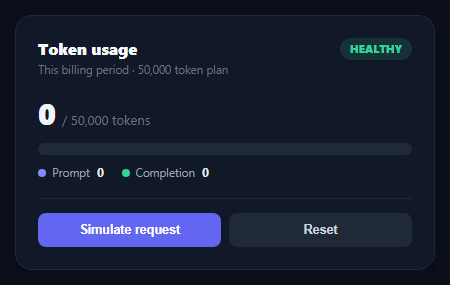
Any product billing by tokens — a chat app, an API platform, an IDE copilot — needs a way to show users how much of their allowance they've burned through before they hit a wall. This snippet builds a live token usage meter in plain HTML, CSS, and vanilla JavaScript: a segmented bar that splits usage into prompt tokens and completion tokens, a running counter, and a tiered warning state, all driven from two numbers.
Two segments, one bar
Most token-billed products separate prompt tokens (what you send) from completion tokens (what the model generates), often priced differently. Rather than two separate bars, render() draws both as adjacent segments of one track — tum-prompt in indigo, tum-completion in green — so the full picture of "where did my usage go" is visible in a single glance, with a small legend below reporting the exact split.
Simulate request, not a slider
Instead of a slider (which implies the user controls consumption directly), the demo exposes a "Simulate request" button that adds a randomized prompt/completion pair each click, the way a real request would land. This is closer to how token usage actually accrues — in discrete bursts from real calls — and makes the meter feel alive without needing a backend.
Tiered warning that changes the whole bar's color
Once total usage crosses 80% of the limit, both segments and the status badge shift from indigo/green to amber; at 100% they shift to red and a warning message appears explaining that requests may be throttled. The tier is computed once and applied everywhere — the badge, the bar segments, and the warning visibility — so nothing can disagree about the current state, the same pattern used in this library's quota usage meter.
Where this fits in an AI product
Place it in account settings next to an AI model comparison table so users understand both what a model costs and how much they've used, or pair it with an AI context window indicator — the usage meter tracks billing-period totals while the context indicator tracks the current conversation's window.
Customizing it
Swap the simulate button for a real event listener on your streaming response handler, wire LIMIT to the user's actual plan, and replace the random prompt/completion split with real numbers returned by your API's usage metadata.
Step by step
How to Use
- 1Paste HTML, CSS, and JSA dark "Token usage" card renders at 0 used against a 50,000 token limit.
- 2Click Simulate requestA randomized prompt/completion pair adds to the counter and the segmented bar fills.
- 3Watch the tiers changePast 80% the bar and badge turn amber; at 100% they turn red and a warning appears.
- 4Check the legendPrompt and completion totals report separately below the bar.
- 5Reset the demoClick Reset to zero out usage and try again.
- 6Wire up real dataReplace the simulate handler with your API's actual usage response.
Real-world uses
Common Use Cases
Got questions?
Frequently Asked Questions
Most token-billed AI products price prompt and completion tokens differently, and users often want to know which side of a request is driving their usage. Drawing them as adjacent segments of one track keeps the total usage readable at a glance while still exposing the split, with an exact breakdown in the legend below.
A slider implies the user directly controls how much they've used, which misrepresents how token billing actually works — usage accrues in discrete bursts from real API calls. The simulate button adds a randomized prompt/completion pair per click, mimicking that bursty accrual pattern more honestly than a continuous drag control.
A single tier() function classifies total usage as ok (under 80%), warn (80-99%), or over (100%+). That tier value drives the bar segment colors, the status badge, and whether the warning message is shown — all from one computed value, so they can never show conflicting states.
Replace the simulate button's random values with the actual prompt_tokens and completion_tokens your API returns per request (most LLM APIs include this in response metadata), accumulate them into promptUsed and completionUsed, and call render() after each request completes.
Track promptUsed and completionUsed as component state, derive the tier and segment widths with a computed value or useMemo, and call your update function whenever new usage data arrives from your API. The tier logic and markup structure port unchanged.