

Empty State with Sample Data Toggle — Free Dashboard UI (HTML/CSS/JS)
Empty State with Sample Data Toggle · Cards · Plain HTML, CSS & JS · Live preview
Copy & paste
Source Code
<div class="esd-card">
  <div class="esd-empty" id="esdEmpty">
    <div class="esd-illustration">
      <svg viewBox="0 0 64 64" fill="none" stroke="currentColor" stroke-width="1.6">
        <rect x="10" y="16" width="44" height="34" rx="4"/>
        <path d="M10 26h44"/>
        <path d="M20 34h10M20 40h16"/>
        <circle cx="46" cy="42" r="9" fill="#0f1420" stroke="#3b82f6"/>
        <path d="M46 38v8M42 42h8" stroke="#3b82f6"/>
      </svg>
    </div>
    <h3>No projects yet</h3>
    <p>Create your first project to start tracking tasks, or preview what it looks like with sample data.</p>
    <div class="esd-actions">
      <button type="button" class="esd-btn-primary" id="esdCreate">+ Create project</button>
      <button type="button" class="esd-btn-ghost" id="esdLoadSample">Load sample data</button>
    </div>
  </div>

  <div class="esd-populated" id="esdPopulated" hidden>
    <div class="esd-populated-head">
      <span class="esd-sample-tag">Sample data</span>
      <button type="button" class="esd-btn-ghost esd-clear" id="esdClear">Clear sample data</button>
    </div>
    <div class="esd-rows" id="esdRows"></div>
    <button type="button" class="esd-btn-primary esd-full-width" id="esdCreateFromSample">+ Create your first real project</button>
  </div>
</div>*{box-sizing:border-box;margin:0;padding:0}
body{font-family:system-ui,-apple-system,sans-serif;background:#0a0c12;min-height:100vh;display:flex;align-items:center;justify-content:center;padding:24px}
.esd-card{background:#10141e;border:1px solid #1f2534;border-radius:18px;padding:32px 28px;width:100%;max-width:420px;box-shadow:0 20px 50px rgba(0,0,0,.45)}
.esd-empty{display:flex;flex-direction:column;align-items:center;text-align:center;gap:6px}
.esd-illustration{width:64px;height:64px;color:#2f3850;margin-bottom:10px}
.esd-illustration svg{width:100%;height:100%}
.esd-empty h3{font-size:16.5px;font-weight:800;color:#f2f4fa}
.esd-empty p{font-size:12.5px;color:#79839c;line-height:1.5;max-width:290px;margin-top:4px;margin-bottom:20px}
.esd-actions{display:flex;flex-direction:column;gap:9px;width:100%}
.esd-btn-primary{background:#3b82f6;border:none;border-radius:10px;padding:11px;color:#fff;font-size:13px;font-weight:700;cursor:pointer;transition:background .15s}
.esd-btn-primary:hover{background:#2f6fd9}
.esd-btn-ghost{background:none;border:1px solid #262d40;border-radius:10px;padding:10px;color:#9aa4bf;font-size:12.5px;font-weight:700;cursor:pointer;transition:background .15s,border-color .15s,color .15s}
.esd-btn-ghost:hover{background:#171c2a;border-color:#333c56;color:#c7cfe6}
.esd-populated[hidden],.esd-empty[hidden]{display:none}
.esd-populated-head{display:flex;align-items:center;justify-content:space-between;margin-bottom:14px}
.esd-sample-tag{font-size:10px;font-weight:800;text-transform:uppercase;letter-spacing:.04em;padding:4px 9px;border-radius:999px;background:rgba(59,130,246,.14);color:#60a5fa}
.esd-clear{padding:6px 11px;font-size:11.5px}
.esd-rows{display:flex;flex-direction:column;gap:8px;margin-bottom:16px}
.esd-row{display:flex;align-items:center;gap:11px;padding:11px 12px;background:#151b28;border:1px solid #232a3c;border-radius:10px;opacity:.9}
.esd-row-dot{width:8px;height:8px;border-radius:999px;flex-shrink:0}
.esd-row-body{flex:1;min-width:0}
.esd-row-title{font-size:13px;font-weight:700;color:#dbe1f0;white-space:nowrap;overflow:hidden;text-overflow:ellipsis}
.esd-row-meta{font-size:11px;color:#69728c;margin-top:2px}
.esd-row-badge{font-size:10px;font-weight:700;padding:3px 8px;border-radius:999px;background:#1e2536;color:#8b94ac;white-space:nowrap}
.esd-full-width{width:100%}var SAMPLE_ROWS = [
{ title: 'Website relaunch', meta: '6 tasks · updated 2 days ago', status: 'In progress', color: '#3b82f6' },
{ title: 'Q3 marketing plan', meta: '3 tasks · updated 5 days ago', status: 'On track', color: '#34d399' },
{ title: 'Mobile app v2', meta: '11 tasks · updated 1 day ago', status: 'At risk', color: '#f87171' },
];
var emptyEl = document.getElementById('esdEmpty');
var populatedEl = document.getElementById('esdPopulated');
var rowsEl = document.getElementById('esdRows');
function renderSampleRows() {
rowsEl.innerHTML = SAMPLE_ROWS.map(function (r) {
return '<div class="esd-row">' +
'<span class="esd-row-dot" style="background:' + r.color + '"></span>' +
'<span class="esd-row-body">' +
'<span class="esd-row-title">' + r.title + '</span>' +
'<span class="esd-row-meta">' + r.meta + '</span>' +
'</span>' +
'<span class="esd-row-badge">' + r.status + '</span>' +
'</div>';
}).join('');
}
function showSample() {
renderSampleRows();
emptyEl.hidden = true;
populatedEl.hidden = false;
}
function showEmpty() {
emptyEl.hidden = false;
populatedEl.hidden = true;
}
document.getElementById('esdLoadSample').addEventListener('click', showSample);
document.getElementById('esdClear').addEventListener('click', showEmpty);
// Both "create" buttons represent the real creation flow — wire these to your actual create-project action.
document.getElementById('esdCreate').addEventListener('click', function () {
alert('Wire this up to your real "create project" flow.');
});
document.getElementById('esdCreateFromSample').addEventListener('click', function () {
alert('Wire this up to your real "create project" flow.');
});Extend with AI
Take This Snippet Further With AI
The AI prompt for this one is for Patreon supporters ($3 a month), along with a site with no ads. Supporters enter the passcode once and it is remembered in this browser.
What's included
Features
About this UI Snippet
Empty State with Sample Data Toggle — Let New Users Preview Before They Commit
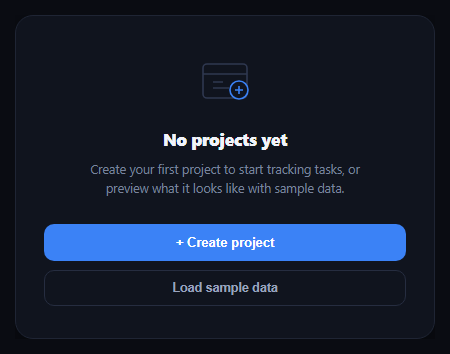
A first-run empty state has one job: get the user to create their first real thing. But a blank "No projects yet" screen with a single button asks for commitment before the user has any idea what the feature actually looks like in use. This snippet solves that with a secondary "Load sample data" action that swaps the empty state for a small, clearly-labeled preview of a populated view — letting a new user see the feature working before they invest effort in setting it up themselves.
Two states, one toggle
The card has exactly two states — an empty illustration-and-CTA view, and a populated preview with 2–3 fake rows — controlled by simple hidden attribute toggles in showSample() and showEmpty(). There's no partial or ambiguous state in between; either the empty state or the sample view is visible, never both, which keeps the interaction easy to reason about and easy to test.
Clearly marked as a sample
The populated view carries a persistent "Sample data" tag in its header so a user can never mistake the preview rows for their real, saved data — a mistake that would be confusing and potentially destructive if they later tried to "delete" one of the fake rows. A "Clear sample data" action sits right next to that tag, so returning to the empty state is always one click away and clearly labeled as the inverse of "Load sample data."
A second path back to creation
The populated preview ends with its own "Create your first real project" button — because seeing the feature in action is often exactly what convinces a hesitant user to commit. Rather than making them clear the sample data first and re-find the original CTA, the creation action is available directly from the state that sold them on it.
Realistic but obviously fake data
The sample rows use varied, plausible content (different statuses, task counts, and relative timestamps) rather than lorem-ipsum placeholders, because the whole point is to demonstrate what a *real*, in-use dashboard looks like — a grid of "Item 1, Item 2, Item 3" wouldn't sell the feature the way "Mobile app v2 · 11 tasks · at risk" does.
Where it fits
Pair it with an empty state for simpler no-CTA-needed cases, an onboarding checklist widget for the broader first-run flow, or empty-state-ai-suggestions for an AI-assisted variant of the same "help them get started" problem.
Customizing it
Swap the illustration and copy for your own resource type (contacts, invoices, campaigns), adjust the sample row count, or auto-clear the sample data after a set time or on the user's first real save so it never lingers past its usefulness.
Step by step
How to Use
- 1Paste HTML, CSS, and JSA "No projects yet" empty state renders with two actions.
- 2Click Load sample dataThe empty state swaps for 3 sample project rows, tagged "Sample data."
- 3Try the sample-view CTA"Create your first real project" is available directly from the preview.
- 4Click Clear sample dataThe view returns cleanly to the original empty state.
- 5Wire up the create actionsReplace the alert() calls with your real project-creation flow.
- 6Swap in your resourceAdjust the illustration, copy, and sample rows for your own data type.
Real-world uses
Common Use Cases
Got questions?
Frequently Asked Questions
The populated preview always carries a visible "Sample data" tag in its header, distinct from any real content styling, and a "Clear sample data" button sits directly next to it — so a user always knows they're looking at a preview and always has an obvious, adjacent way back to the empty state.
In this snippet the sample rows are display-only (no edit or delete controls), which is the safest default. If you add interactivity to sample rows, keep the "Sample data" tag visible at all times and consider disabling destructive actions specifically on sample content.
Seeing the feature working with realistic content is often what convinces a hesitant user to invest the effort of creating their first real item — so the CTA is placed directly in the state that just sold them on the feature, rather than requiring them to clear the sample data first and hunt for the original button.
Generally no — an explicit toggle keeps the user in control and avoids ambiguity about whether what they're seeing is real. If you want a zero-click preview, consider auto-loading it only on a true first visit and pairing it with an even more prominent "this is sample data" treatment.
Track a single boolean (e.g. showSample) in component state instead of toggling hidden attributes directly, and conditionally render the empty or populated block based on it. The SAMPLE_ROWS array and its rendering map over directly into JSX or a template loop.