Environment Badge — Free HTML CSS JS DEV/STAGING/PROD Ribbon Snippet
Environment Badge · Buttons · Plain HTML, CSS & JS · Live preview
What's included
Features
About this UI Snippet
Environment Badge — Corner Ribbon, Favicon and Build Info for Dev, Staging and Prod
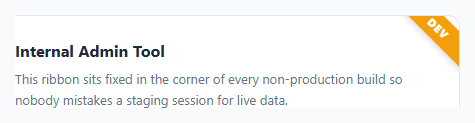
Internal tools that talk to real customer data are dangerous to confuse with a staging or dev copy — one wrong click in the wrong environment can send a real email, refund a real order, or delete real rows. This snippet is a small but high-value safety net: a diagonal corner ribbon, color-coded by environment, plus the extras developers actually want — hostname auto-detection, a colored favicon and tab title, and a one-click "copy build info" chip for bug reports.
How the diagonal ribbon is built
The badge is a single div with position: absolute inside a position: relative; overflow: hidden container (your app shell, in a real integration). It has a fixed width, centered text and transform: rotate(45deg), and sits at top: 24px; right: -46px. Because the width is fixed rather than driven by padding, the label is never clipped — "PRODUCTION" fits as comfortably as "DEV". pointer-events: none means the ribbon never steals a click from whatever is underneath it.
One CSS variable per environment
The container carries data-env="dev|staging|prod", and three tiny rules set --env (the color) and --env-ink (readable text color on top of it). The ribbon background, the 3px top edge of the page and the chip dot all read var(--env), so adding an environment is one CSS block and one entry in the ENVS object.
Detecting the environment automatically
detectEnv() maps the hostname to an environment: localhost, 127.x and *.local are dev; hosts containing staging, stg, qa or preview are staging; everything else is production. A ?env=staging query parameter overrides it for quick testing. In a real app, replace the demo's setEnv('dev') with setEnv(detectEnv()), or pass a value from a build-time variable such as process.env.NEXT_PUBLIC_ENV.
Beyond the ribbon: tab title, favicon and build info
setEnv() also prefixes the document title ([STG] Internal Admin Tool) and redraws the favicon as a dot in the environment color, so you can spot the wrong tab in a crowd of twelve. The build chip shows environment, branch, short commit and build number, and its Copy button puts a single line (env=staging branch=... commit=... build=... region=... host=...) on the clipboard — paste it straight into a bug report or Slack thread.
Show it in production?
Some teams render a badge in production so the *absence* of a dev/staging color is never an assumption; others render nothing at all. The "Show badge in production" checkbox shows the one-line switch: badge.hidden = env === 'prod' && !showProd.checked.
Step by step
How to Use
- 1Load the snippetClick "Environment Badge" in the sidebar Library tab to see the ribbon overlaying the mock app corner.
- 2Switch environmentsClick DEV, STAGING, or PRODUCTION to change the ribbon, the top edge color, the build chip, the tab title and the favicon together.
- 3Copy the build infoClick Copy on the chip to put env, branch, commit, build number, region and hostname on your clipboard for a bug report.
- 4Try hide-in-productionSelect PRODUCTION and untick "Show badge in production" to see the ribbon disappear while the rest keeps working.
- 5Add or rename environmentsAdd a [data-env="qa"] block in CSS that sets --env and --env-ink, then add a matching entry to the ENVS object in the JS panel.
- 6Wire it to the real environmentReplace setEnv('dev') with setEnv(detectEnv()) and feed the BUILD object from your CI (commit hash, build number, branch).
- 7Export and saveExport as HTML/JSX/Tailwind or click "Save as" to keep this in your personal snippet library.
Real-world uses
Common Use Cases
Got questions?
Frequently Asked Questions
A diagonal ribbon in the exact corner draws the eye without stealing significant screen real estate or covering important UI, while still being large and bold enough to notice immediately.
A plain div with a fixed width and centered text is positioned near the top-right corner and rotated 45 degrees with a CSS transform. The parent has overflow: hidden, which trims the band to a clean corner ribbon.
detectEnv() checks location.hostname: localhost, 127.x and *.local are dev, hostnames containing staging, stg, qa or preview are staging, and anything else is production. Adjust the two regular expressions to match your own domains, or pass a build-time environment variable instead.
Some teams do, so the badge state is always explicit rather than assumed. Others render nothing in production — set badge.hidden when env is "prod", as the checkbox in this demo does.
Developers keep many tabs open, and the corner ribbon is invisible on a background tab. A colored favicon dot and a [STG] title prefix make the wrong environment obvious from the tab strip alone.
Inject them at build time from your CI, for example the output of git rev-parse --short HEAD and your pipeline's build number, into a BUILD constant or public environment variables. The demo hard-codes sample values.
Yes — add a [data-env="qa"] CSS block that sets --env and --env-ink, and add a matching entry to the ENVS object in the JavaScript.
No. The ribbon has pointer-events: none, so clicks pass straight through to whatever is under it.
No — it is absolutely positioned and has no impact on the flow of surrounding content. It only requires the parent container to have position: relative (or fixed, for a viewport-anchored version).
Build with AI
Build, Understand, Optimize, and Extend It With AI
Ask an AI assistant to adapt the badge to your stack: have it write the detectEnv() hostname rules for your real domains, wire BUILD to your CI (GitHub Actions, GitLab CI or Vercel system variables), or turn the ribbon into a React or Vue component. It's also a good prompt for extending the idea — for example a QA environment, a region or tenant indicator, or a badge that warns when the page is pointed at a production API from a non-production host.
Prompt to recreate it
Copy this into your AI assistant of choice to build the effect from scratch, or as a jumping-off point for your own variant:
Build an "environment badge" for flagging non-production builds of an internal tool, in plain HTML, CSS and JavaScript.

Requirements:
- A diagonal corner ribbon: one absolutely positioned div with a fixed width and centered text, rotated 45 degrees in the top-right corner of a relatively positioned, overflow-hidden container. Labels like PRODUCTION must never clip. pointer-events: none.
- Three environments (DEV amber, STAGING indigo, PRODUCTION red) driven by a data-env attribute that sets --env and --env-ink CSS variables; the ribbon background, a 3px top edge on the page and a status dot all use var(--env).
- A config object ENVS (label and short code per environment) and a detectEnv() function that reads location.hostname (localhost/127.x/*.local = dev; staging|stg|qa|preview = staging; else prod) with a ?env= query override.
- setEnv(name) updates the data attribute, label, aria-label, document.title prefix such as [STG] (none in prod), and a canvas-drawn favicon in the environment color.
- A build info chip showing environment, branch, short commit and build number from a BUILD constant, with a Copy button that writes one line (env, branch, commit, build, region, host) to the clipboard and handles failure.
- A "show badge in production" option that sets badge.hidden.
- Demo buttons to preview all three states, with a comment that a real app should call setEnv(detectEnv()) once at startup.
Want to tighten it up first? Run this prompt through the AI Prompt Studio to score it across 8 quality dimensions, catch anti-patterns, and tune the wording for Claude, ChatGPT, or Gemini before you paste it in.
Source Code
<div class="demo-page" id="app" data-env="dev">
  <div class="env-badge" id="envBadge" role="status"><span id="envLabel">DEV</span></div>
  <div class="app-mock">
    <h3>Internal Admin Tool</h3>
    <p>This ribbon sits fixed in the corner of every non-production build so nobody mistakes a staging session for live data.</p>
    <div class="build-chip">
      <span class="chip-dot"></span>
      <code id="buildInfo"></code>
      <button type="button" id="copyBuild" aria-label="Copy build info for a bug report">Copy</button>
    </div>
  </div>
</div>
<div class="switcher" id="switcher">
  <button type="button" data-env="dev">DEV</button>
  <button type="button" data-env="staging">STAGING</button>
  <button type="button" data-env="prod">PRODUCTION</button>
</div>
<label class="opt"><input type="checkbox" id="showProd" checked> Show badge in production</label>
* { box-sizing: border-box; margin: 0; padding: 0; }
body { font-family: system-ui, sans-serif; background: #f8fafc; padding: 24px; display: flex; align-items: center; flex-direction: column; gap: 16px; justify-content: center; min-height: 100vh; }
/* One variable per environment drives the ribbon, the top edge and the chip dot */
.demo-page {
--env: #f59e0b;
--env-ink: #1c1917;
position: relative;
width: min(100%, 460px);
height: 220px;
background: #fff;
border: 1px solid #e2e8f0;
border-top: 3px solid var(--env);
border-radius: 12px;
overflow: hidden;
transition: border-color 0.2s;
}
.demo-page[data-env="staging"] { --env: #6366f1; --env-ink: #fff; }
.demo-page[data-env="prod"] { --env: #ef4444; --env-ink: #fff; }
.app-mock { padding: 24px; }
.app-mock h3 { font-size: 16px; color: #1e293b; margin-bottom: 8px; }
.app-mock p { font-size: 13px; color: #64748b; line-height: 1.6; max-width: 340px; }
/* Fixed-width band: the label can never be clipped, whatever its length */
.env-badge {
position: absolute;
top: 24px;
right: -46px;
width: 170px;
padding: 5px 0;
text-align: center;
font-size: 11px;
font-weight: 800;
letter-spacing: 0.1em;
color: var(--env-ink);
background: var(--env);
transform: rotate(45deg);
box-shadow: 0 2px 6px rgba(0,0,0,0.18);
pointer-events: none; /* never blocks clicks underneath */
z-index: 10;
transition: background 0.2s;
}
.env-badge[hidden] { display: none; }
.build-chip {
display: inline-flex;
align-items: center;
gap: 8px;
margin-top: 16px;
padding: 4px 4px 4px 10px;
background: #f1f5f9;
border: 1px solid #e2e8f0;
border-radius: 999px;
}
.chip-dot { width: 8px; height: 8px; border-radius: 50%; background: var(--env); }
.build-chip code { font: 600 11px ui-monospace, SFMono-Regular, Menlo, monospace; color: #334155; }
.build-chip button {
padding: 3px 10px;
font-size: 11px;
font-weight: 600;
border: 0;
border-radius: 999px;
background: #fff;
color: #475569;
box-shadow: 0 0 0 1px #e2e8f0;
cursor: pointer;
min-width: 64px;
}
.build-chip button:hover { box-shadow: 0 0 0 1px #94a3b8; }
.switcher { display: flex; gap: 8px; }
.switcher button {
padding: 8px 16px;
font-size: 12px;
font-weight: 600;
border: 1px solid #e2e8f0;
background: #fff;
color: #475569;
border-radius: 8px;
cursor: pointer;
}
.switcher button:hover { border-color: #94a3b8; }
.switcher button[aria-pressed="true"] { border-color: #1e293b; color: #1e293b; box-shadow: 0 0 0 1px #1e293b; }
.opt { font-size: 12px; color: #64748b; display: flex; align-items: center; gap: 6px; cursor: pointer; }// 1. Config: one entry per environment (add "qa", "sandbox"... here + one CSS block)
const ENVS = {
dev: { label: 'DEV', short: 'DEV' },
staging: { label: 'STAGING', short: 'STG' },
prod: { label: 'PRODUCTION', short: 'PROD' },
};
// 2. Build info: inject from CI (git rev-parse --short HEAD, $BUILD_NUMBER...)
const BUILD = { branch: 'feat/login-v2', commit: 'a1b2c3d', build: 482, region: 'eu-west-1' };
// 3. Work it out from the hostname, with a ?env=staging override for testing
function detectEnv(host) {
host = host || location.hostname;
const forced = new URLSearchParams(location.search).get('env');
if (ENVS[forced]) return forced;
if (/^(localhost|127\.|0\.0\.0\.0)|\.local$/.test(host)) return 'dev';
if (/(^|[.-])(staging|stg|qa|preview)([.-]|$)/.test(host)) return 'staging';
return 'prod';
}
const app = document.getElementById('app');
const badge = document.getElementById('envBadge');
const showProd = document.getElementById('showProd');
const baseTitle = document.title;
// Tab favicon = a dot in the environment colour, so you spot the wrong tab at a glance
function setFavicon(color) {
const c = document.createElement('canvas');
c.width = c.height = 32;
const g = c.getContext('2d');
g.fillStyle = color;
g.beginPath();
g.arc(16, 16, 14, 0, Math.PI * 2);
g.fill();
let link = document.querySelector('link[rel="icon"]');
if (!link) {
link = document.createElement('link');
link.rel = 'icon';
document.head.appendChild(link);
}
link.href = c.toDataURL();
}
function setEnv(env) {
const cfg = ENVS[env];
if (!cfg) return;
app.dataset.env = env; // CSS reads this
document.getElementById('envLabel').textContent = cfg.label;
badge.setAttribute('aria-label', 'Environment: ' + cfg.label.toLowerCase());
badge.hidden = env === 'prod' && !showProd.checked; // optional: hide in prod
document.getElementById('buildInfo').textContent =
cfg.short.toLowerCase() + ' \u00b7 ' + BUILD.branch + ' \u00b7 ' + BUILD.commit + ' \u00b7 #' + BUILD.build;
document.title = env === 'prod' ? baseTitle : '[' + cfg.short + '] ' + baseTitle;
setFavicon(getComputedStyle(app).getPropertyValue('--env').trim());
document.querySelectorAll('#switcher button').forEach(function (b) {
b.setAttribute('aria-pressed', String(b.dataset.env === env));
});
}
// 4. One-click build info for bug reports
const copyBtn = document.getElementById('copyBuild');
copyBtn.addEventListener('click', async function () {
const text = 'env=' + app.dataset.env + ' branch=' + BUILD.branch + ' commit=' + BUILD.commit +
' build=' + BUILD.build + ' region=' + BUILD.region + ' host=' + location.hostname;
try { await navigator.clipboard.writeText(text); copyBtn.textContent = 'Copied \u2713'; }
catch (e) { copyBtn.textContent = 'Copy failed'; }
setTimeout(function () { copyBtn.textContent = 'Copy'; }, 1400);
});
document.getElementById('switcher').addEventListener('click', function (e) {
if (e.target.dataset.env) setEnv(e.target.dataset.env);
});
showProd.addEventListener('change', function () { setEnv(app.dataset.env); });
setEnv('dev'); // in a real app: setEnv(detectEnv());