
Momentum Drag Carousel — HTML CSS JS Snippet
Momentum Drag Carousel · Carousels · Plain HTML, CSS & JS · Live preview
What's included
Features
About this UI Snippet
Momentum Drag Carousel — Velocity-Projected Snap, Not Just Drag-and-Release

A basic drag carousel moves exactly as far as your finger did, and stops the instant you let go — which feels dead compared to a native scroll view. This one tracks *velocity*, not just position: every pointer move measures how far the cursor traveled since the last frame divided by the time elapsed, and on release, that velocity projects the track forward by an extra distance before deciding which card to snap to.
Velocity from two timestamped samples, not a physics engine
There's no physics library here — just velocity = (x - lastX) / dt recalculated on every pointermove, so by release time the last sample is a good estimate of "how fast was this actually moving." pointerUp then computes projected = offset + velocity * 180 — a flick multiplies its speed into real extra distance, while a slow deliberate drag (near-zero velocity) barely projects past where the finger already left off. That's the entire "momentum" effect, in one line.
Elastic resistance instead of a hard wall
Dragging past either end doesn't just stop dead — clampBounce lets the offset keep moving past the boundary, but multiplied by 0.35, so it takes three times the drag distance to move the same visual amount once you're past the edge. Combined with the snap-back transition on release, that resistance is what makes the ends feel like a physical stop rather than an arbitrary limit.
Unified pointer and touch handling
Every handler checks e.touches first and falls back to e.clientX/e.clientY, so the exact same drag/momentum/snap code runs identically whether the input is a mouse, a trackpad, or a finger — no separate mobile code path to maintain.
Step by step
How to Use
- 1Paste HTML, CSS, and JSA row of six cards appears; the cursor shows a grab hand over them.
- 2Click and drag slowlyThe track follows your cursor 1:1, with elastic resistance if you drag past either end.
- 3ReleaseThe nearest card snaps into a clean, aligned position with a smooth transition.
- 4Flick it fastRelease while moving quickly — the track keeps gliding in that direction before settling, real momentum.
- 5Try it on mobileThe same drag and momentum behavior works identically with a touch swipe.
Real-world uses
Common Use Cases
Got questions?
Frequently Asked Questions
Change the 180 multiplier in projected = offset + velocity * 180 — a larger number makes a fast flick travel further before snapping, a smaller one makes it feel more damped and immediate.
snapTo divides the (velocity-projected) offset by one card's width and rounds to the nearest whole number, clamped to a valid index — so the projected momentum distance is what actually decides the landing card, not just the raw drag distance.
Pointer events cover mouse and most modern touch browsers in one API, but adding touchstart/touchmove/touchend as a fallback (with passive: true so they never block native scrolling) maximizes compatibility across older mobile browsers without duplicating the drag logic itself.
Track the total drag distance in pointerUp and only treat it as a "click" (e.g. navigate or open a modal) if that distance stayed under a small threshold like 5px — otherwise a release after any real drag would incorrectly fire the card's click action.
Drag-only interaction excludes keyboard users — add Left/Right arrow key handlers that call snapTo one card index at a time, and ensure each card is a real focusable element if it links anywhere.
Build with AI
Build, Understand, Optimize, and Extend It With AI
Paste this snippet's HTML, CSS, and JS into an AI coding assistant like Claude and ask it to walk through exactly how velocity is calculated from just two timestamped pointer positions, and why that single derivative is enough to produce a convincing momentum effect without a full physics simulation. It's also worth asking the assistant to add a distance-based click-through guard (so a released drag under a small threshold still counts as a tap on the card underneath it), or to add keyboard arrow-key support so the carousel is usable without a mouse or touchscreen.
Prompt to recreate it
Copy this into your AI assistant of choice to build the effect from scratch, or as a jumping-off point for your own variant:
Build a draggable carousel with real momentum physics in plain HTML, CSS, and vanilla JavaScript — no library, no physics engine.

Requirements:
- A horizontally scrolling track of card elements positioned via a CSS transform (translateX), inside a fixed-width overflow-hidden viewport.
- Pointer-based (and touch-based, as a fallback) drag handling: on pointerdown, record the starting cursor position and the track's current offset; on pointermove while dragging, update the track's transform to follow the cursor 1:1 relative to that starting point, with no transition applied during the drag itself so it tracks the cursor exactly.
- Track velocity during the drag by comparing each pointermove's cursor position and timestamp against the previous one, computing pixels moved per millisecond, so that by the time the drag ends there is a reasonably accurate estimate of how fast the cursor was moving at release.
- On pointer release, project the track's resting position forward using that final velocity (not just the raw drag distance) before deciding which card to snap to — a fast flick must cause the track to travel noticeably further than a slow drag of the same on-screen distance, simulating inertia.
- Snap the projected position to whichever card is nearest, animated with a smooth CSS transition, clamped so it can never scroll past the first or last card.
- If the track is dragged past either end during the drag itself, apply a resistance factor so it moves only a fraction of the actual drag distance past that boundary (an elastic/rubber-band feel), and snap it cleanly back to the boundary on release.
- The same drag, momentum, and snap logic must work identically for mouse and touch input without duplicating the core logic into two separate code paths.
Want to tighten it up first? Run this prompt through the AI Prompt Studio to score it across 8 quality dimensions, catch anti-patterns, and tune the wording for Claude, ChatGPT, or Gemini before you paste it in.
Source Code
<div class="mdc-wrap">
  <div class="mdc-viewport" id="mdcViewport">
    <div class="mdc-track" id="mdcTrack">
      <div class="mdc-card" style="background:linear-gradient(160deg,#6366f1,#4338ca)">01</div>
      <div class="mdc-card" style="background:linear-gradient(160deg,#0ea5e9,#0369a1)">02</div>
      <div class="mdc-card" style="background:linear-gradient(160deg,#ec4899,#9d174d)">03</div>
      <div class="mdc-card" style="background:linear-gradient(160deg,#10b981,#047857)">04</div>
      <div class="mdc-card" style="background:linear-gradient(160deg,#f59e0b,#b45309)">05</div>
      <div class="mdc-card" style="background:linear-gradient(160deg,#8b5cf6,#5b21b6)">06</div>
    </div>
  </div>
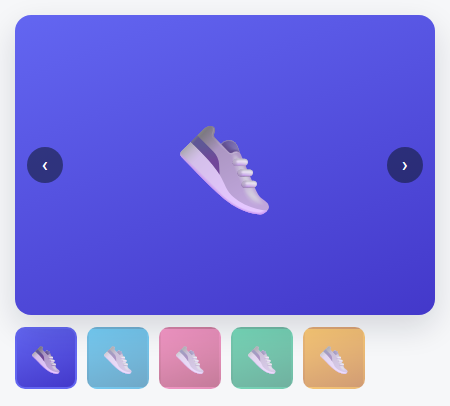
  <p class="mdc-hint">Drag or flick the cards — they glide with momentum and snap to the nearest one.</p>
</div>*{box-sizing:border-box;margin:0;padding:0}
body{font-family:system-ui,-apple-system,sans-serif;background:#f6f7f9;min-height:100vh;display:flex;align-items:center;justify-content:center;padding:24px}
.mdc-wrap{width:100%;max-width:560px}
.mdc-viewport{overflow:hidden;border-radius:16px;cursor:grab}
.mdc-viewport.mdc-grabbing{cursor:grabbing}
.mdc-track{display:flex;gap:14px;padding:6px;will-change:transform}
.mdc-card{flex:0 0 150px;height:180px;border-radius:14px;display:flex;align-items:center;justify-content:center;color:#fff;font-size:30px;font-weight:800;box-shadow:0 10px 24px rgba(15,23,42,.18);user-select:none}
.mdc-hint{text-align:center;color:#6b7080;font-size:12px;margin-top:14px}var viewport = document.getElementById('mdcViewport');
var track = document.getElementById('mdcTrack');
var cards = document.querySelectorAll('.mdc-card');
var cardW = 150 + 14; // width + gap
var offset = 0;
var min = 0, max = 0;
var dragging = false;
var startX = 0, startOffset = 0;
var lastX = 0, lastT = 0, velocity = 0;
var rafId = null;
function computeBounds() {
var trackWidth = cards.length * cardW - 14;
var viewportWidth = viewport.getBoundingClientRect().width;
min = Math.min(0, viewportWidth - trackWidth - 12);
max = 0;
}
function setTransform(x, animated) {
track.style.transition = animated ? 'transform .35s cubic-bezier(.25,.8,.3,1)' : 'none';
track.style.transform = 'translateX(' + x + 'px)';
}
function clampBounce(x) {
if (x > max) return max + (x - max) * 0.35;
if (x < min) return min + (x - min) * 0.35;
return x;
}
function pointerDown(e) {
dragging = true;
viewport.classList.add('mdc-grabbing');
cancelAnimationFrame(rafId);
var x = e.touches ? e.touches[0].clientX : e.clientX;
startX = x; startOffset = offset; lastX = x; lastT = Date.now(); velocity = 0;
setTransform(offset, false);
}
function pointerMove(e) {
if (!dragging) return;
var x = e.touches ? e.touches[0].clientX : e.clientX;
var now = Date.now();
var dt = now - lastT;
if (dt > 0) velocity = (x - lastX) / dt;
lastX = x; lastT = now;
offset = clampBounce(startOffset + (x - startX));
setTransform(offset, false);
}
function pointerUp() {
if (!dragging) return;
dragging = false;
viewport.classList.remove('mdc-grabbing');
var projected = offset + velocity * 180;
snapTo(projected);
}
function snapTo(target) {
var index = Math.round(-target / cardW);
index = Math.max(0, Math.min(cards.length - 1, index));
offset = Math.max(min, Math.min(max, -index * cardW));
setTransform(offset, true);
}
viewport.addEventListener('pointerdown', pointerDown);
window.addEventListener('pointermove', pointerMove);
window.addEventListener('pointerup', pointerUp);
viewport.addEventListener('touchstart', pointerDown, { passive: true });
window.addEventListener('touchmove', pointerMove, { passive: true });
window.addEventListener('touchend', pointerUp);
window.addEventListener('resize', computeBounds);
computeBounds();
setTransform(0, false);