


Swiper Multi-Row Grid Carousel — Free JS Snippet
Swiper Multi-Row Grid Carousel · Carousels · Plain HTML, CSS & JS · Live preview
What's included
Features
About this UI Snippet
Swiper Multi-Row Grid Carousel — HTML, CSS & JavaScript
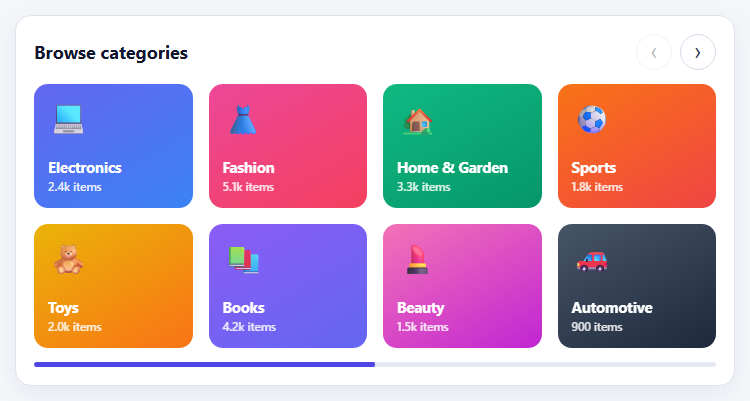
A single row of cards is the default shape of a carousel, but category pickers, app launchers and icon grids want more than one row: sixteen tiles arranged two-by-eight scroll sideways, showing many options at once without turning into a long page. Swiper handles this with its grid module, which arranges slides into a fixed number of rows and then scrolls the whole grid horizontally, so a multi-row carousel is a single option rather than nested sliders.
grid: { rows: 2, fill: 'row' } is the key setting. rows sets the number of rows, and fill decides the reading order: 'row' fills left to right then moves down, which matches how people read a grid, while 'column' fills top to bottom, which keeps related tiles stacked. Two things must be set up around it or the grid renders wrongly, and both trip people up. First, the container needs a definite height, because rows share it; without one the slides collapse or overlap. Second, slides need a height that is a share of the container — here calc((100% - 16px) / 2), which is half the height minus half the gap — so each row's tiles exactly fit. The gap between rows comes from spaceBetween, so the calculation has to subtract it.
Paging needs consideration too. By default Swiper advances one slide at a time, which in a grid moves the layout by a single column and feels fussy. slidesPerGroup makes each swipe or button press move a whole page, and it should equal slidesPerView — 2, 3 or 4 columns depending on width, set through breakpoints — so the pages align cleanly. Watch that the number of slides divides nicely by rows and columns, or the last page will have gaps.
The controls are separate elements rather than defaults: custom previous and next buttons wired through the navigation module, with a disabledClass so they dim at either end, and a progress-bar pagination that shows how far along the grid you are — more useful than dots for a long list. The tiles are real links with visible focus outlines, keyboard control is enabled, and the a11y module labels the controls. Categories use gradients and emoji so no images are required.
Step by step
How to Use
- 1Swipe a pageDrag the grid sideways. It moves a whole page of tiles at once rather than one column.
- 2Use the buttonsPress the arrow buttons. They dim when you reach the first or last page.
- 3Read the progress barThe bar underneath fills as you move through the grid.
- 4Resize the frameWiden or narrow the preview to see the column count change from 2 to 3 to 4.
- 5Tab through tilesUse Tab to focus tiles and see the visible focus outline.
Real-world uses
Common Use Cases
slidesPerGroup moving one full page per swipe.Got questions?
Frequently Asked Questions
Use grid: { rows: 2 }, give the container a fixed height, and set each slide's height to its share of that height.
fill: "row" places slides left to right then down, while fill: "column" places them top to bottom then across.
slidesPerGroup defaults to 1. Set it equal to slidesPerView so each swipe moves a full page.
Grid mode needs a definite container height and slide heights that subtract the gap between rows.
Use breakpoints to set slidesPerView and slidesPerGroup for each width.
Set pagination: { type: "progressbar" } and style the .swiper-pagination-progressbar-fill element.
Yes. Use the JSX, Vue, Angular or Tailwind export buttons on this page to convert the markup and styles. The behaviour comes from Swiper, so in a framework project install it with npm install swiper (its React and Vue components take the same options) instead of the CDN tag, use the Swiper and SwiperSlide components, or create it in useEffect / onMounted / ngAfterViewInit, and release it with destroy() when the component unmounts.
Build with AI
Build, Understand, Optimize, and Extend It With AI
Ask an AI assistant like Claude to make the row count responsive, add category filters that rebuild the grid, or show a badge on tiles with new items.
Prompt to recreate it
Copy this into your AI assistant of choice to build the effect from scratch, or as a jumping-off point for your own variant:
Build a multi-row grid carousel with Swiper 11 loaded from a CDN (bundle script and CSS).

Requirements:
- Render sixteen category tiles (gradient, emoji, name, item count) and use grid: { rows: 2, fill: 'row' } with spaceBetween 16, a fixed container height and slide height calc((100% - 16px) / 2).
- Set slidesPerView and slidesPerGroup to 2, with breakpoints raising both to 3 at 480px and 4 at 640px.
- Wire custom prev/next buttons via navigation with a disabledClass, and a progressbar pagination styled with .swiper-pagination-progressbar-fill.
- Enable keyboard and a11y, make tiles focusable links with visible focus outlines.
Want to tighten it up first? Run this prompt through the AI Prompt Studio to score it across 8 quality dimensions, catch anti-patterns, and tune the wording for Claude, ChatGPT, or Gemini before you paste it in.
Source Code
<div class="mg-wrap">
<div class="mg-head">
<h3>Browse categories</h3>
<div class="mg-nav">
<button type="button" id="mgPrev" aria-label="Previous page">‹</button>
<button type="button" id="mgNext" aria-label="Next page">›</button>
</div>
</div>
<div class="swiper mg-swiper" id="mgSwiper">
<div class="swiper-wrapper" id="mgSlides"></div>
</div>
<div class="mg-progress"><div class="swiper-pagination" id="mgPag"></div></div>
</div>body { background: #f4f6fa; padding: 20px; font-family: system-ui, sans-serif; }
.mg-wrap { max-width: 720px; margin: 0 auto; background: #fff; border: 1px solid #e0e4ee; border-radius: 16px; padding: 18px; box-shadow: 0 8px 24px rgba(20,30,70,.06); }
.mg-head { display: flex; justify-content: space-between; align-items: center; margin-bottom: 14px; }
.mg-head h3 { margin: 0; font-size: 18px; color: #12162e; }
.mg-nav { display: flex; gap: 8px; }
.mg-nav button { width: 36px; height: 36px; border-radius: 50%; border: 1px solid #d5dae8; background: #fff; font-size: 22px; line-height: 1; color: #334155; cursor: pointer; }
.mg-nav button:hover:not(:disabled) { background: #eef0ff; border-color: #a5b4fc; }
.mg-nav button:disabled, .mg-nav button.swiper-button-disabled { opacity: .35; cursor: default; }
/* Grid mode needs a definite container height, and slides that take a share of it. */
.mg-swiper { height: 264px; }
.mg-swiper .swiper-slide { height: calc((100% - 16px) / 2); }
.mg-tile { height: 100%; display: flex; flex-direction: column; justify-content: space-between; padding: 14px; border-radius: 14px; color: #fff; text-decoration: none; overflow: hidden; position: relative; transition: transform .2s, box-shadow .2s; }
.mg-tile:hover { transform: translateY(-3px); box-shadow: 0 12px 22px rgba(20,30,70,.22); }
.mg-tile:focus-visible { outline: 3px solid #4f46e5; outline-offset: 2px; }
.mg-tile .e { font-size: 30px; } .mg-tile b { font-size: 14.5px; line-height: 1.2; } .mg-tile small { display: block; margin-top: 2px; opacity: .85; font-size: 11.5px; font-weight: 600; }
.mg-progress { margin-top: 14px; }
.mg-progress .swiper-pagination { position: static; height: 5px; background: #e6e9f3; border-radius: 999px; overflow: hidden; }
.mg-progress .swiper-pagination-progressbar-fill { background: #4f46e5; border-radius: 999px; }const CATS = [
['Electronics', '💻', '2.4k items', '#6366f1,#3b82f6'], ['Fashion', '👗', '5.1k items', '#ec4899,#f43f5e'],
['Home & Garden', '🏡', '3.3k items', '#10b981,#059669'], ['Sports', '⚽', '1.8k items', '#f97316,#ef4444'],
['Toys', '🧸', '2.0k items', '#eab308,#f97316'], ['Books', '📚', '4.2k items', '#8b5cf6,#6366f1'],
['Beauty', '💄', '1.5k items', '#f472b6,#c026d3'], ['Automotive', '🚗', '900 items', '#475569,#1e293b'],
['Groceries', '🥦', '6.7k items', '#22c55e,#15803d'], ['Pets', '🐶', '1.1k items', '#f59e0b,#d97706'],
['Music', '🎸', '780 items', '#06b6d4,#0e7490'], ['Office', '🖨️', '1.3k items', '#64748b,#334155'],
['Travel', '🧳', '640 items', '#0ea5e9,#6366f1'], ['Art', '🎨', '520 items', '#a855f7,#ec4899'],
['Health', '💊', '1.9k items', '#14b8a6,#0d9488'], ['Outdoors', '⛺', '1.4k items', '#84cc16,#16a34a'],
];
document.getElementById('mgSlides').innerHTML = CATS.map(function (c) {
return '<div class="swiper-slide"><a class="mg-tile" href="#" style="background:linear-gradient(150deg,' + c[3] + ')"><span class="e" aria-hidden="true">' + c[1] + '</span><span><b>' + c[0] + '</b><small>' + c[2] + '</small></span></a></div>';
}).join('');
const swiper = new Swiper('#mgSwiper', {
slidesPerView: 2,
spaceBetween: 16,
slidesPerGroup: 2, // one swipe moves a whole visible page, not a single column
grid: { rows: 2, fill: 'row' }, // 2 rows; 'row' fills left to right, 'column' would fill top to bottom
navigation: { nextEl: '#mgNext', prevEl: '#mgPrev', disabledClass: 'swiper-button-disabled' },
pagination: { el: '#mgPag', type: 'progressbar' },
keyboard: { enabled: true },
a11y: { enabled: true },
breakpoints: {
480: { slidesPerView: 3, slidesPerGroup: 3 },
640: { slidesPerView: 4, slidesPerGroup: 4 },
},
});
document.querySelectorAll('.mg-tile').forEach(function (a) { a.addEventListener('click', function (e) { e.preventDefault(); }); });