Click any text to edit it · drag a photo to reposition it, scroll to zoom, click to replace
How-To Steps — Free How-To & Education Social Post Template
How-To & Education · v1.0.0 · Updated 2026-11-02 · Instagram, Facebook & X · HTML + CSS
What's included
Features
About this template
How-To Steps — Free Step-by-Step Tutorial Post Template
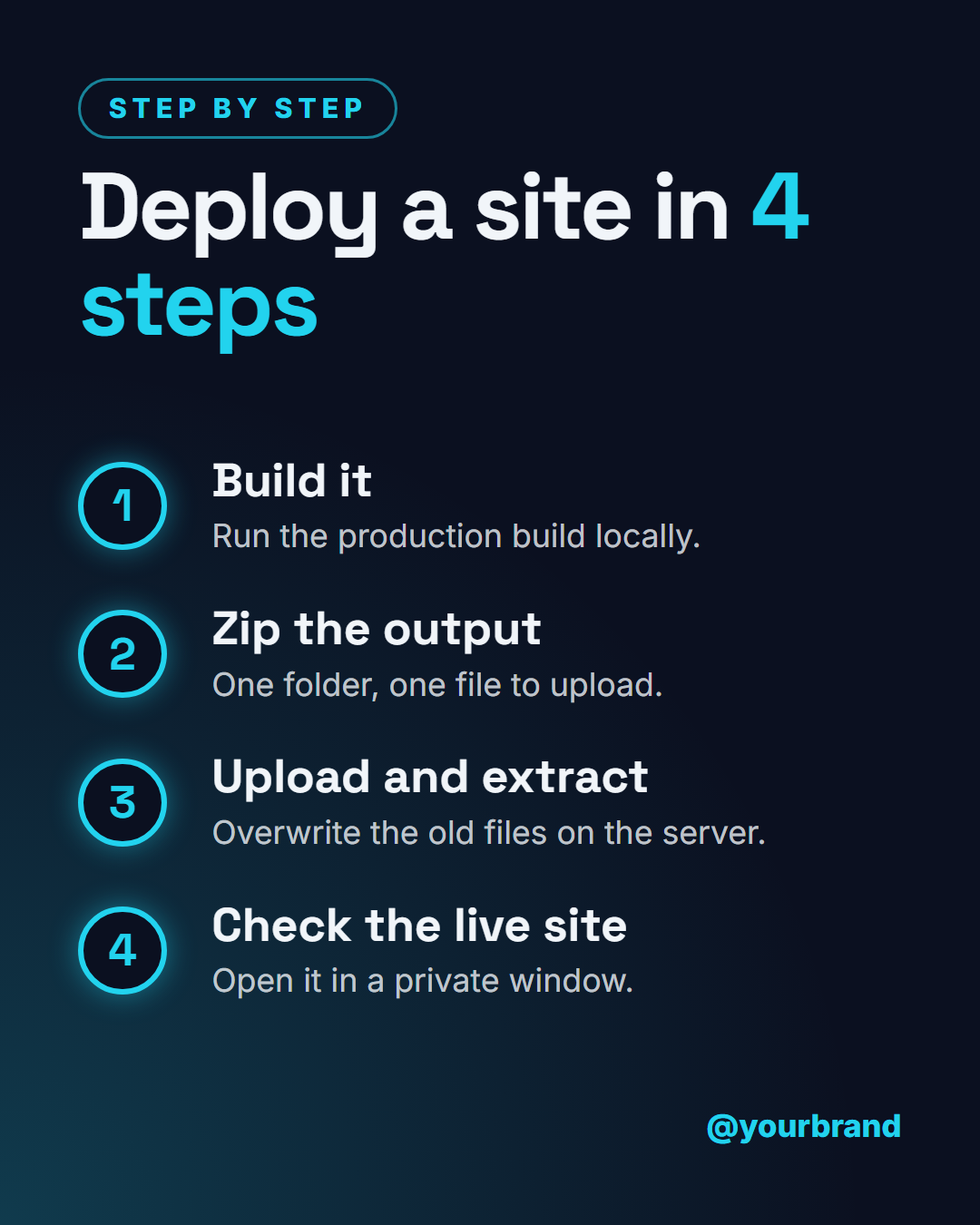
How-To Steps is a free social media template for explaining a process in four moves or fewer. It is a dark card with a glowing vertical timeline: numbered circles linked by a neon line, each step carrying a short title and a one-line detail. It suits any "how to" where the order matters, such as a setup, a deployment, a recipe or an onboarding flow.
A timeline that makes the order obvious
The numbers sit inside outlined circles that glow against the navy background, and the line between them fades from bright to dim, so the eye travels downwards without being told to. Because the order is built into the shape, you can keep each step to a handful of words. A title of two or three words and a detail of one sentence is the sweet spot.
Up to four steps, tidy when you use fewer
Fill in as many steps as you need. Leave the fourth step empty and it disappears, and the remaining steps re-centre on the line, so a three-step guide looks intentional. The headline shrinks step by step if it is long, and wrapping part of it in *asterisks* colours that part in the glow colour, for example "Deploy a site in *4 steps*".
Built for every feed
On the 4:5 portrait size the steps run down the card. On the 16:9 and LinkedIn sizes the headline sits on the left and the timeline on the right, so a guide still reads well in a wide feed. Story size keeps the steps clear of the top and bottom bars. Colours are editable, and the animated video export reveals the headline first, then each step in order, which suits a Reel.
For a list where the order does not matter, use Checklist Post. For a longer guide, start with a Carousel Cover and use this card as the single-image summary.
Extend with AI
Take This Post Further With AI
Ask an AI assistant to adapt the How-To Steps HTML and CSS: rewrite the steps for your own process, generate a numbered-steps component that accepts any array, or animate the line so it draws downward as the steps appear.
Prompt to recreate it
Copy this into your AI assistant of choice to build the effect from scratch, or as a jumping-off point for your own variant:
Create a 1080×1350 "how to" social post in plain HTML and CSS.

- Very dark navy background (#0b1020) with a cyan glow in the bottom-left corner.
- A small outlined cyan pill label "Step by step", then a bold headline "Deploy a site in 4 steps" with "4 steps" in cyan.
- A vertical timeline: a glowing cyan line fading downward, with four numbered circles (outlined cyan, number inside) connected by it.
- Next to each circle, a bold step title and a one-line grey detail.
- Handle at the bottom right.
- Size everything with a CSS variable --u equal to 1% of the shorter side.
Want to tighten it up first? Run this prompt through the AI Prompt Studio to score it across 8 quality dimensions, catch anti-patterns, and tune the wording for Claude, ChatGPT, or Gemini before you paste it in.
Why use it
Why Use the How-To Steps Template
How it’s different
How It’s Different From Canva-Style Templates
Step by step
How to Use
- 1Pick the sizeChoose Portrait 4:5 (the Instagram feed default), Square, Story / Reel, Landscape 16:9 for X, a 1200×627 LinkedIn image or a 1000×1500 Pinterest pin. How-To Steps opens at 1080×1350.
- 2Edit the textClick any text in the preview, or use the fields on the left (label, headline, step 1 title, step 1 detail and more). Wrap words in *asterisks* to colour them.
- 3Match your brandApply your saved brand kit or one of 12 palettes, set exact colours, and choose heading and body fonts from any Google Font or your own uploaded font.
- 4Preview it in the feedSwitch the preview to Instagram, Story, X or LinkedIn to see the post with your name, handle and caption, and fix anything the quality checks flag.
- 5Download, save or bulk createDownload PNG, JPG or PDF, every size as a ZIP, or copy the HTML. Save it to My designs to reuse later, or turn a CSV into dozens of posts with Bulk create.
Real-world uses
Common Use Cases
Got questions?
Frequently Asked Questions
Open How-To Steps, write a headline, then add up to four step titles with one-line details. Download the 4:5 PNG for the feed, or choose animated video in the Export menu to reveal each step in order for a Reel.
Group related actions into one step, or turn the guide into a carousel with one step per slide. This card then works as a one-image summary that points people to the full carousel.
Yes. The background, text and accent colours are editable. The accent drives the numbers, the timeline and its glow, so one colour change recolours the whole card to match your brand.
Yes. The dark, glowing look suits software, but changing the colours to warm tones makes it work for cooking, fitness or crafts. The structure of numbered steps is the same for any process.
Portrait post 1080×1350 (4:5): Instagram feed (recommended), Facebook and LinkedIn feeds, X portrait. Square post 1080×1080 (1:1): Instagram, Facebook, LinkedIn and X feeds. Story / Reel 1080×1920 (9:16): Instagram and Facebook Stories, Reel covers. Landscape post 1600×900 (16:9): X feed image, Facebook landscape. LinkedIn image 1200×627 (1.91:1): LinkedIn shared image and link posts, Facebook link images. Pinterest pin 1000×1500 (2:3): Pinterest standard pin (the recommended 2:3 ratio). Switch sizes in the editor and the layout adapts, or click "All sizes (ZIP)" to download every size at once.
Yes. Choose Export, then "Bulk create from CSV", and paste rows from a spreadsheet or upload a CSV whose column names match the How-To Steps fields. Every row becomes one post, and you download them all as a ZIP.
Yes. The preview switches between the plain design and mock-ups of an Instagram feed post, an Instagram Story, an X post and a LinkedIn post, using the name, handle and logo from your brand kit and the caption you type.
Yes. "Copy HTML" and "Download .html" give you one self-contained file: the markup, all the CSS and links to the Google Fonts it uses. "Fork to My Code" saves an editable copy in the UI Snippets editor. The file records the template name and version (v1.0.0).
Yes. It is free for personal and commercial posts, with no sign-up and no watermark. Everything runs in your browser and nothing you type or upload is sent to a server.