
New Podcast Episode — Free Announcements Social Post Template
Announcements · v1.0.0 · Updated 2026-11-19 · Instagram, Facebook & X · HTML + CSS
Extend with AI
Take This Post Further With AI
Ask an AI assistant to adapt the podcast HTML and CSS: write a hook-style episode title from your show notes, restyle it for a light show palette, or turn it into a three-post series (trailer, episode, best moment).
Prompt to recreate it
Copy this into your AI assistant of choice to build the effect from scratch, or as a jumping-off point for your own variant:
Create a 1080×1350 new podcast episode post in plain HTML and CSS.

- Dark night-studio background (#15111f) with a soft violet glow top right and a warm orange glow bottom left, plus very faint vertical lines.
- Top row: a pill label "NEW EPISODE" with a small glowing orange dot, and on the right a tilted (-4deg) orange tag "EP 42" in bold Plus Jakarta Sans.
- A square cover image (rounded corners, deep shadow) with a black vinyl record peeking out from behind it on the right: repeating radial grooves, a soft conic sheen and an orange centre label.
- An episode title in Plus Jakarta Sans 800, about 80px, with "10K listeners" highlighted in orange, then a muted guest line "with Maya Chen, founder of Loop Studio".
- A rounded translucent player card: an orange circular play button with a white triangle and two thin rings, 30 thin rounded waveform bars of varied heights in an orange-to-violet gradient, a thin progress bar with an orange fill to 38% and a white knob, and "00:00" and "42:18" below.
- Footer: "Spotify · Apple Podcasts · YouTube" on the left, the handle on the right.
- Optional: animate the bars with scaleY, spin the record and move the knob along the bar.
Want to tighten it up first? Run this prompt through the AI Prompt Studio to score it across 8 quality dimensions, catch anti-patterns, and tune the wording for Claude, ChatGPT, or Gemini before you paste it in.
What's included
Features
About this template
New Podcast Episode Template — An Audiogram-Style Post That Moves
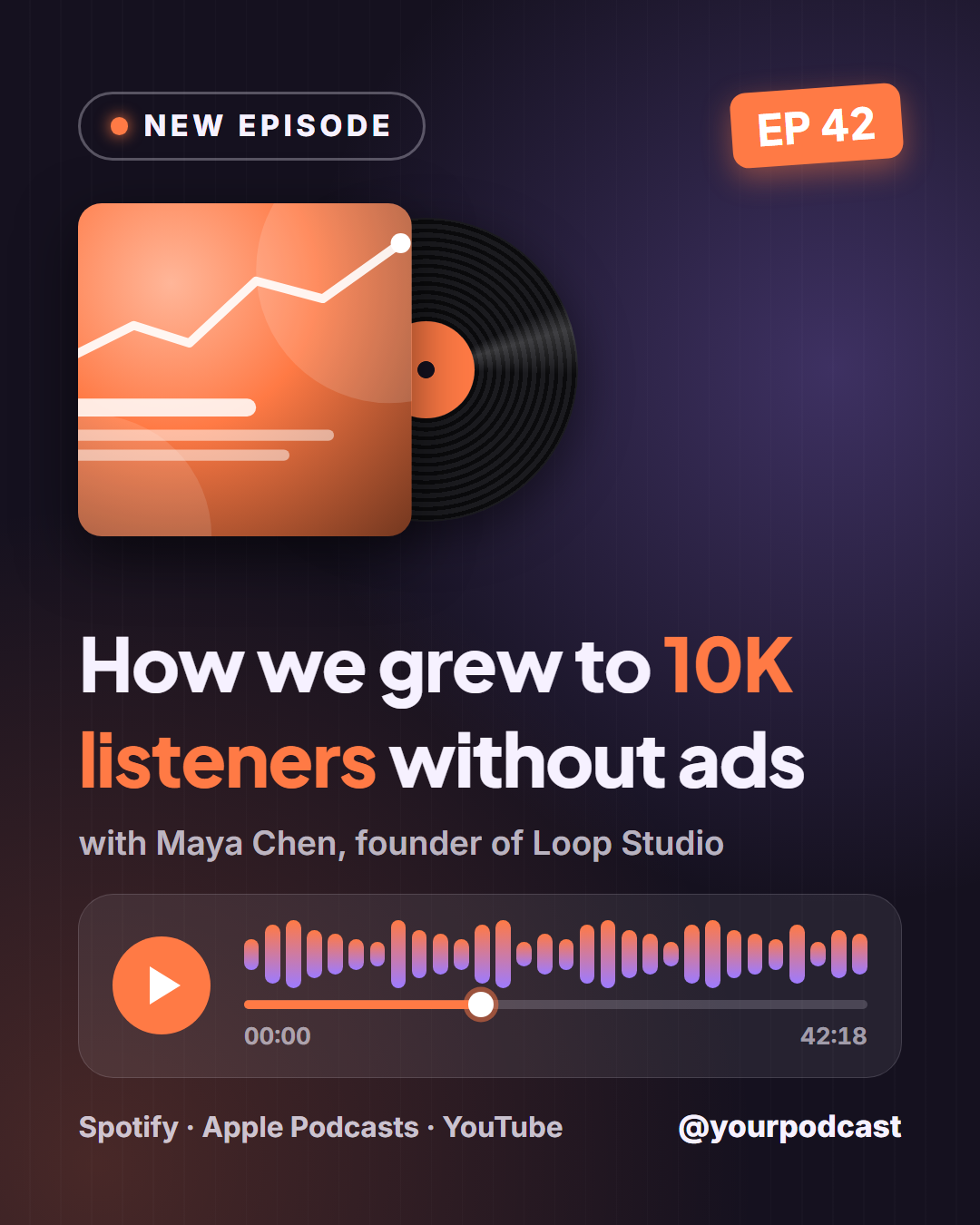
A podcast is sound, but the feed is silent and visual, so most episode announcements end up as a cover image with the title typed over it. New Podcast Episode is a free template that makes a release look like something you can hear: the cover art slides out of a vinyl record, a waveform bounces, and a mini player shows the episode playing.
Cover art on a record
Upload your square show or episode artwork and it sits in front of a black record with grooves and a coloured label. In the video export the record spins behind the cover, the way a sleeve is pulled from a turntable. The episode number is a tilted orange tag that is stamped on, so "EP 42" is the second thing people read.
A player that plays
Under the title and guest line sits a small player: a round play button that sends out rings, thirty waveform bars that rise and fall like a live audiogram, and a progress bar whose knob travels along while the video runs. Type the episode length and it appears at the end of the bar, so the post says how much time you are asking for.
Where to listen, who you are
The footer names the apps (Spotify, Apple Podcasts, YouTube or your own site) and shows your handle with an optional logo. Short labels, a strong headline and one guest line keep the post readable at phone size.
Sizes
Portrait suits the Instagram feed, Story and Reel cover keep everything clear of the app overlays, square works on LinkedIn and Facebook, and the wide sizes put the cover on the left with the player on the right. Export the animated MP4 as a Reel or audiogram teaser and pair it with a clip of the episode audio. For a video podcast, the New Video Is Live template shows your YouTube thumbnail instead.
Why use it
Why Use the New Podcast Episode Template
How it’s different
How It’s Different From Canva-Style Templates
Step by step
How to Use
- 1Pick the sizeChoose Portrait 4:5 (the Instagram feed default), Square, Story / Reel, Landscape 16:9 for X, a 1200×627 LinkedIn image or a 1000×1500 Pinterest pin. New Podcast Episode opens at 1080×1350.
- 2Edit the textClick any text in the preview, or use the fields on the left (label, episode number, episode title, guest line and more). Wrap words in *asterisks* to colour them.
- 3Add your imagesClick a photo area in the preview or use Images to upload your cover art and logo. Images stay in your browser.
- 4Match your brandApply your saved brand kit or one of 12 palettes, set exact colours, and choose heading and body fonts from any Google Font or your own uploaded font.
- 5Preview it in the feedSwitch the preview to Instagram, Story, X or LinkedIn to see the post with your name, handle and caption, and fix anything the quality checks flag.
- 6Download, save or bulk createDownload PNG, JPG or PDF, every size as a ZIP, or copy the HTML. Save it to My designs to reuse later, or turn a CSV into dozens of posts with Bulk create.
Real-world uses
Common Use Cases
Got questions?
Frequently Asked Questions
No. It is a decorative waveform that moves in the video export, so it suits any episode. If you add sound in Instagram, TikTok or a video editor, the bars read as if they are playing it.
Square, the same artwork you upload to Spotify and Apple Podcasts. A 1400 to 3000 pixel square image looks sharp at every post size. It stays in your browser and is not uploaded anywhere.
Yes, though if your episode lives on YouTube, the New Video Is Live template shows a 16:9 thumbnail with a play button, which matches a video better than a square cover.
Yes. Choose the Story / Reel size and export the animated MP4 or WebM. The record spins, the waveform bounces and the progress bar plays across the six seconds.
Portrait post 1080×1350 (4:5): Instagram feed (recommended), Facebook and LinkedIn feeds, X portrait. Square post 1080×1080 (1:1): Instagram, Facebook, LinkedIn and X feeds. Story / Reel 1080×1920 (9:16): Instagram and Facebook Stories, Reel covers. Landscape post 1600×900 (16:9): X feed image, Facebook landscape. LinkedIn image 1200×627 (1.91:1): LinkedIn shared image and link posts, Facebook link images. Pinterest pin 1000×1500 (2:3): Pinterest standard pin (the recommended 2:3 ratio). Switch sizes in the editor and the layout adapts, or click "All sizes (ZIP)" to download every size at once.
Yes, free. Press Play in the editor to watch the animation, then open Export and download it as an animated MP4 (or WebM) for Reels, Stories and WhatsApp Status. PNG, JPG, PDF and HTML exports are free too.
Yes, and it is free. Choose Export, then "Bulk create from CSV", and paste rows from a spreadsheet or upload a CSV whose column names match the New Podcast Episode fields. Every row becomes one post, and you download them all as a ZIP.
Yes. The preview switches between the plain design and mock-ups of an Instagram feed post, an Instagram Story, an X post and a LinkedIn post, using the name, handle and logo from your brand kit and the caption you type.
Yes. "Copy HTML" and "Download .html" give you one self-contained file: the markup, all the CSS and links to the Google Fonts it uses. "Fork to My Code" saves an editable copy in the UI Snippets editor. The file records the template name and version (v1.0.0).
Yes. It is free for personal and commercial posts, with no sign-up and no watermark. Everything runs in your browser and nothing you type or upload is sent to a server.