




Currency Input — Money Formatting HTML CSS JS Snippet
Currency Input · Forms · Plain HTML, CSS & JS · Live preview
Copy & paste
Source Code
<div class="cu-card">
  <label class="cu-label" for="cuInput">Amount</label>
  <div class="cu-field">
    <span class="cu-symbol" id="cuSymbol">$</span>
    <input class="cu-input" id="cuInput" type="text" inputmode="decimal" placeholder="0.00" value="1,250.00" oninput="formatMoney(this)">
    <select class="cu-currency" id="cuCurrency" onchange="setCurrency(this)">
      <option value="$" data-code="USD">USD</option>
      <option value="€" data-code="EUR">EUR</option>
      <option value="£" data-code="GBP">GBP</option>
      <option value="₹" data-code="INR">INR</option>
      <option value="¥" data-code="JPY">JPY</option>
    </select>
  </div>

  <div class="cu-chips">
    <button class="cu-chip" onclick="setAmount(50)">+50</button>
    <button class="cu-chip" onclick="setAmount(100)">+100</button>
    <button class="cu-chip" onclick="setAmount(500)">+500</button>
    <button class="cu-chip" onclick="setAmount(1000)">+1,000</button>
  </div>

  <div class="cu-parsed">Stored value: <strong id="cuValue">1250.00</strong> <span id="cuCode">USD</span></div>
</div>*{box-sizing:border-box;margin:0;padding:0}
body{font-family:system-ui,-apple-system,sans-serif;background:#f1f5f9;min-height:100vh;display:flex;align-items:flex-start;justify-content:center;padding:80px 24px}
.cu-card{background:#fff;border:1px solid #e2e8f0;border-radius:16px;padding:22px;width:100%;max-width:340px;box-shadow:0 14px 44px rgba(15,23,42,.07)}
.cu-label{display:block;font-size:12px;font-weight:700;color:#475569;margin-bottom:8px}
.cu-field{display:flex;align-items:center;gap:8px;border:1.5px solid #e2e8f0;border-radius:12px;padding:0 12px;height:54px;transition:border-color .15s,box-shadow .15s;background:#fff}
.cu-field:focus-within{border-color:#6366f1;box-shadow:0 0 0 3px rgba(99,102,241,.12)}
.cu-symbol{font-size:22px;font-weight:700;color:#94a3b8}
.cu-input{flex:1;min-width:0;border:none;outline:none;font-size:24px;font-weight:800;color:#1e293b;font-family:inherit;font-variant-numeric:tabular-nums;background:none}
.cu-input::placeholder{color:#cbd5e1;font-weight:600}
.cu-currency{border:none;background:#f1f5f9;border-radius:8px;padding:6px 6px;font-size:12px;font-weight:800;color:#475569;cursor:pointer;font-family:inherit;outline:none}
.cu-chips{display:flex;gap:7px;margin-top:14px}
.cu-chip{flex:1;padding:8px 0;background:#f1f5f9;border:none;border-radius:9px;font-size:12px;font-weight:700;color:#475569;cursor:pointer;font-family:inherit;transition:background .15s,color .15s}
.cu-chip:hover{background:#eef2ff;color:#6366f1}
.cu-chip:active{transform:scale(.96)}
.cu-parsed{margin-top:16px;padding-top:14px;border-top:1px solid #f1f5f9;font-size:12px;color:#94a3b8}
.cu-parsed strong{color:#1e293b;font-weight:800;font-variant-numeric:tabular-nums}
.cu-parsed span{color:#6366f1;font-weight:700}function formatMoney(input) {
var raw = input.value.replace(/[^0-9.]/g, '');
var firstDot = raw.indexOf('.');
var intStr, decStr = '';
if (firstDot === -1) {
intStr = raw;
} else {
intStr = raw.slice(0, firstDot);
decStr = '.' + raw.slice(firstDot + 1).replace(/\./g, '').slice(0, 2);
}
intStr = intStr.replace(/^0+(?=\d)/, '');
if (intStr === '') intStr = firstDot === -1 ? '' : '0';
intStr = intStr.replace(/\B(?=(\d{3})+(?!\d))/g, ',');
input.value = intStr + decStr;
updateParsed();
}
function updateParsed() {
var num = parseFloat(document.getElementById('cuInput').value.replace(/,/g, '')) || 0;
document.getElementById('cuValue').textContent = num.toFixed(2);
}
function setCurrency(select) {
var opt = select.options[select.selectedIndex];
document.getElementById('cuSymbol').textContent = select.value;
document.getElementById('cuCode').textContent = opt.dataset.code;
}
function setAmount(delta) {
var input = document.getElementById('cuInput');
var num = (parseFloat(input.value.replace(/,/g, '')) || 0) + delta;
input.value = num.toFixed(2);
formatMoney(input);
}
updateParsed();Extend with AI
Take This Snippet Further With AI
The AI prompt for this one is for Patreon supporters ($3 a month), along with a site with no ads. Supporters enter the passcode once and it is remembered in this browser.
What's included
Features
/\B(?=(\d{3})+(?!\d))/g inserts commas before every three-digit group as the user types — no library.updateParsed maintains the clean numeric value ("1250.00") for submission.formatMoney splits at the first dot, drops extra dots, and limits the decimal to two places, so amounts stay valid.<select> updates the prefix symbol ($/€/£/₹/¥) and the displayed currency code via setCurrency.:focus-within highlights the whole field — symbol, input, and selector — so the composite reads as one control.setAmount adds a delta to the current value and reformats, ideal for tips, top-ups, and donations.inputmode="decimal" triggers the numeric keypad on phones while keeping the formatted text value.About this UI Snippet
Currency Input — Live Thousands Separators, Decimal Clamping & Currency Switcher
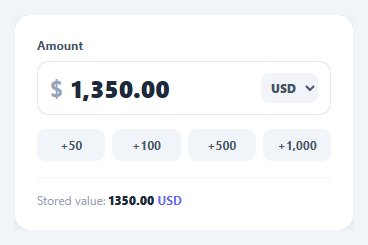
Money inputs are deceptively tricky. Users expect to see "1,250.00" with thousands separators as they type, but your application needs the clean numeric value "1250.00" to store and calculate with. A naive <input type="number"> cannot show grouping separators, and a plain text field lets users type anything. This snippet implements a proper currency field in plain HTML, CSS, and vanilla JavaScript: live thousands-separator formatting, a two-decimal clamp, a currency symbol switcher, quick-add chips, and a parsed value kept in sync for submission.
Live formatting that keeps a clean stored value
formatMoney runs on every keystroke. It strips everything except digits and a decimal point, splits at the first dot into integer and decimal parts, discards any extra dots, clamps the decimal to two places, and removes leading zeros. The integer part then gets thousands separators via the standard grouping regex /\B(?=(\d{3})+(?!\d))/g, which inserts a comma before every group of three digits that is preceded by another digit. The formatted string goes back into the field, while updateParsed strips the commas and shows the canonical numeric value ("1250.00") — the value you would actually submit to a server.
Why the display and stored value differ
This separation is the core idea. The visible field is for humans (grouped, symbol-prefixed); the stored value is for machines (a plain number). Keeping both in sync on every input means the user never sees an unformatted number and your code never has to parse a comma-laden string at submit time — updateParsed already maintains the clean value.
Currency switcher
A compact <select> lets the user switch currency. setCurrency updates the prefix symbol ($, €, £, ₹, ¥) and the stored currency code shown beside the value. The symbol sits in the field as a prefix via flexbox, and :focus-within lights up the whole field (not just the bare input) so the symbol, input, and selector read as one control.
Quick-add chips
Buttons like "+50" and "+1,000" call setAmount, which reads the current numeric value, adds the delta, and re-runs formatMoney — handy for tip jars, top-ups, and donation fields where users nudge an amount rather than type it precisely.
Mobile-friendly
inputmode="decimal" brings up the numeric keypad on mobile while still allowing the formatted text value, the best of both worlds for a money field.
Pair this with an order summary for totals, a tip calculator or currency converter for math, or a checkout payment form.
Step by step
How to Use
- 1Paste HTML, CSS, and JSA money field shows "$ 1,250.00" with a currency selector, quick-add chips, and a "Stored value: 1250.00 USD" readout.
- 2Type an amountEnter digits — thousands separators appear automatically and the decimal is clamped to two places as you type.
- 3Watch the stored valueBelow the field, the clean numeric value (no commas) updates live — that is what you would submit to a server.
- 4Switch currencyPick EUR or INR from the selector — the prefix symbol and the currency code beside the stored value change.
- 5Use the quick chipsClick "+100" or "+1,000" to bump the amount; the field reformats with the new total.
- 6Read it for submissionOn submit, use the parsed value (
updateParsedkeeps it in sync) instead of the comma-formatted display string.
Real-world uses
Common Use Cases
Got questions?
Frequently Asked Questions
Use the parsed value, not the formatted text. updateParsed already computes parseFloat(value.replace(/,/g, '')) and shows it; read that on submit, or store it in a hidden input. Never send the comma-formatted display string to your backend — strip the separators first so "1,250.00" becomes the number 1250.
Some locales use "." for grouping and "," for decimals (e.g. 1.250,00). Map each currency/locale to its separators and parameterise formatMoney accordingly, or use Intl.NumberFormat(locale, { style: 'currency', currency }) to format and a matching parser to read it back. The display/stored-value split stays the same.
Reformatting replaces the field value, which resets the caret. This snippet keeps it simple (caret at end), which is fine for amount fields typed left-to-right. To preserve caret position precisely, count the digits before the caret, reformat, then restore the caret after the same number of digits using setSelectionRange.
In updateParsed, after computing the number, clamp it (e.g. Math.min(num, MAX)) and, if it changed, reformat the field to the clamped value and show a hint. For minimums, validate on blur rather than per keystroke so users can type intermediate values without being interrupted.
In React, keep the raw numeric value in state and a derived formatted string for display; format in the onChange handler before setting state, or use a controlled value with a formatter. In Vue, use v-model with a computed/watcher that formats. In Angular, a custom ControlValueAccessor or a pipe handles formatting. The grouping regex and decimal logic port unchanged.