


Embla Carousel with Arrows, Dots and Keyboard Navigation — Free Snippet
Embla Carousel with Arrows, Dots and Keyboard Navigation · Carousels · Plain HTML, CSS & JS · Live preview
What's included
Features
About this UI Snippet
Embla Carousel Basics — Arrows, Dots, Keyboard and Loop Done Properly
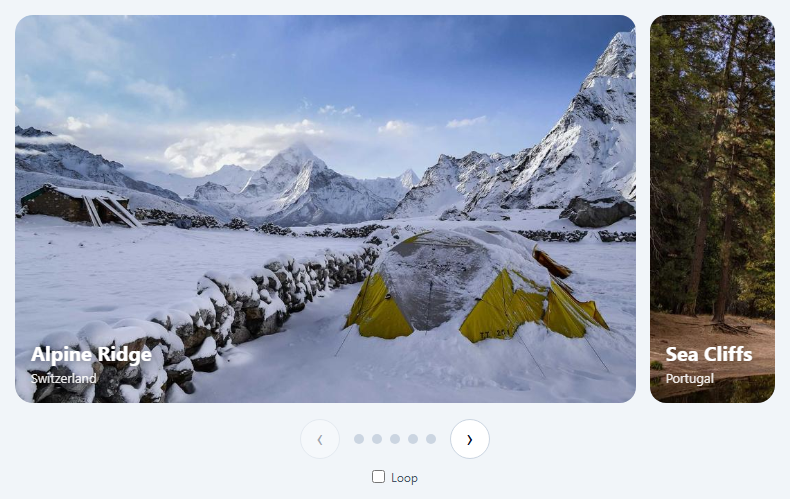
Embla Carousel is a small, dependency-free carousel engine. It handles dragging, momentum, snapping and looping, and deliberately renders no UI of its own: arrows, dots and captions are your markup. That makes it a good library to learn from, because every control is a few lines of code you can read.
The three-element structure
Embla needs a viewport (overflow: hidden), a container inside it (display: flex), and slides inside that. Slide width is plain CSS — flex: 0 0 82% shows a peek of the next slide. Gaps use padding-left on slides and a negative margin on the container, which keeps snap positions exact.
Dots come from scroll snaps
A common bug is creating one dot per slide. Embla navigates between scroll snaps, and when containScroll trims the ends, several slides can share a snap. scrollSnapList() returns the real positions, so the dots always match what scrollTo(i) can reach.
Buttons that know the edges
On every select event, canScrollPrev() and canScrollNext() decide whether the arrow buttons are disabled. With looping on, both are always true.
Keyboard support is yours to add
Embla doesn't bind keys. The viewport is focusable (tabindex="0") and listens for the left and right arrow keys. The dots use aria-selected and a roving tabIndex, and the section uses aria-roledescription="carousel" with per-slide labels, following the WAI-ARIA carousel pattern.
Changing options at runtime
The loop checkbox calls embla.reInit({ loop }). The reInit event rebuilds the dots and button states, because snaps can change when options do.
Touch behaviour
touch-action: pan-y pinch-zoom on the container lets vertical page scrolling and pinch-zoom keep working on phones while horizontal swipes drive the carousel.
Step by step
How to Use
- 1Load EmblaInclude embla-carousel.umd.js from the CDN; it exposes window.EmblaCarousel.
- 2Keep the structureViewport, then container, then slides.
- 3Size slides in CSSChange flex-basis on .emb-slide to show more or fewer slides.
- 4NavigateDrag, use the arrows, click dots, or focus the viewport and press arrow keys.
- 5Toggle loopThe checkbox calls reInit with new options.
Real-world uses
Common Use Cases
canScrollPrev and canScrollNext, so people always know when they have reached the first or last slide.scrollSnapList rather than the slide count so they stay correct when several slides fit in view.reInit so the same carousel can switch between finite and endless behaviour.Got questions?
Frequently Asked Questions
Load embla-carousel.umd.js from a CDN. It defines window.EmblaCarousel. Call EmblaCarousel(viewportElement, options) where the viewport has overflow hidden and contains a flex container of slides.
Embla moves between scroll snaps. With the default containScroll setting, slides near the ends can share a snap, so the number of snaps can be lower than the number of slides. Building dots from scrollSnapList keeps every dot reachable.
Listen to the select event and set each button's disabled property from canScrollPrev() and canScrollNext(). With loop enabled both return true.
Not by default. Make the viewport focusable and handle ArrowLeft and ArrowRight with scrollPrev and scrollNext, and make dots real buttons so they are reachable with Tab.
Call embla.reInit(newOptions). It keeps the instance and emits a reInit event, where you should rebuild anything derived from snaps, such as dots.
Build with AI
Build, Understand, Optimize, and Extend It With AI
Paste this snippet into an AI assistant like Claude and ask it to explain the viewport-container-slide structure and why dots are generated from scroll snaps. Ask it to add a slide counter announced to screen readers, autoplay that pauses on focus, or responsive options that show two slides on wide screens using Embla's breakpoints option. It can also review the ARIA roles against the WAI-ARIA Authoring Practices carousel pattern.
Prompt to recreate it
Copy this into your AI assistant of choice to build the effect from scratch, or as a jumping-off point for your own variant:
Build an image carousel with Embla Carousel v8 (loaded from a CDN as a UMD script) in plain HTML, CSS and JavaScript.

Requirements:
- Use Embla's viewport, container and slide structure, with slides sized to 82% of the viewport so the next slide peeks in, and gaps created with slide padding and a negative container margin.
- Add previous and next buttons that are disabled when the carousel can't scroll further.
- Build pill-shaped dot buttons from the carousel's scroll snaps, highlight the selected one and let clicking scroll to that snap.
- Make the viewport focusable and support left and right arrow keys.
- Follow the WAI-ARIA carousel pattern with aria-roledescription on the carousel and slides, and per-slide labels like "1 of 5".
- Add a loop checkbox that re-initialises the carousel with the new option and rebuilds dots and button states.
- Keep vertical page scrolling working on touch devices.
Want to tighten it up first? Run this prompt through the AI Prompt Studio to score it across 8 quality dimensions, catch anti-patterns, and tune the wording for Claude, ChatGPT, or Gemini before you paste it in.
Source Code
<section class="emb" aria-roledescription="carousel" aria-label="Featured destinations">
  <div class="emb-viewport" tabindex="0">
    <div class="emb-container">
      <div class="emb-slide" role="group" aria-roledescription="slide" aria-label="1 of 5"><img src="https://picsum.photos/id/1036/900/560" alt="Snowy mountain ridge at dusk"><div class="emb-cap"><b>Alpine Ridge</b><span>Switzerland</span></div></div>
      <div class="emb-slide" role="group" aria-roledescription="slide" aria-label="2 of 5"><img src="https://picsum.photos/id/1043/900/560" alt="Coastal cliffs over the sea"><div class="emb-cap"><b>Sea Cliffs</b><span>Portugal</span></div></div>
      <div class="emb-slide" role="group" aria-roledescription="slide" aria-label="3 of 5"><img src="https://picsum.photos/id/1018/900/560" alt="Green valley under clouds"><div class="emb-cap"><b>Cloud Valley</b><span>New Zealand</span></div></div>
      <div class="emb-slide" role="group" aria-roledescription="slide" aria-label="4 of 5"><img src="https://picsum.photos/id/1039/900/560" alt="Waterfall in a forest"><div class="emb-cap"><b>Hidden Falls</b><span>Iceland</span></div></div>
      <div class="emb-slide" role="group" aria-roledescription="slide" aria-label="5 of 5"><img src="https://picsum.photos/id/1015/900/560" alt="River winding through a canyon"><div class="emb-cap"><b>River Canyon</b><span>Norway</span></div></div>
    </div>
  </div>
  <div class="emb-controls">
    <button class="emb-arrow" type="button" id="embPrev" aria-label="Previous slide">‹</button>
    <div class="emb-dots" id="embDots" role="tablist" aria-label="Choose slide"></div>
    <button class="emb-arrow" type="button" id="embNext" aria-label="Next slide">›</button>
  </div>
  <label class="emb-loop"><input type="checkbox" id="embLoop"> Loop</label>
</section>*{box-sizing:border-box;margin:0;padding:0}
body{font-family:system-ui,-apple-system,sans-serif;background:#f1f5f9;min-height:100vh;display:flex;align-items:center;justify-content:center;padding:24px}
.emb{width:100%;max-width:760px}
.emb-viewport{overflow:hidden;border-radius:18px}
.emb-viewport:focus-visible{outline:3px solid #6366f1;outline-offset:3px}
.emb-container{display:flex;touch-action:pan-y pinch-zoom;margin-left:-14px}
.emb-slide{flex:0 0 82%;min-width:0;padding-left:14px;position:relative}
.emb-slide img{display:block;width:100%;aspect-ratio:16/10;object-fit:cover;border-radius:16px;background:#cbd5e1;user-select:none;-webkit-user-drag:none}
.emb-cap{position:absolute;left:30px;bottom:16px;color:#fff;text-shadow:0 1px 8px rgba(0,0,0,.5)}
.emb-cap b{display:block;font-size:20px}
.emb-cap span{font-size:13px;opacity:.9}
.emb-controls{display:flex;align-items:center;justify-content:center;gap:14px;margin-top:16px}
.emb-arrow{width:40px;height:40px;border-radius:50%;border:1px solid #cbd5e1;background:#fff;font-size:22px;line-height:1;color:#0f172a;cursor:pointer}
.emb-arrow:disabled{opacity:.35;cursor:default}
.emb-arrow:not(:disabled):hover{border-color:#6366f1;color:#4f46e5}
.emb-dots{display:flex;gap:8px}
.emb-dot{width:10px;height:10px;border-radius:999px;border:0;background:#cbd5e1;cursor:pointer;transition:width .25s,background .25s;padding:0}
.emb-dot[aria-selected="true"]{width:28px;background:#6366f1}
.emb-arrow:focus-visible,.emb-dot:focus-visible{outline:2px solid #6366f1;outline-offset:2px}
.emb-loop{display:flex;align-items:center;justify-content:center;gap:6px;margin-top:10px;font-size:12px;color:#475569}
@media (prefers-reduced-motion:reduce){.emb-dot{transition:none}}var viewport = document.querySelector('.emb-viewport');
var prevBtn = document.getElementById('embPrev');
var nextBtn = document.getElementById('embNext');
var dotsEl = document.getElementById('embDots');
var loopBox = document.getElementById('embLoop');
// EmblaCarousel(viewport, options). The viewport clips; its first child is
// the container that moves; the container's children are the slides.
var embla = EmblaCarousel(viewport, { loop: false, align: 'center' });
function buildDots() {
dotsEl.innerHTML = '';
// One dot per SCROLL SNAP, not per slide: with containScroll the first
// and last slides can share snaps, so the counts can differ.
embla.scrollSnapList().forEach(function (_, i) {
var b = document.createElement('button');
b.type = 'button';
b.className = 'emb-dot';
b.setAttribute('role', 'tab');
b.setAttribute('aria-label', 'Go to slide ' + (i + 1));
b.addEventListener('click', function () { embla.scrollTo(i); });
dotsEl.appendChild(b);
});
}
function sync() {
var sel = embla.selectedScrollSnap();
Array.prototype.forEach.call(dotsEl.children, function (d, i) {
d.setAttribute('aria-selected', i === sel ? 'true' : 'false');
d.tabIndex = i === sel ? 0 : -1;
});
// canScrollPrev/Next are always true when loop is on.
prevBtn.disabled = !embla.canScrollPrev();
nextBtn.disabled = !embla.canScrollNext();
}
prevBtn.addEventListener('click', function () { embla.scrollPrev(); });
nextBtn.addEventListener('click', function () { embla.scrollNext(); });
// Arrow keys while the viewport has focus. Embla doesn't bind keys itself.
viewport.addEventListener('keydown', function (e) {
if (e.key === 'ArrowLeft') { e.preventDefault(); embla.scrollPrev(); }
if (e.key === 'ArrowRight') { e.preventDefault(); embla.scrollNext(); }
});
// reInit fires after embla.reInit(): snaps may have changed, so rebuild.
embla.on('init', buildDots).on('reInit', buildDots).on('select', sync).on('reInit', sync);
buildDots();
sync();
loopBox.addEventListener('change', function () {
embla.reInit({ loop: loopBox.checked });
});