

Quill Rich Text Editor with Custom Toolbar and Character Limit

CodeMirror JSON Editor with Validation Gutter
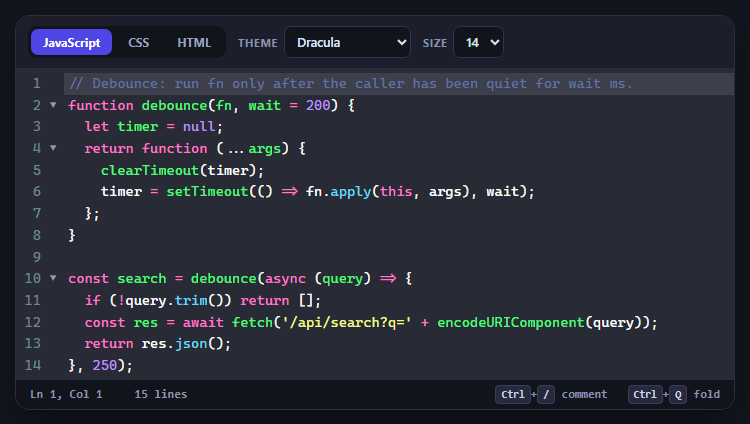
CodeMirror Code Editor with Line Numbers, Folding and Themes

Marked + DOMPurify Live Markdown Preview
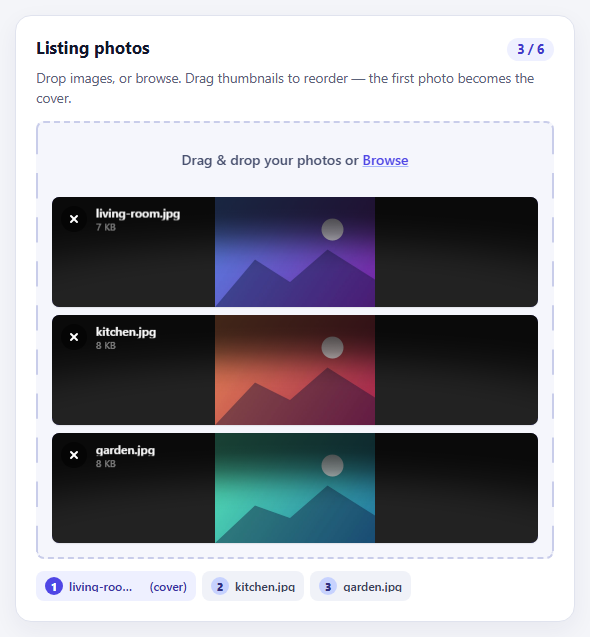
FilePond Image Upload with Preview and Reorder

Cropper.js Aspect-Ratio Presets for Social Posts
Tag Input — Free HTML CSS JS Snippet
Tag / Chip Input · Forms · Plain HTML, CSS & JS · Live preview
Copy & paste
Source Code
<div class="demo">
  <label class="field-label">Skills</label>
  <div class="tag-field" id="tag-field" onclick="document.getElementById('tag-inp').focus()">
    <div class="tags" id="tags">
      <span class="tag">React<button onclick="removeTag(this)">×</button></span>
      <span class="tag">TypeScript<button onclick="removeTag(this)">×</button></span>
      <span class="tag">CSS<button onclick="removeTag(this)">×</button></span>
    </div>
    <input id="tag-inp" class="tag-inp" placeholder="Add skill…" onkeydown="handleKey(event)" />
  </div>
  <p class="hint">Press Enter or comma to add a tag</p>

  <div class="suggestions">
    <span class="sug-label">Suggestions:</span>
    <button class="sug" onclick="addTag('JavaScript')">JavaScript</button>
    <button class="sug" onclick="addTag('Node.js')">Node.js</button>
    <button class="sug" onclick="addTag('Figma')">Figma</button>
    <button class="sug" onclick="addTag('Vue')">Vue</button>
    <button class="sug" onclick="addTag('GraphQL')">GraphQL</button>
  </div>
</div>
* { box-sizing: border-box; margin: 0; padding: 0; }
body { font-family: system-ui, sans-serif; background: #f8fafc; display: flex; align-items: center; justify-content: center; min-height: 100vh; padding: 20px; }
.demo { width: 360px; display: flex; flex-direction: column; gap: 10px; }
.field-label { font-size: 13px; font-weight: 600; color: #475569; }
.tag-field {
min-height: 48px; padding: 8px 10px;
border: 1.5px solid #e2e8f0; border-radius: 10px;
background: #fff; cursor: text;
display: flex; flex-wrap: wrap; gap: 6px; align-items: center;
transition: border-color 0.15s, box-shadow 0.15s;
}
.tag-field:focus-within { border-color: #6366f1; box-shadow: 0 0 0 3px rgba(99,102,241,0.1); }
.tag {
display: inline-flex; align-items: center; gap: 4px;
background: #eef2ff; color: #4f46e5;
font-size: 12px; font-weight: 600;
padding: 3px 8px; border-radius: 6px;
animation: tagIn 0.15s ease;
}
@keyframes tagIn { from { opacity:0; transform:scale(0.8); } to { opacity:1; transform:scale(1); } }
.tag button { background: none; border: none; cursor: pointer; color: #6366f1; font-size: 14px; line-height: 1; padding: 0 1px; opacity: 0.7; }
.tag button:hover { opacity: 1; color: #dc2626; }
.tag-inp { border: none; outline: none; font-size: 13px; font-family: inherit; color: #1e293b; background: transparent; flex: 1; min-width: 100px; padding: 2px 0; }
.tag-inp::placeholder { color: #94a3b8; }
.hint { font-size: 11px; color: #94a3b8; }
.suggestions { display: flex; align-items: center; gap: 6px; flex-wrap: wrap; }
.sug-label { font-size: 11px; color: #94a3b8; }
.sug { padding: 4px 10px; font-size: 11px; font-weight: 600; background: #f1f5f9; border: 1px solid #e2e8f0; border-radius: 6px; color: #64748b; cursor: pointer; font-family: inherit; transition: all 0.12s; }
.sug:hover { border-color: #6366f1; color: #6366f1; background: #eef2ff; }function addTag(val) {
const v = val.trim();
const existing = [...document.querySelectorAll('.tag')].map(t => t.textContent.replace('×','').trim());
if (!v || existing.includes(v)) return;
const tag = document.createElement('span');
tag.className = 'tag';
tag.innerHTML = v + '<button onclick="removeTag(this)">×</button>';
document.getElementById('tags').appendChild(tag);
document.getElementById('tag-inp').value = '';
}
function removeTag(btn) { btn.parentElement.remove(); }
function handleKey(e) {
if (e.key === 'Enter' || e.key === ',') {
e.preventDefault();
addTag(e.target.value.replace(',',''));
}
if (e.key === 'Backspace' && !e.target.value) {
const tags = document.querySelectorAll('.tag');
if (tags.length) tags[tags.length-1].remove();
}
}Extend with AI
Take This Snippet Further With AI
The AI prompt for this one is for Patreon supporters ($3 a month, 7 days free), along with a site with no ads. Supporters enter the passcode once and it is remembered in this browser.
What's included
Features
About this UI Snippet
Tag Input — Enter to Add, Duplicate Check & Backspace Remove
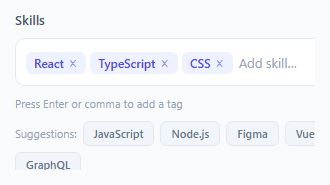
A tag input lets users type and add multiple tags or labels — used in filter selectors, skill lists, email address fields, and keyword inputs (the multi-select dropdown is the picker-based cousin). This snippet implements the full tag interaction: Enter to add, comma to add, duplicate prevention, click-to-remove, and backspace-to-undo.
Adding tags
The input listens for keydown. On Enter or , (comma), addTag(input.value) is called and the input is cleared. addTag(v) trims whitespace, checks for duplicates via querySelectorAll('.tag').map(...), and returns early if the tag already exists or is empty.
The tag element
Each tag is a <span class="tag"> with the tag text and a <span class="remove">×</span> button. The remove button's onclick calls tag.remove() — removing just that span from the DOM.
Backspace to remove last tag
When the input is empty and the user presses Backspace, the last tag is removed: document.querySelectorAll('.tag').at(-1)?.remove(). This matches the behaviour of email address inputs in Gmail and similar applications.
The Enter/comma add pattern
The tag input listens for keydown events. When Enter or comma is pressed, it calls addTag() which trims the input value, checks for duplicates, adds the tag to the array, creates a chip element, and clears the input. Comma detection uses e.key === ',' with e.preventDefault() to stop the comma character appearing in the input after the tag is added.
The backspace-last-remove pattern
When the input is empty (input.value === '') and Backspace is pressed, the last tag in the array is removed and the corresponding chip element is deleted from the DOM. This matches the standard tag input interaction that users expect from email address fields, filter chips, and CRM contact selectors.
Duplicate prevention
Before adding a tag, the current tags array is checked: if (tags.includes(newTag)) return. Show a brief shake animation on the existing duplicate chip to communicate "already added" without an error message. Add .shake { animation: shake 0.3s } to flash the duplicate chip briefly.
Connecting to form submission
Collect tag values for form submission: document.querySelector('form').addEventListener('submit', e => { e.preventDefault(); const values = tags; submitForm(values); }). Or use a hidden input to hold a JSON-encoded array: hiddenInput.value = JSON.stringify(tags). This makes the tag values available to standard HTML form submission without JavaScript preprocessing.
The Enter/comma add pattern
The tag input listens for keydown events. When Enter or comma is pressed, it calls addTag() which trims the input value, checks for duplicates, adds the tag to the array, creates a chip element, and clears the input. Comma detection uses e.key === ',' with e.preventDefault() to stop the comma character appearing in the input after the tag is added.
The backspace-last-remove pattern
When the input is empty (input.value === '') and Backspace is pressed, the last tag in the array is removed and the corresponding chip element is deleted from the DOM. This matches the standard tag input interaction that users expect from email address fields, filter chips, and CRM contact selectors.
Duplicate prevention
Before adding a tag, the current tags array is checked: if (tags.includes(newTag)) return. Show a brief shake animation on the existing duplicate chip to communicate "already added" without an error message. Add .shake { animation: shake 0.3s } to flash the duplicate chip briefly.
Connecting to form submission
Collect tag values for form submission: document.querySelector('form').addEventListener('submit', e => { e.preventDefault(); const values = tags; submitForm(values); }). Or use a hidden input to hold a JSON-encoded array: hiddenInput.value = JSON.stringify(tags). This makes the tag values available to standard HTML form submission without JavaScript preprocessing.
Step by step
How to Use
- 1Type and press EnterType a tag in the input and press Enter or comma to add it. Duplicate tags are rejected silently.
- 2Remove a tagClick the × on any tag to remove it from the list.
- 3Backspace to remove last tagWhen the input is empty, press Backspace to remove the most recently added tag.
- 4Update preset tagsIn the HTML panel, change the preset .tag spans to your default tags. Each needs a .remove span with onclick="this.parentNode.remove()".
- 5Limit tag countIn addTag(), add a check: if (existing.length >= 5) return; to limit the number of tags.
- 6Export in your formatClick "HTML" for a standalone file, "JSX" for a React component, or "Tailwind" for a React + Tailwind version.
Real-world uses
Common Use Cases
Got questions?
Frequently Asked Questions
addTag() calls querySelectorAll(".tag") and maps each element to its textContent with the × stripped. If the new value is already in this array, the function returns early without adding the tag.
const tags = [...document.querySelectorAll(".tag")].map(t => t.textContent.replace("×","").trim()); gives an array of tag strings. Append as JSON to a hidden form input or include directly in a fetch request body.
In addTag(), before creating the span: const count = document.querySelectorAll(".tag").length; if (count >= maxTags) return; — where maxTags is your limit.
Call addTag(value) from the dropdown item click handler. The duplicate check and DOM creation work the same way regardless of the trigger.
Yes. Click "JSX" for a React component. In React, manage tags as an array in useState. Add/remove by spreading: setTags(prev => [...prev, newTag]) and setTags(prev => prev.filter(t => t !== tag)).
Add a data-category attribute when creating the span. In CSS, use [data-category="design"] { background: #e0f2fe } etc. to colour-code tag categories.