


Tag Cloud — Weighted Tag Cloud HTML CSS JS
Tag Cloud · Navigation · Plain HTML, CSS & JS · Live preview
Copy & paste
Source Code
<div class="tc-card">
  <h3>Popular topics</h3>
  <div class="tc-cloud" id="tcCloud"></div>
  <p class="tc-note" id="tcNote">Click a topic to filter.</p>
</div>*{box-sizing:border-box;margin:0;padding:0}
body{font-family:system-ui,-apple-system,sans-serif;background:#f1f5f9;min-height:100vh;display:flex;align-items:center;justify-content:center;padding:24px}
.tc-card{background:#fff;border-radius:16px;padding:24px;width:100%;max-width:440px;box-shadow:0 18px 44px rgba(15,23,42,.08)}
.tc-card h3{font-size:16px;font-weight:800;color:#0f172a;margin-bottom:16px}
.tc-cloud{display:flex;flex-wrap:wrap;gap:8px 12px;align-items:center;line-height:1}
.tc-tag{border:none;background:none;cursor:pointer;font-family:inherit;font-weight:700;padding:4px 6px;border-radius:8px;
line-height:1.1;transition:transform .12s,background .15s,color .15s}
.tc-tag:hover{transform:scale(1.12)}
.tc-tag.tc-active{background:#eef2ff}
.tc-note{margin-top:16px;font-size:12.5px;color:#94a3b8;font-weight:600}
.tc-note b{color:#4f46e5;font-weight:800}var TAGS = [
{ label: 'JavaScript', count: 320 }, { label: 'CSS', count: 280 }, { label: 'React', count: 240 },
{ label: 'HTML', count: 210 }, { label: 'Design', count: 120 }, { label: 'Vue', count: 95 },
{ label: 'Accessibility', count: 88 }, { label: 'Performance', count: 76 }, { label: 'TypeScript', count: 160 },
{ label: 'Animation', count: 64 }, { label: 'SEO', count: 52 }, { label: 'Tailwind', count: 140 },
{ label: 'Node', count: 110 }, { label: 'Testing', count: 40 }, { label: 'Git', count: 70 },
];
var cloud = document.getElementById('tcCloud');
var note = document.getElementById('tcNote');
var active = null;
// Map each count into a font-size and colour band between the min and max counts,
// so weight is encoded by both size and hue.
var counts = TAGS.map(function (t) { return t.count; });
var min = Math.min.apply(null, counts), max = Math.max.apply(null, counts);
var MIN_PX = 13, MAX_PX = 32;
var COLORS = ['#94a3b8', '#818cf8', '#6366f1', '#4f46e5'];
function band(count) { return (count - min) / (max - min || 1); } // 0..1
cloud.innerHTML = TAGS.slice()
// Optional: shuffle so size, not order, carries the weight (here keep source order).
.map(function (t) {
var f = band(t.count);
var size = (MIN_PX + f * (MAX_PX - MIN_PX)).toFixed(1);
var color = COLORS[Math.min(COLORS.length - 1, Math.floor(f * COLORS.length))];
return '<button type="button" class="tc-tag" data-label="' + t.label + '" ' +
'style="font-size:' + size + 'px;color:' + color + '" title="' + t.count + ' posts">' + t.label + '</button>';
}).join('');
cloud.addEventListener('click', function (e) {
var tag = e.target.closest('.tc-tag');
if (!tag) return;
var label = tag.dataset.label;
if (active === label) {
active = null;
note.innerHTML = 'Click a topic to filter.';
} else {
active = label;
note.innerHTML = 'Filtering by <b>' + label + '</b>';
}
cloud.querySelectorAll('.tc-tag').forEach(function (el) {
el.classList.toggle('tc-active', el.dataset.label === active);
});
// In a real app: filter your list/results by the active tag here.
});Extend with AI
Take This Snippet Further With AI
The AI prompt for this one is for Patreon supporters ($3 a month, 7 days free), along with a site with no ads. Supporters enter the passcode once and it is remembered in this browser.
What's included
Features
About this UI Snippet
Tag Cloud — Tags Sized and Coloured by Weight, with Click-to-Filter
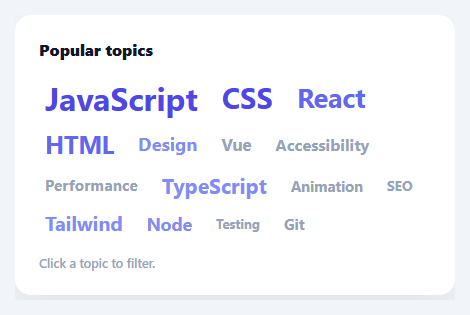
A tag cloud (or word cloud) shows a set of tags with the most frequent ones rendered larger, so popularity is visible at a glance. It is a compact way to surface topics, skills, or keywords and let users jump to one. This snippet builds a weighted, clickable tag cloud in plain HTML, CSS, and vanilla JavaScript — sizing and colouring each tag by its count — with no library.
Weight mapped to size and colour
Each tag has a count, and the snippet maps that count onto a font-size between a min and max, and onto a colour band, by normalising it against the smallest and largest counts in the set (band() returns 0–1). So the busiest tag is the biggest and boldest-coloured, the rarest the smallest and faintest, and everything scales in between. Encoding weight two ways — size *and* hue — makes the relative popularity readable even for users who find size-only clouds hard to compare, and it degrades gracefully whatever the actual count range is because it is relative, not absolute.
Real buttons, not styled text
Each tag is a <button>, so it is keyboard-focusable and announces as actionable to assistive tech — important because a tag cloud is navigation, not decoration. They wrap naturally with flexbox (flex-wrap) and align to a common baseline despite their different sizes, and each scales up slightly on hover for a tactile, clearly-clickable feel. A title shows the exact count on hover.
Click to filter
Clicking a tag marks it active (highlighted) and updates a status line; clicking it again clears the filter — a toggle. In a real app this is where you would filter your list or results by the selected tag; the snippet centralises that so wiring real filtering is a one-line addition in the click handler. Single-active toggling is the common tag-cloud interaction: pick a topic to narrow, click again to reset.
Relative, robust scaling
Because sizing is relative to the data's own min and max, the cloud looks right whether counts range 5–50 or 500–50,000 — you never have to retune the pixel sizes for a new dataset. The min/max font sizes and the colour palette are the two knobs you adjust for your design.
Data-driven and drop-in
The whole cloud renders from a TAGS array of { label, count }. Swap in your tags — blog topics, product categories, skills, search keywords — and it sizes, colours, and lays them out. It is a clear, dependency-free reference for weighted typographic scaling and accessible tag navigation. The code comment about shuffling is worth acting on for a real cloud: rendering tags in their source order (as this demo does, sorted roughly by count) makes the size gradient look deliberate and orderly, while a genuine word-cloud feel — where size, not position, carries the meaning — comes from shuffling the array before rendering so big and small tags interleave throughout the layout.
Step by step
How to Use
- 1Paste HTML, CSS, and JSA tag cloud renders with each tag sized and coloured by its count.
- 2Read the weightsBigger, bolder-coloured tags are more popular; hover shows the exact count.
- 3Click to filterClick a tag to mark it active; click again to clear. The status line updates.
- 4Wire real filteringIn the click handler, filter your list or results by the active tag.
- 5Swap in your dataReplace the TAGS array with your own { label, count } items.
- 6Tune the scaleAdjust MIN_PX/MAX_PX and the COLORS palette to fit your design.
Real-world uses
Common Use Cases
Got questions?
Frequently Asked Questions
Every tag's count is normalised to 0-1 against the smallest and largest counts in the set (band() = (count − min) / (max − min)), then mapped to a font-size between MIN_PX and MAX_PX and to a colour band. So the most frequent tag is the largest and most saturated, the least frequent the smallest and faintest, scaled relative to your data — not to fixed thresholds.
Relative scaling means the cloud looks balanced for any dataset — counts of 5 to 50 or 500 to 50,000 both span the full size range — so you never have to retune pixel sizes when the data changes. Absolute thresholds would make a low-count set all tiny or a high-count set all huge. The min/max normalisation adapts automatically.
A tag cloud is interactive navigation, not decorative text, so each tag is a real <button>: it is keyboard-focusable, works with Enter/Space, and is announced as a control by screen readers. Styling spans would look the same but lose all of that. Using buttons keeps the cloud accessible while still letting CSS make them look like sized text.
The click handler already tracks the active tag and toggles it. Add your filtering where noted: filter your list/results array by the active label (or null for no filter) and re-render. Because the active state is centralised, you can also drive it from the URL (e.g. ?tag=react) so filters are shareable and survive reloads.
Compute the size and colour for each tag from the data (a useMemo in React, computed in Vue, a getter in Angular) and render buttons from the TAGS array. Hold the active tag in state, toggle it on click, and derive your filtered content from it. The band()/scaling math is framework-agnostic — only the active state and rendering move into the framework.
Yes. While the Tag Cloud snippet gives you one pattern to copy, the free Responsive Navbar Builder at webdevpuneet.com/navbar-builder/ designs a whole navigation bar: logo, links and dropdown menus, a mobile hamburger menu (dropdown panel, slide-in drawer or full screen) and a scroll effect (sticky, shrink, hide on scroll or transparent). It has six presets, a live preview that runs the real code, and exports HTML + CSS + vanilla JS, React, Tailwind, Vue 3 or Angular — or you can click Fork & Edit to keep editing it in My Code.