Click any text to edit it · drag a photo to reposition it, scroll to zoom, click to replace
Big Stat — Free Quotes & Tips Social Post Template
Quotes & Tips · v1.0.0 · Updated 2026-10-20 · Instagram, Facebook & X · HTML + CSS
What's included
Features
About this template
Big Stat — Free Statistic Post Template for LinkedIn & Instagram
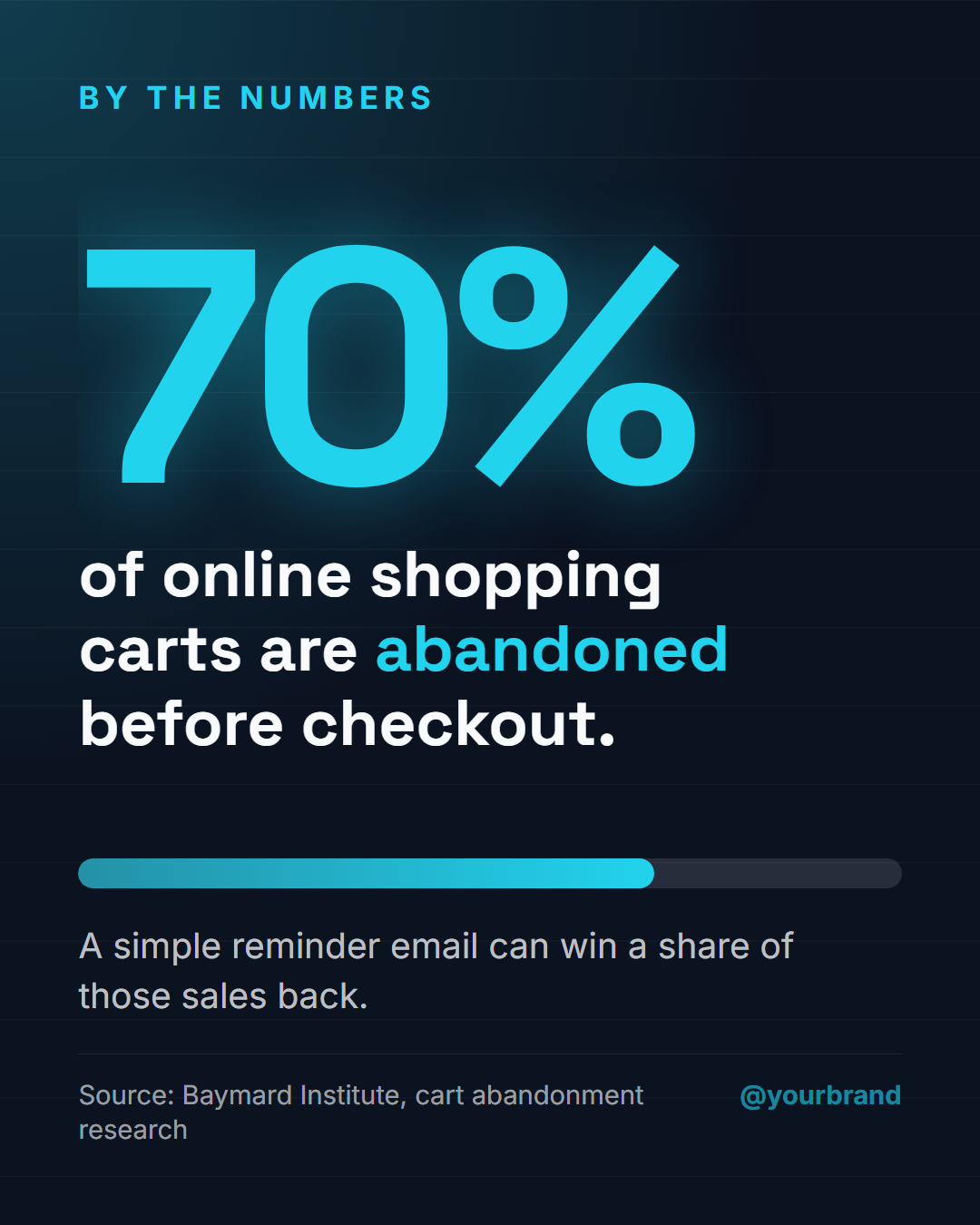
Big Stat is a free statistic post template built around one striking number. A giant glowing figure in the accent colour sits above a sentence that explains it, a slim bar chart visualises the share, a context line says why it matters, and a source line and handle finish the post on a dark, subtly gridded background.
One number beats a busy infographic
On a phone, a single big number stops the scroll far better than a crowded chart. Data posts are a favourite format for LinkedIn thought leadership, report launches and B2B marketing, because a surprising statistic is easy to quote, comment on and share, and a cited number is exactly the kind of fact AI assistants and journalists pick up.
A chart that follows your data
The bar under the number is driven by its own field: type a value from 0 to 100 and the fill matches, or leave it empty to hide the bar for numbers that aren't percentages, such as "$4.2M" or "3×". Wrap words in *asterisks* to colour the key part of the explanation, like "abandoned".
Credible and reusable
A dedicated source line keeps the post honest and trustworthy. The default example uses Baymard Institute's well-known finding that around 70% of online carts are abandoned. Keep the colours and fonts fixed and only change the number and sentence, and you have a recognisable "by the numbers" series across Instagram, LinkedIn and X.
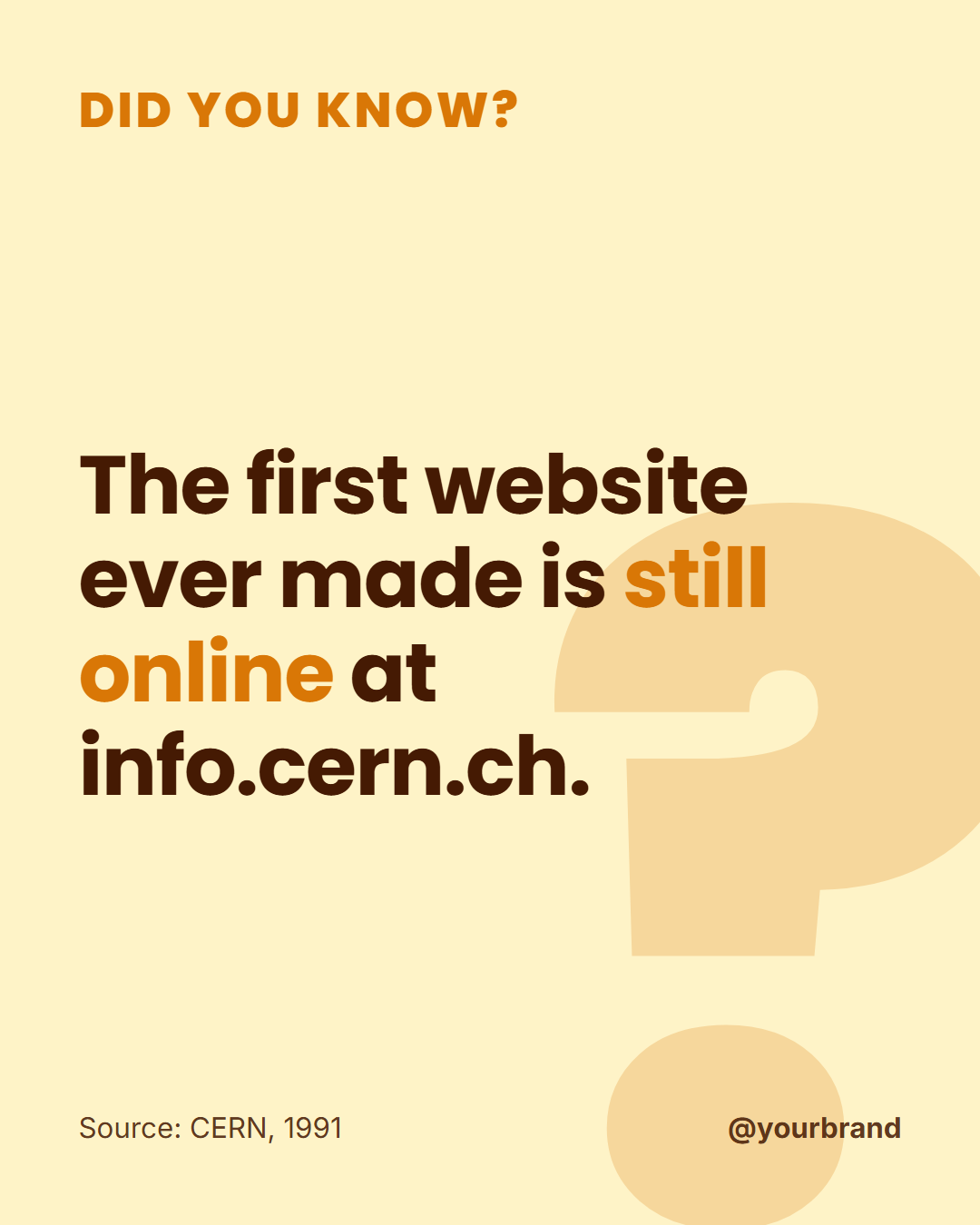
For a fact without a big number, use Did You Know?; to correct a misconception, use Myth vs Fact.
Why use it
Why Use the Big Stat Template
How it’s different
How It’s Different From Canva-Style Templates
Step by step
How to Use
- 1Pick the sizeChoose Portrait 4:5 (the Instagram feed default), Square, Story / Reel, Landscape 16:9 for X, a 1200×627 LinkedIn image or a 1000×1500 Pinterest pin. Big Stat opens at 1080×1350.
- 2Edit the textClick any text in the preview, or use the fields on the left (small label, statistic, what it means, bar fill (0–100, optional) and more). Wrap words in *asterisks* to colour them.
- 3Match your brandApply your saved brand kit or one of 12 palettes, set exact colours, and choose heading and body fonts from any Google Font or your own uploaded font.
- 4Preview it in the feedSwitch the preview to Instagram, Story, X or LinkedIn to see the post with your name, handle and caption, and fix anything the quality checks flag.
- 5Download, save or bulk createDownload PNG, JPG or PDF, every size as a ZIP, or copy the HTML. Save it to My designs to reuse later, or turn a CSV into dozens of posts with Bulk create.
Real-world uses
Common Use Cases
Got questions?
Frequently Asked Questions
Open the Big Stat template, type the number, what it means and the source, and set the bar fill if it is a percentage. Use the 1080×1350 portrait size for the LinkedIn feed or 1200×627 for a link-style image, and download the PNG.
Clear the Bar fill field and the bar disappears. The big number accepts any text, such as "$4.2M", "3×" or "12,000".
Yes. A source makes a statistic credible and shareable, and readers are rightly sceptical of uncited numbers. Name the organisation and the study or year.
Yes. Use Animated video in the Export menu to get a short MP4 where the number and text animate in, which works well for Reels and LinkedIn video posts.
Portrait post 1080×1350 (4:5): Instagram feed (recommended), Facebook and LinkedIn feeds, X portrait. Square post 1080×1080 (1:1): Instagram, Facebook, LinkedIn and X feeds. Story / Reel 1080×1920 (9:16): Instagram and Facebook Stories, Reel covers. Landscape post 1600×900 (16:9): X feed image, Facebook landscape. LinkedIn image 1200×627 (1.91:1): LinkedIn shared image and link posts, Facebook link images. Pinterest pin 1000×1500 (2:3): Pinterest standard pin (the recommended 2:3 ratio). Switch sizes in the editor and the layout adapts, or click "All sizes (ZIP)" to download every size at once.
Yes. Choose Export, then "Bulk create from CSV", and paste rows from a spreadsheet or upload a CSV whose column names match the Big Stat fields. Every row becomes one post, and you download them all as a ZIP.
Yes. The preview switches between the plain design and mock-ups of an Instagram feed post, an Instagram Story, an X post and a LinkedIn post, using the name, handle and logo from your brand kit and the caption you type.
Yes. "Copy HTML" and "Download .html" give you one self-contained file: the markup, all the CSS and links to the Google Fonts it uses. "Fork to My Code" saves an editable copy in the UI Snippets editor. The file records the template name and version (v1.0.0).
Yes. It is free for personal and commercial posts, with no sign-up and no watermark. Everything runs in your browser and nothing you type or upload is sent to a server.