


Clipboard Paste Button — Smart Paste Field in HTML & JS
Clipboard Paste Button · Buttons · Plain HTML, CSS & JS · Live preview
Copy & paste
Source Code
<section class="cpb-wrap">
  <span class="cpb-tag">navigator.clipboard · smart paste</span>
  <h1>Smart paste field</h1>
  <p class="cpb-lead">One click reads your clipboard. If the browser says no, the field arms itself so your own paste finishes the job.</p>

  <div class="cpb-card">
    <div class="cpb-row">
      <label class="cpb-label" for="cpbInput">Paste anything</label>
      <label class="cpb-switch"><input type="checkbox" id="cpbTrim" checked><span class="cpb-track"></span><span>Trim spaces</span></label>
    </div>

    <div class="cpb-field" id="cpbField">
      <textarea class="cpb-input" id="cpbInput" rows="1" placeholder="Tracking number, link, email, JSON, colour…" spellcheck="false" autocomplete="off"></textarea>
      <button class="cpb-x" id="cpbClear" type="button" aria-label="Clear field" hidden><svg viewBox="0 0 24 24" width="14" height="14" fill="none" stroke="currentColor" stroke-width="2.4" stroke-linecap="round"><path d="M6 6l12 12M18 6L6 18"/></svg></button>
    </div>

    <div class="cpb-detect" id="cpbDetect">
      <span class="cpb-chip" id="cpbChip" data-type="none">Empty</span>
      <span class="cpb-meta" id="cpbMeta">Detects what you paste</span>
      <span class="cpb-action" id="cpbAction"></span>
    </div>

    <div class="cpb-image" id="cpbImage" hidden>
      <img id="cpbThumb" alt="Pasted image preview" width="44" height="44">
      <div><b>Image pasted</b><span id="cpbImgInfo"></span></div>
      <button type="button" class="cpb-link" id="cpbImgRemove">Remove</button>
    </div>

    <div class="cpb-actions">
      <button class="cpb-btn primary" id="cpbPasteBtn" type="button" data-state="idle">
        <svg class="ic-paste" viewBox="0 0 24 24" width="16" height="16" fill="none" stroke="currentColor" stroke-width="2" stroke-linecap="round" stroke-linejoin="round"><rect x="8" y="2" width="8" height="4" rx="1"/><path d="M16 4h2a2 2 0 012 2v14a2 2 0 01-2 2H6a2 2 0 01-2-2V6a2 2 0 012-2h2"/></svg>
        <svg class="ic-check" viewBox="0 0 24 24" width="16" height="16" fill="none" stroke="currentColor" stroke-width="2.6" stroke-linecap="round" stroke-linejoin="round"><path d="M20 6L9 17l-5-5"/></svg>
        <i class="ic-spin"></i>
        <span id="cpbPasteLabel">Paste from clipboard</span>
      </button>
      <button class="cpb-btn" id="cpbCopyBtn" type="button" data-state="idle">
        <svg class="ic-copy" viewBox="0 0 24 24" width="16" height="16" fill="none" stroke="currentColor" stroke-width="2" stroke-linecap="round" stroke-linejoin="round"><rect x="9" y="9" width="12" height="12" rx="2"/><path d="M5 15H4a2 2 0 01-2-2V4a2 2 0 012-2h9a2 2 0 012 2v1"/></svg>
        <svg class="ic-check" viewBox="0 0 24 24" width="16" height="16" fill="none" stroke="currentColor" stroke-width="2.6" stroke-linecap="round" stroke-linejoin="round"><path d="M20 6L9 17l-5-5"/></svg>
        <span id="cpbCopyLabel">Copy</span>
      </button>
    </div>

    <div class="cpb-armed" id="cpbArmed" hidden>
      <div class="cpb-keys"><kbd id="cpbKeyMod">Ctrl</kbd><b>+</b><kbd id="cpbKeyV">V</kbd></div>
      <p id="cpbArmedMsg"></p>
    </div>

    <p class="cpb-status" role="status" aria-live="polite"><span id="cpbStatusText">Example loaded. Press Paste, or copy something and try it.</span><button type="button" class="cpb-link" id="cpbUndo" hidden>Undo</button></p>

    <div class="cpb-recent" id="cpbRecent" hidden><span>Recent</span><div id="cpbChips"></div></div>
  </div>

  <p class="cpb-note">Clipboard reads need HTTPS, a click, and usually a permission. Inside a sandboxed preview frame they are often blocked, and that is exactly the case the armed state handles. Recent pastes live in memory only and are never saved.</p>
</section>*{box-sizing:border-box;margin:0;padding:0}
[hidden]{display:none!important}
body{font-family:system-ui,-apple-system,'Segoe UI',sans-serif;background:radial-gradient(120% 90% at 50% 0%,#241b3d,#08070f 62%);color:#fff;min-height:100vh;display:flex;align-items:center;justify-content:center;padding:26px}
.cpb-wrap{width:100%;max-width:460px;text-align:center}
.cpb-tag{display:inline-block;font-size:10.5px;font-weight:700;letter-spacing:.14em;text-transform:uppercase;color:#c4b5fd;background:rgba(196,181,253,.1);border:1px solid rgba(196,181,253,.3);padding:5px 12px;border-radius:99px;margin-bottom:14px}
.cpb-wrap h1{font-size:clamp(24px,6vw,32px);font-weight:800;letter-spacing:-.02em}
.cpb-lead{font-size:13.5px;color:#a89dc2;margin:8px auto 0;line-height:1.6;max-width:380px}
.cpb-card{margin-top:22px;border-radius:18px;border:1px solid rgba(196,181,253,.2);background:linear-gradient(180deg,#161127,#0f0b1b);padding:18px;text-align:left;box-shadow:0 24px 60px -28px rgba(168,85,247,.55)}
.cpb-row{display:flex;align-items:center;justify-content:space-between;gap:10px;margin-bottom:9px}
.cpb-label{font-size:11.5px;font-weight:700;letter-spacing:.06em;text-transform:uppercase;color:#9a8cc0}
.cpb-switch{display:flex;align-items:center;gap:7px;font-size:11.5px;color:#9a8cc0;cursor:pointer}
.cpb-switch input{position:absolute;opacity:0;width:0;height:0}
.cpb-track{position:relative;width:28px;height:16px;border-radius:99px;background:#2a2342;transition:background .2s}
.cpb-track::after{content:'';position:absolute;top:2px;left:2px;width:12px;height:12px;border-radius:50%;background:#cbbff0;transition:transform .2s}
.cpb-switch input:checked+.cpb-track{background:#8b5cf6}
.cpb-switch input:checked+.cpb-track::after{transform:translateX(12px);background:#fff}
.cpb-switch input:focus-visible+.cpb-track{outline:2px solid #c4b5fd;outline-offset:2px}
.cpb-field{position:relative;border-radius:12px}
.cpb-input{display:block;width:100%;min-height:46px;max-height:120px;resize:none;padding:13px 40px 13px 14px;border-radius:12px;border:1px solid rgba(255,255,255,.14);background:rgba(255,255,255,.04);color:#fff;font:14.5px ui-monospace,SFMono-Regular,Menlo,Consolas,monospace;line-height:1.4;outline:none;transition:border-color .15s,box-shadow .15s}
.cpb-input{scrollbar-width:thin;scrollbar-color:rgba(196,181,253,.4) transparent}
.cpb-input::-webkit-scrollbar{width:5px}
.cpb-input::-webkit-scrollbar-track{background:transparent;margin:8px 0}
.cpb-input::-webkit-scrollbar-thumb{background:rgba(196,181,253,.35);border-radius:99px}
.cpb-input::-webkit-scrollbar-thumb:hover{background:rgba(196,181,253,.6)}
.cpb-input::placeholder{color:#6c5f8d;font-family:system-ui,sans-serif}
.cpb-input:focus{border-color:#c4b5fd;box-shadow:0 0 0 3px rgba(196,181,253,.18)}
.cpb-field.armed .cpb-input{border-color:#fbbf24;animation:cpbArm 1.4s ease-in-out infinite}
.cpb-field.shake{animation:cpbShake .4s}
@keyframes cpbArm{0%,100%{box-shadow:0 0 0 0 rgba(251,191,36,.45)}50%{box-shadow:0 0 0 6px rgba(251,191,36,0)}}
@keyframes cpbShake{20%{transform:translateX(-5px)}40%{transform:translateX(5px)}60%{transform:translateX(-3px)}80%{transform:translateX(3px)}}
.cpb-x{position:absolute;top:10px;right:10px;width:26px;height:26px;border-radius:8px;border:0;background:rgba(255,255,255,.08);color:#cbbff0;cursor:pointer;display:grid;place-items:center;transition:background .15s}
.cpb-x:hover{background:rgba(255,255,255,.16)}
.cpb-x:focus-visible,.cpb-btn:focus-visible,.cpb-link:focus-visible,.cpb-chipbtn:focus-visible{outline:2px solid #c4b5fd;outline-offset:2px}
.cpb-detect{display:flex;align-items:center;gap:9px;flex-wrap:wrap;margin-top:11px;min-height:26px}
.cpb-chip{font-size:10.5px;font-weight:800;letter-spacing:.08em;text-transform:uppercase;padding:4px 10px;border-radius:99px;color:#0f0b1b;background:#94a3b8;transition:background .2s}
.cpb-chip[data-type=none]{background:rgba(255,255,255,.1);color:#9a8cc0}
.cpb-chip[data-type=link]{background:#38bdf8}.cpb-chip[data-type=email]{background:#f472b6}.cpb-chip[data-type=phone]{background:#34d399}
.cpb-chip[data-type=tracking]{background:#fbbf24}.cpb-chip[data-type=json]{background:#a78bfa}.cpb-chip[data-type=color]{background:#fff}.cpb-chip[data-type=number]{background:#fb923c}
.cpb-meta{font-size:12.5px;color:#b9aedb;display:flex;align-items:center;gap:7px;min-width:0;overflow:hidden;text-overflow:ellipsis;white-space:nowrap}
.cpb-swatch{width:14px;height:14px;border-radius:4px;border:1px solid rgba(255,255,255,.4);flex:none}
.cpb-action{margin-left:auto}
.cpb-link{background:none;border:0;color:#c4b5fd;font:700 12.5px system-ui;cursor:pointer;text-decoration:none;padding:2px 4px;border-radius:5px}
.cpb-link:hover{color:#fff;text-decoration:underline}
.cpb-image{display:flex;align-items:center;gap:12px;margin-top:12px;padding:10px;border-radius:12px;background:rgba(255,255,255,.04);border:1px dashed rgba(196,181,253,.35)}
.cpb-image img{width:44px;height:44px;border-radius:8px;object-fit:cover;background:#2a2342}
.cpb-image div{display:flex;flex-direction:column;font-size:12px;color:#9a8cc0;flex:1;min-width:0}
.cpb-image b{color:#fff;font-size:13px}
.cpb-actions{display:flex;gap:10px;margin-top:14px}
.cpb-btn{flex:1;display:flex;align-items:center;justify-content:center;gap:8px;padding:12px;border-radius:12px;border:1px solid rgba(255,255,255,.16);background:rgba(255,255,255,.05);color:#e8e2f5;font:700 13px system-ui;cursor:pointer;transition:background .15s,border-color .15s,transform .1s,color .15s}
.cpb-btn:hover{background:rgba(255,255,255,.1)}
.cpb-btn:active{transform:scale(.97)}
.cpb-btn.primary{background:linear-gradient(135deg,#c084fc,#818cf8);border-color:transparent;color:#1a0f2e;flex:1.5;box-shadow:0 8px 22px -10px rgba(168,85,247,.9)}
.cpb-btn.primary:hover{filter:brightness(1.08)}
.cpb-btn .ic-check,.cpb-btn .ic-spin{display:none}
.cpb-btn[data-state=done]{background:rgba(74,222,128,.16);border-color:rgba(74,222,128,.45);color:#86efac;box-shadow:none}
.cpb-btn[data-state=done] .ic-paste,.cpb-btn[data-state=done] .ic-copy,.cpb-btn[data-state=reading] .ic-paste{display:none}
.cpb-btn[data-state=done] .ic-check{display:block;animation:cpbPop .35s ease-out}
.cpb-btn[data-state=reading] .ic-spin{display:block;width:16px;height:16px;border-radius:50%;border:2.4px solid rgba(26,15,46,.25);border-top-color:#1a0f2e;animation:cpbSpin .7s linear infinite}
.cpb-btn[data-state=armed]{background:linear-gradient(135deg,#fbbf24,#f59e0b);color:#2b1a00;animation:cpbArm 1.4s ease-in-out infinite}
@keyframes cpbPop{0%{transform:scale(.3);opacity:0}70%{transform:scale(1.25)}100%{transform:scale(1);opacity:1}}
@keyframes cpbSpin{to{transform:rotate(360deg)}}
.cpb-armed{display:flex;align-items:center;gap:14px;margin-top:12px;padding:12px 14px;border-radius:12px;background:rgba(251,191,36,.08);border:1px solid rgba(251,191,36,.35)}
.cpb-armed p{font-size:12px;line-height:1.55;color:#f5deb0}
.cpb-keys{display:flex;align-items:center;gap:5px;flex:none}
.cpb-keys b{color:#d6b366;font-size:12px}
.cpb-keys kbd{font:800 12px system-ui;color:#f5deb0;background:#2b2210;border:1px solid #6b5522;border-bottom-width:3px;border-radius:7px;padding:5px 9px;min-width:30px;text-align:center;transition:transform .08s,background .1s}
.cpb-keys kbd.down{transform:translateY(2px);border-bottom-width:1px;background:#fbbf24;color:#2b1a00}
.cpb-status{display:flex;align-items:center;gap:8px;min-height:20px;margin-top:12px;font-size:12.5px;color:#a89dc2}
.cpb-recent{display:flex;align-items:center;gap:10px;margin-top:12px;padding-top:12px;border-top:1px solid rgba(255,255,255,.07)}
.cpb-recent>span{font-size:10.5px;font-weight:800;letter-spacing:.12em;text-transform:uppercase;color:#6c5f8d;flex:none}
.cpb-recent div{display:flex;gap:6px;flex-wrap:wrap;min-width:0}
.cpb-chipbtn{display:flex;align-items:center;gap:6px;max-width:150px;padding:4px 10px;border-radius:99px;border:1px solid rgba(255,255,255,.14);background:rgba(255,255,255,.04);color:#d7cdf0;font:12px ui-monospace,Menlo,Consolas,monospace;cursor:pointer;transition:background .15s,border-color .15s}
.cpb-chipbtn:hover{background:rgba(255,255,255,.1);border-color:rgba(196,181,253,.5)}
.cpb-chipbtn i{width:7px;height:7px;border-radius:50%;flex:none;background:#94a3b8}
.cpb-chipbtn span{overflow:hidden;text-overflow:ellipsis;white-space:nowrap}
.cpb-note{font-size:11.5px;color:#6c5f8d;max-width:420px;margin:16px auto 0;line-height:1.6}
@media(max-width:420px){.cpb-actions{flex-direction:column}.cpb-armed{flex-direction:column;align-items:flex-start}}
@media(prefers-reduced-motion:reduce){.cpb-field.armed .cpb-input,.cpb-btn[data-state=armed],.cpb-field.shake,.cpb-btn[data-state=done] .ic-check{animation:none}.cpb-btn[data-state=reading] .ic-spin{animation-duration:1.6s}}var $ = function (id) { return document.getElementById(id); };
var input = $('cpbInput'), field = $('cpbField'), clearBtn = $('cpbClear'), trimBox = $('cpbTrim');
var chip = $('cpbChip'), meta = $('cpbMeta'), actionEl = $('cpbAction');
var pasteBtn = $('cpbPasteBtn'), pasteLabel = $('cpbPasteLabel'), copyBtn = $('cpbCopyBtn'), copyLabel = $('cpbCopyLabel');
var armedBox = $('cpbArmed'), armedMsg = $('cpbArmedMsg'), keyMod = $('cpbKeyMod'), keyV = $('cpbKeyV');
var statusText = $('cpbStatusText'), undoBtn = $('cpbUndo');
var recentBox = $('cpbRecent'), chipsEl = $('cpbChips');
var imageBox = $('cpbImage'), thumb = $('cpbThumb'), imgInfo = $('cpbImgInfo');
var isMac = /Mac|iPhone|iPad/.test(navigator.platform || navigator.userAgent || '');
keyMod.textContent = isMac ? '\u2318' : 'Ctrl';
var PASTE_LABELS = { idle: 'Paste from clipboard', reading: 'Waiting for the browser\u2026', done: 'Pasted', armed: 'Now press ' + (isMac ? '\u2318 V' : 'Ctrl V') };
var recent = [], undoValue = null, undoTimer = 0, readToken = 0, imgUrl = '';
var pretty = false;
// ── Detect what was pasted ──
var CARRIERS = {
UPS: function (n) { return 'https://www.ups.com/track?tracknum=' + n; },
FedEx: function (n) { return 'https://www.fedex.com/fedextrack/?trknbr=' + n; },
USPS: function (n) { return 'https://tools.usps.com/go/TrackConfirmAction?tLabels=' + n; }
};
function detect(raw) {
var v = raw.trim();
if (!v) return null;
if (/^[\[{]/.test(v)) {
try { var o = JSON.parse(v); return { type: 'json', label: 'JSON', meta: 'Valid \u00b7 ' + (Array.isArray(o) ? o.length + ' items' : Object.keys(o).length + ' keys'), json: true }; } catch (e) {}
}
if (/^https?:\/\/\S+$/i.test(v)) {
try { var u = new URL(v); return { type: 'link', label: 'Link', meta: u.hostname.replace(/^www\./, '') + (u.pathname.length > 1 ? u.pathname.slice(0, 22) : ''), href: u.href, linkText: 'Open \u2197' }; } catch (e) {}
}
if (/^[^\s@]+@[^\s@]+\.[^\s@]{2,}$/.test(v)) return { type: 'email', label: 'Email', meta: v.split('@')[1], href: 'mailto:' + v, linkText: 'Write \u2197' };
if (/^#([0-9a-f]{3}|[0-9a-f]{6})$/i.test(v)) return { type: 'color', label: 'Colour', meta: v.toUpperCase(), swatch: v };
var c = v.replace(/[\s-]/g, '');
var carrier = /^1Z[0-9A-Z]{16}$/i.test(c) ? 'UPS' : /^9\d{19,21}$/.test(c) ? 'USPS' : /^(\d{12}|\d{15})$/.test(c) ? 'FedEx' : '';
if (carrier) return { type: 'tracking', label: 'Tracking', meta: carrier + ' \u00b7 ' + c.length + ' characters', href: CARRIERS[carrier](c.toUpperCase()), linkText: 'Track \u2197' };
var digits = v.replace(/\D/g, '').length;
if (/^\+?[\d\s().-]{7,20}$/.test(v) && digits >= 7 && digits <= 15 && (/[+\s().-]/.test(v) || digits >= 10)) return { type: 'phone', label: 'Phone', meta: digits + ' digits', href: 'tel:' + v.replace(/[^\d+]/g, ''), linkText: 'Call \u2197' };
if (/^-?\d[\d,]*(\.\d+)?$/.test(v)) return { type: 'number', label: 'Number', meta: Number(v.replace(/,/g, '')).toLocaleString() };
var lines = v.split(/\n/).length;
return { type: 'text', label: 'Text', meta: lines > 1 ? lines + ' lines \u00b7 ' + v.length + ' characters' : v.length + ' characters' };
}
function renderDetect() {
var d = detect(input.value);
actionEl.textContent = '';
meta.textContent = '';
if (!d) { chip.textContent = 'Empty'; chip.setAttribute('data-type', 'none'); meta.textContent = 'Detects what you paste'; return; }
chip.textContent = d.label; chip.setAttribute('data-type', d.type);
if (d.swatch) { var sw = document.createElement('i'); sw.className = 'cpb-swatch'; sw.style.background = d.swatch; meta.appendChild(sw); }
meta.appendChild(document.createTextNode(d.meta));
if (d.href) {
var a = document.createElement('a'); a.className = 'cpb-link'; a.href = d.href; a.textContent = d.linkText;
if (d.href.indexOf('http') === 0) { a.target = '_blank'; a.rel = 'noopener noreferrer'; }
actionEl.appendChild(a);
} else if (d.json) {
var b = document.createElement('button'); b.type = 'button'; b.className = 'cpb-link'; b.textContent = pretty ? 'Minify' : 'Prettify';
b.addEventListener('click', function () {
try { var o = JSON.parse(input.value); pretty = !pretty; input.value = pretty ? JSON.stringify(o, null, 2) : JSON.stringify(o); sync(); } catch (e) {}
});
actionEl.appendChild(b);
}
}
function autosize() { input.style.height = 'auto'; input.style.height = Math.min(input.scrollHeight + 2, 120) + 'px'; }
function sync() { clearBtn.hidden = !input.value; autosize(); renderDetect(); }
function setValue(v) { input.value = v; pretty = /\n\s+"/.test(v); sync(); }
// ── Status, undo, recent ──
function setStatus(text, canUndo) {
statusText.textContent = text; undoBtn.hidden = !canUndo;
clearTimeout(undoTimer);
if (canUndo) undoTimer = setTimeout(function () { undoValue = null; undoBtn.hidden = true; }, 7000);
}
function offerUndo(prev, text) { if (prev !== input.value) { undoValue = prev; setStatus(text, true); } else setStatus(text, false); }
undoBtn.addEventListener('click', function () { if (undoValue === null) return; setValue(undoValue); undoValue = null; setStatus('Restored the previous value.', false); input.focus(); });
function remember(v) {
if (!v || v.length > 200) return;
recent = recent.filter(function (x) { return x !== v; });
recent.unshift(v); recent = recent.slice(0, 5);
chipsEl.textContent = '';
recent.forEach(function (val) {
var d = detect(val), b = document.createElement('button'), dot = document.createElement('i'), sp = document.createElement('span');
b.type = 'button'; b.className = 'cpb-chipbtn'; b.title = val;
dot.style.background = ({ link: '#38bdf8', email: '#f472b6', phone: '#34d399', tracking: '#fbbf24', json: '#a78bfa', color: val, number: '#fb923c' })[d && d.type] || '#94a3b8';
sp.textContent = val.replace(/\s+/g, ' ');
b.appendChild(dot); b.appendChild(sp);
b.addEventListener('click', function () { apply(val, 'history'); });
chipsEl.appendChild(b);
});
recentBox.hidden = recent.length < 2;
}
// ── Paste button states ──
function setPasteState(s) { pasteBtn.setAttribute('data-state', s); pasteLabel.textContent = PASTE_LABELS[s]; }
function arm(reason) {
armedMsg.textContent = reason + ' Your own paste still works, and the field is ready for it.';
armedBox.hidden = false; field.classList.add('armed'); setPasteState('armed'); setStatus('Waiting for your paste\u2026', false); input.focus();
}
function disarm() { armedBox.hidden = true; field.classList.remove('armed'); if (pasteBtn.getAttribute('data-state') !== 'done') setPasteState('idle'); }
var doneTimer = 0;
function flashPasted() { setPasteState('done'); clearTimeout(doneTimer); doneTimer = setTimeout(function () { if (pasteBtn.getAttribute('data-state') === 'done') setPasteState('idle'); }, 1500); }
function hideImage() { if (imgUrl) { URL.revokeObjectURL(imgUrl); imgUrl = ''; } imageBox.hidden = true; }
function showImage(file) {
hideImage(); imgUrl = URL.createObjectURL(file); thumb.src = imgUrl;
var kb = file.size / 1024, base = (file.type.split('/')[1] || 'image').toUpperCase() + ' \u00b7 ' + (kb < 10 ? kb.toFixed(1) : Math.round(kb)) + ' KB';
imgInfo.textContent = base; imageBox.hidden = false;
thumb.onload = function () { imgInfo.textContent = base + ' \u00b7 ' + thumb.naturalWidth + ' \u00d7 ' + thumb.naturalHeight; };
}
$('cpbImgRemove').addEventListener('click', function () { hideImage(); setStatus('Image removed.', false); input.focus(); });
function apply(text, source) {
var prev = input.value, clean = trimBox.checked ? text.trim() : text, trimmed = text.length - clean.length;
hideImage(); setValue(clean); remember(clean); disarm(); flashPasted();
offerUndo(prev, (source === 'history' ? 'Restored ' : 'Pasted ') + clean.length + ' characters' + (trimmed ? ' (trimmed ' + trimmed + ' of spacing)' : '') + '.');
}
async function pasteClick() {
var token = ++readToken;
setPasteState('reading');
if (!navigator.clipboard || !navigator.clipboard.readText) { arm('This browser or context does not offer one-click clipboard reads.'); return; }
try {
var text = await navigator.clipboard.readText();
if (token !== readToken) return; // the user pasted by hand while a prompt was open
if (!text) { arm('The clipboard is empty, or holds something that is not text.'); return; }
apply(text, 'button');
} catch (err) {
if (token !== readToken) return;
arm(err && err.name === 'NotAllowedError' ? 'The browser blocked clipboard access (permission denied, or this frame is sandboxed).' : 'Clipboard access failed (' + (err && err.name ? err.name : 'unknown') + ').');
}
}
pasteBtn.addEventListener('click', pasteClick);
// A native paste always works, so the field finishes the job when the API refuses
input.addEventListener('paste', function (e) {
var cd = e.clipboardData; if (!cd) return;
readToken++;
var file = null;
for (var i = 0; i < cd.items.length; i++) if (cd.items[i].kind === 'file' && cd.items[i].type.indexOf('image/') === 0) file = cd.items[i].getAsFile();
if (file && !cd.getData('text')) { e.preventDefault(); showImage(file); disarm(); setStatus('Pasted an image. Text fields only take text, so it is shown here.', false); return; }
var prev = input.value;
setTimeout(function () {
if (trimBox.checked) input.value = input.value.trim();
hideImage(); sync(); remember(input.value); disarm(); flashPasted();
offerUndo(prev, 'Pasted ' + input.value.length + ' characters.');
}, 0);
});
input.addEventListener('input', function () { sync(); if (!armedBox.hidden) disarm(); });
input.addEventListener('keydown', function (e) { if (e.key === 'Escape' && input.value) { e.preventDefault(); clearField(); } });
function clearField() { var prev = input.value; setValue(''); offerUndo(prev, 'Field cleared.'); input.focus(); }
clearBtn.addEventListener('click', clearField);
// ── Copy ──
function legacyCopy(text) {
var t = document.createElement('textarea'); t.value = text; t.style.cssText = 'position:fixed;opacity:0;top:0;left:0';
document.body.appendChild(t); t.focus(); t.select();
var ok = false; try { ok = document.execCommand('copy'); } catch (e) {}
document.body.removeChild(t); return ok;
}
async function copyClick() {
var text = input.value;
if (!text) { field.classList.remove('shake'); void field.offsetWidth; field.classList.add('shake'); input.focus(); setStatus('Nothing to copy yet. Paste or type something first.', false); return; }
var ok = false;
if (navigator.clipboard && navigator.clipboard.writeText) { try { await navigator.clipboard.writeText(text); ok = true; } catch (e) {} }
if (!ok) ok = legacyCopy(text);
if (ok) {
copyBtn.setAttribute('data-state', 'done'); copyLabel.textContent = 'Copied'; setStatus('Copied ' + text.length + ' characters.', false);
setTimeout(function () { copyBtn.setAttribute('data-state', 'idle'); copyLabel.textContent = 'Copy'; }, 1600);
} else { input.focus(); input.select(); setStatus('Copy was blocked, so the text is selected. Press ' + (isMac ? '\u2318 C' : 'Ctrl C') + '.', false); }
}
copyBtn.addEventListener('click', copyClick);
// Keycaps press down while you hold the real keys
function keycap(e, down) {
if (armedBox.hidden) return;
if (e.key === 'Control' || e.key === 'Meta') keyMod.classList.toggle('down', down);
if (e.key.toLowerCase() === 'v') keyV.classList.toggle('down', down);
}
document.addEventListener('keydown', function (e) { keycap(e, true); });
document.addEventListener('keyup', function (e) { keycap(e, false); });
// First-time visitors start with a value so the detection is visible
setValue('1Z999AA10123456784');
remember('1Z999AA10123456784');Extend with AI
Take This Snippet Further With AI
The AI prompt for this one is for Patreon supporters ($3 a month, 7 days free), along with a site with no ads. Supporters enter the passcode once and it is remembered in this browser.
What's included
Features
About this UI Snippet
Clipboard Paste Button — One-Click Paste That Still Works When the Browser Says No
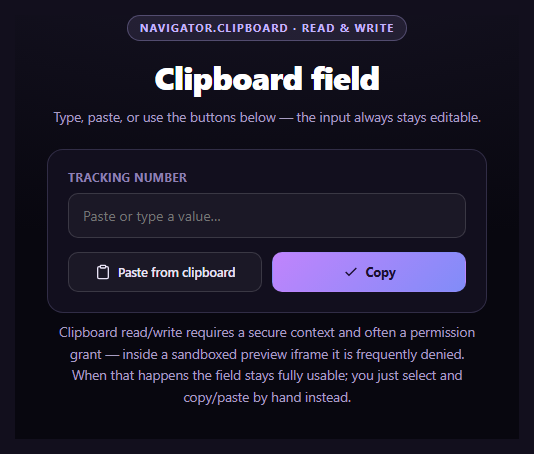
This snippet is a paste field built around one awkward fact: navigator.clipboard.readText() is permission-gated, needs HTTPS and a click, and is frequently blocked outright inside sandboxed iframes. Most paste buttons simply break when that happens. This one treats a refusal as a normal state. The button tries a one-click read, and if the browser declines, the field *arms* itself and shows the keys to press, so a native paste finishes the job and the user never hits a dead end.
The paste button and its four states
The button moves through idle, reading, done and armed, driven by a single data-state attribute so CSS draws each one: a clipboard icon, a spinner while the browser decides, an animated check, and a pulsing amber state that says "Now press Ctrl V" (or the command key on Apple devices). If a permission prompt is left open and the user pastes by hand instead, a read token makes the late result get ignored rather than overwriting what they just pasted.
Armed fallback instead of an error
When readText() rejects with NotAllowedError, is missing, or returns an empty string, arm() focuses the field, pulses its border and shows a pair of keycaps that physically press down as you hold the real keys. The reason is stated in plain words, and a native paste event on the field is never gated by the Clipboard API, so it always works. That event reads clipboardData, so the same path also catches pasted images.
Detecting what was pasted
Every value is classified as you type or paste: a link, email address, phone number, hex colour, number, valid JSON, or a parcel tracking number matched to UPS, FedEx or USPS formats. Each type gets a colour chip, a short description, and one useful action: Open, Write, Call, Track (a carrier tracking link), or Prettify and Minify for JSON. Links are built with DOM methods and rel="noopener noreferrer", and pasted text is only ever assigned with textContent, never as HTML.
Trim, undo and recent pastes
A switch trims stray spaces and line breaks that clipboards love to add, and the status line reports how many characters were removed. Every paste, clear or restore offers a seven-second Undo. Escape clears the field, also undoable. The last five distinct pastes appear as chips you can click to reuse. They live in memory only and are never written to storage, which matters when people paste tokens and addresses.
Copying back out
Copy calls navigator.clipboard.writeText(), falls back to a hidden textarea and document.execCommand('copy'), and as a last resort selects the text so the manual shortcut is one keystroke. An empty field shakes instead of copying nothing. Pair it with a plain copy button, an API key copy field for secrets, or a paste-to-upload area for files.
Accessibility and motion
The status line is a polite live region, every control is a real button with a visible focus ring, the trim switch is a native checkbox, and prefers-reduced-motion stops the pulses and shake. The layout stacks on narrow screens.
Step by step
How to Use
- 1Press "Paste from clipboard"The button calls navigator.clipboard.readText() from your click. The browser may ask once for permission; while it decides, the button shows a spinner.
- 2See what you pastedThe chip names the type: link, email, phone, hex colour, number, JSON or a UPS, FedEx or USPS tracking number. The action beside it opens, calls, tracks or prettifies it.
- 3Follow the armed hint if access is blockedWhen the browser refuses, the button turns amber, the field glows and the keycaps show what to press. A normal paste then fills the field, and it also accepts pasted images.
- 4Undo, clear and reuseUndo appears for seven seconds after any paste or clear. Press Escape to clear, and click a Recent chip to bring an earlier value back. Turn off Trim spaces to keep padding.
- 5Copy it back outCopy writes the field to the clipboard and confirms with a check. An empty field shakes, and if every method is blocked the text is selected for a manual copy.
- 6Wire it into your formReplace the detect() rules with your own validator, swap the textarea for an input, or call apply(text) from your own button to reuse the trim, undo and history behaviour.
Real-world uses
Common Use Cases
Got questions?
Frequently Asked Questions
readText() needs HTTPS, a click and usually a permission, and sandboxed frames often block it with no prompt at all. The amber state means the browser refused, and the field is armed so your own paste, which is never blocked, still fills it.
No. Browsers only allow readText() in direct response to a user gesture and normally ask permission first. This snippet calls it solely when you press the Paste button, and keeps recent pastes in memory, never in storage.
A text field cannot hold an image, so the native paste event is caught and the picture appears as a thumbnail with its type, size and pixel dimensions. Remove clears it, and the one-click button reads text only.
It matches common formats only: UPS 1Z numbers, 12 or 15 digit FedEx numbers and 20 to 22 digit USPS numbers starting with 9. Other carriers fall back to Number or Text, and you can add patterns to the CARRIERS table.
Yes. Pasted text is only assigned with textContent and value, never as HTML. Links are limited to valid http and https URLs and open with rel noopener noreferrer, and mailto and tel links are built from the validated value.